


What do you need to build a gaming pc
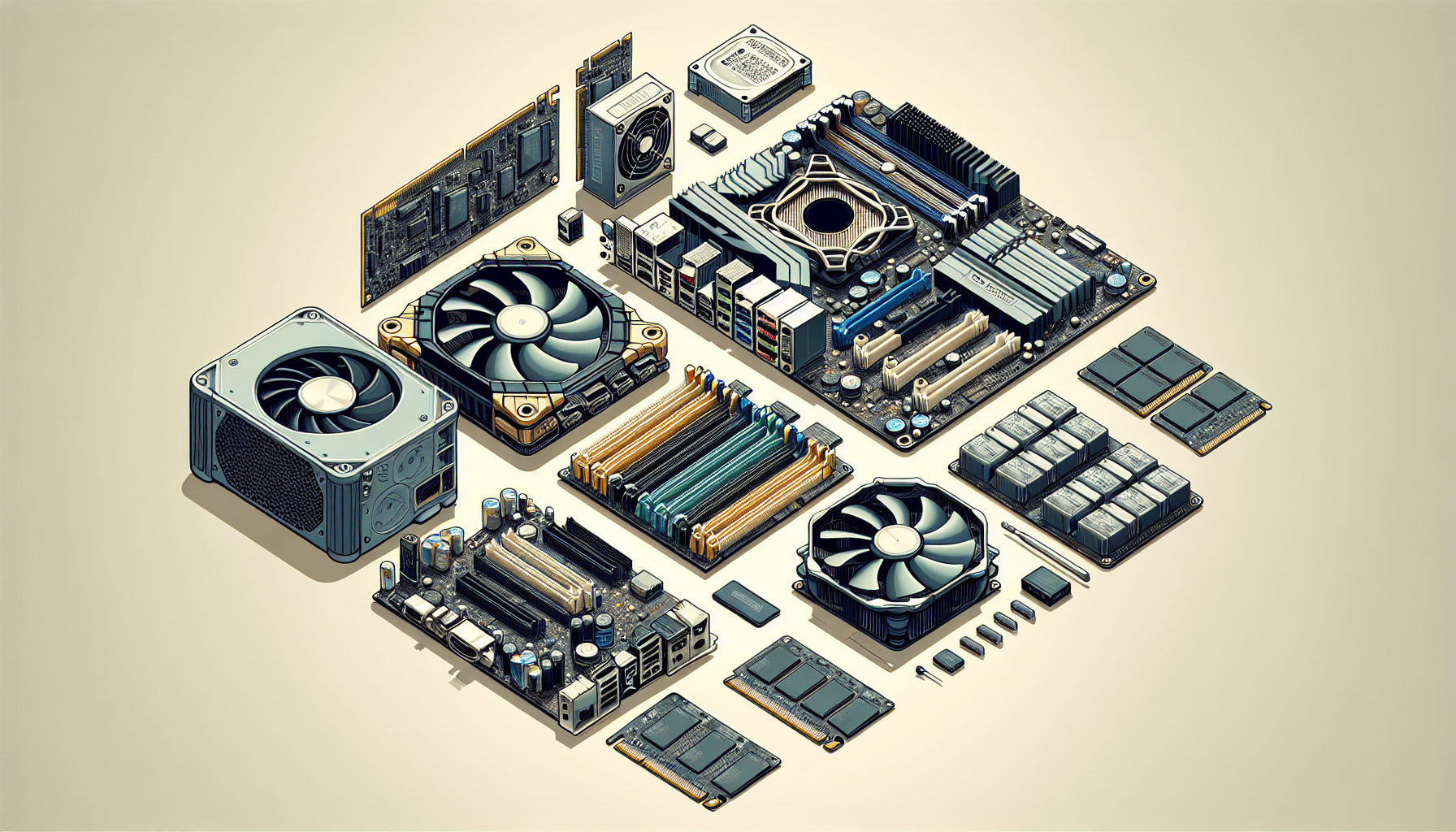
Building Your Own Gaming PC
Understanding the Basics
Building your own gaming PC can be both a rewarding and cost-effective endeavour. Before diving into the specifics, it's essential to understand the fundamental components and their roles. A gaming PC consists of several key parts, each contributing to the overall performance and functionality.
- Central Processing Unit (CPU): The brain of the PC, responsible for executing instructions.
- Graphics Processing Unit (GPU): Handles rendering images, videos, and animations.
- Random Access Memory (RAM): Temporary storage for data being used by the CPU and GPU.
- Motherboard: The main circuit board that connects and allows communication between all components.
- Storage: Solid State Drives (SSD) and Hard Disk Drives (HDD) store your games, operating system, and other data.
- Power Supply Unit (PSU): Provides power to all the components.
- Cooling System: Keeps the components at optimal temperatures.
Benefits of Building a Custom Gaming PC
There are numerous advantages to building a custom gaming PC, especially for gamers in Australia who want to tailor their system to specific needs. Here are some key benefits:
Cost-Effectiveness
Building a PC can often be more cost-effective than buying a pre-built one. By selecting individual gaming pc parts, you can find the best deals and avoid paying for unnecessary features.
Customisation
A custom-built PC allows for complete personalisation. You can choose components that match your performance requirements, budget, and aesthetic preferences. This level of customisation ensures that your gaming rig is uniquely yours.
Performance Optimisation
With a custom-built PC, you have control over the quality and compatibility of each component. This allows for optimal performance, tailored to the types of games you play. For more details on how to optimise pc for gaming, refer to our comprehensive guide.
Future-Proofing
Building your own PC makes it easier to upgrade individual components over time. This means you can keep your system up-to-date with the latest technology without needing to replace the entire unit. Learn about the lifespan of a gaming pc and how to keep it running efficiently.
Learning Experience
Building a gaming PC can be an educational experience, enhancing your understanding of computer hardware and how it works. This knowledge can be beneficial for troubleshooting and future upgrades.
For a detailed step-by-step guide on how to build a gaming pc, check out our dedicated section. Additionally, if you're interested in understanding the cost of gaming pc components, our article breaks down the expenses involved.
| Component | Estimated Cost (AUD) |
|---|---|
| CPU | $200 - $500 |
| GPU | $300 - $1500 |
| RAM | $100 - $300 |
| Motherboard | $150 - $400 |
| Storage (SSD) | $100 - $300 |
| PSU | $100 - $200 |
| Case | $50 - $200 |
| Cooling System | $50 - $150 |
Building your own gaming PC can be a fulfilling project, offering a range of benefits from cost savings to performance optimisation. Whether you're a seasoned gamer or a beginner, understanding the basics and the advantages will set you on the right path.
For more information on building a gaming PC in Australia, visit our article on build gaming pc australia.
Essential Components
Building a gaming PC requires a solid understanding of the essential components that make up the system. Each part plays a crucial role in determining the performance and efficiency of your gaming rig. Here's a breakdown of the key components to consider.
Central Processing Unit (CPU)
The CPU, or Central Processing Unit, serves as the brain of your gaming PC. It handles all the instructions from your software and performs the necessary calculations. When selecting a CPU, consider factors like core count, clock speed, and thermal design power (TDP).
| CPU Specification | Description |
|---|---|
| Core Count | 4 - 16 |
| Clock Speed | 3.0 - 5.0 GHz |
| TDP | 65 - 125 W |
For an in-depth guide on selecting the right CPU, visit our article on gaming pc parts.
Graphics Processing Unit (GPU)
The GPU, or Graphics Processing Unit, is responsible for rendering images, videos, and animations in your games. A powerful GPU ensures smooth gameplay and high frame rates. Look for specifications such as VRAM, core clock, and memory bandwidth.
| GPU Specification | Description |
|---|---|
| VRAM | 4 - 16 GB |
| Core Clock | 1.5 - 2.0 GHz |
| Memory Bandwidth | 200 - 600 GB/s |
To learn more about GPUs, check out our article on gaming pc components.
Random Access Memory (RAM)
RAM, or Random Access Memory, stores data that your CPU needs to access quickly. For gaming, having sufficient RAM is crucial for maintaining smooth performance. The recommended amount of RAM for gaming PCs varies based on the game's requirements.
| RAM Specification | Description |
|---|---|
| Capacity | 8 - 32 GB |
| Speed | 2400 - 3600 MHz |
| Type | DDR4 |
For detailed information on RAM requirements, visit gaming pc ram.
Motherboard
The motherboard is the backbone of your gaming PC, connecting all the components together. Key factors to consider when choosing a motherboard include the chipset, form factor, and compatibility with other components.
| Motherboard Specification | Description |
|---|---|
| Chipset | Z490, X570, B450 |
| Form Factor | ATX, Micro-ATX, Mini-ITX |
| Socket Type | LGA 1200, AM4 |
For more insights on motherboards, read our article on build a gaming pc.
Storage: SSD vs. HDD
Storage is where all your games, applications, and files are kept. There are two main types of storage: SSD (Solid State Drive) and HDD (Hard Disk Drive). SSDs offer faster data access speeds, while HDDs provide more storage capacity at a lower cost.
| Storage Type | Speed | Capacity | Cost |
|---|---|---|---|
| SSD | 500 MB/s - 3500 MB/s | 250 GB - 2 TB | Higher |
| HDD | 50 MB/s - 150 MB/s | 500 GB - 4 TB | Lower |
To decide which option is best for you, visit add storage to gaming pc.
Power Supply Unit (PSU)
The PSU, or Power Supply Unit, provides power to all the components in your gaming PC. It's essential to choose a PSU with enough wattage to support your system's power requirements. Additionally, consider the efficiency rating and modularity of the PSU.
| PSU Specification | Description |
|---|---|
| Wattage | 500 - 1000 W |
| Efficiency Rating | 80+ Bronze, Silver, Gold, Platinum |
| Modularity | Non-Modular, Semi-Modular, Fully Modular |
For a comprehensive guide on PSUs, check out gaming pc power usage.
Understanding these essential components and their specifications is crucial for building a high-performance gaming PC. For more information on assembling your gaming rig, explore our article on build a gaming pc.
Optional Components
While the essential components are the backbone of a gaming PC, optional components can greatly enhance performance and aesthetics. These include cooling systems, cases, and peripherals like keyboards, mice, and monitors.
Cooling System
A cooling system is crucial for maintaining optimal performance and longevity of your gaming PC. Intense gaming sessions can generate significant heat, which can impact system stability. Here are the main types of cooling systems:
- Air Cooling: Utilizes fans to dissipate heat.
- Liquid Cooling: Uses liquid to transfer heat away from the CPU/GPU.
| Cooling Type | Pros | Cons |
|---|---|---|
| Air Cooling | Cost-effective, easy to install | Can be noisy, less efficient |
| Liquid Cooling | Highly efficient, quieter | More expensive, requires maintenance |
For more details on how cooling impacts your gaming experience, read our article on gaming pc fans.
Case and Aesthetics
The case houses all your components and contributes to the overall look of your gaming setup. When choosing a case, consider the following:
- Size (Form Factor): ATX, Micro-ATX, Mini-ITX
- Airflow: Ensures proper ventilation
- Cable Management: Keeps wires organized
- Aesthetic Features: RGB lighting, transparent panels
A well-chosen case not only enhances the appearance but also improves functionality. Learn more about selecting the right case in our build a gaming pc guide.
Peripherals: Keyboard, Mouse, Monitor
Peripherals are the interface between you and your gaming PC. They include the keyboard, mouse, and monitor, each playing a vital role in your gaming experience.
- Keyboard: Mechanical vs. membrane, RGB lighting, programmable keys
- Mouse: DPI settings, ergonomic design, additional buttons
- Monitor: Refresh rate, resolution, panel type (IPS, TN, VA)
| Peripheral | Key Feature | Benefit |
|---|---|---|
| Keyboard | Mechanical Switches | Faster response time |
| Mouse | High DPI | More precise movements |
| Monitor | High Refresh Rate (144Hz or higher) | Smoother gameplay |
For a deeper dive into peripherals, check out our article on pc gaming setup requirements.
By carefully selecting these optional components, you can build a gaming PC that not only performs exceptionally well but also looks stunning and offers a comfortable, immersive gaming experience. For more insights on building a gaming PC, visit build your own gaming pc.
Compatibility Considerations
When building a gaming PC, ensuring that all components are compatible with each other is crucial. This involves understanding how different parts interact and selecting components that work seamlessly together.
Ensuring Components Work Together
The first step in building a gaming PC is to make sure that all the parts are compatible. This includes the CPU, GPU, RAM, motherboard, storage, and power supply.
CPU and Motherboard Compatibility: The CPU must be compatible with the motherboard's socket type. For instance, an Intel CPU will require a motherboard with an Intel socket, while an AMD CPU will need an AMD socket.
RAM Compatibility: The type and speed of RAM should be supported by the motherboard. Most modern gaming PCs use DDR4 RAM, but it's essential to check the motherboard specifications.
GPU and Motherboard Compatibility: The GPU needs to fit into the PCIe slot on the motherboard. Ensure the motherboard has enough PCIe slots and that the case can accommodate the GPU's size.
Power Supply Unit (PSU): The PSU must provide sufficient wattage to power all components. Use an online PSU calculator to estimate the required wattage for your build.
Storage Compatibility: SSDs and HDDs connect to the motherboard via SATA or NVMe interfaces. Ensure the motherboard has the necessary slots for your storage devices.
Compatibility Table
| Component | Compatibility Check |
|---|---|
| CPU | Socket type on motherboard |
| RAM | Type (e.g., DDR4) and speed |
| GPU | PCIe slot availability |
| PSU | Sufficient wattage |
| Storage | SATA or NVMe slot availability |
For more detailed guidance on selecting compatible components, visit our article on gaming pc components.
Choosing the Right Form Factor
The form factor of the motherboard determines the overall size of your gaming PC and affects the case you choose. Common form factors include ATX, Micro-ATX, and Mini-ITX.
- ATX: Standard size, offering the most features and expansion slots. Suitable for high-performance gaming PCs.
- Micro-ATX: Smaller than ATX but still provides decent expansion options. Ideal for mid-sized builds.
- Mini-ITX: Compact size with limited expansion. Great for small, portable builds but can be challenging to manage cooling.
| Form Factor | Dimensions (mm) | Expansion Slots | Use Case |
|---|---|---|---|
| ATX | 305 x 244 | Up to 7 | High-performance, full-sized builds |
| Micro-ATX | 244 x 244 | Up to 4 | Mid-sized, balanced builds |
| Mini-ITX | 170 x 170 | Up to 1 | Compact, space-saving builds |
Choosing the right form factor is essential for ensuring that your components fit well and that there is adequate space for cooling and cable management. For more tips on optimizing your build, see our article on optimise pc for gaming.
By understanding these compatibility considerations, gamers in Australia can confidently select the best gaming pc parts for their custom build.
Tools and Resources
Building a gaming PC requires a specific set of tools and resources to ensure a smooth assembly process and optimal performance. This section outlines the essential tools needed for assembly and useful online resources for guidance.
Tools Needed for Assembly
To assemble a gaming PC, certain tools are indispensable. Having the right tools on hand can make the process more efficient and reduce the risk of damaging components. Here is a list of essential tools required for building a gaming PC:
- Screwdrivers: A set of Phillips-head screwdrivers in various sizes.
- Anti-static Wrist Strap: To prevent static electricity from damaging sensitive components.
- Thermal Paste: Necessary for ensuring proper heat transfer between the CPU and its cooler.
- Cable Ties: Useful for managing and organizing cables inside the case.
- Pliers: Needle-nose pliers for handling small screws and components.
- Flashlight: Handy for illuminating hard-to-see areas inside the case.
| Tool | Purpose |
|---|---|
| Screwdrivers | Securing screws and components |
| Anti-static Wrist Strap | Preventing static damage to components |
| Thermal Paste | Ensuring proper heat transfer between CPU and cooler |
| Cable Ties | Managing and organizing cables |
| Pliers | Handling small screws and components |
| Flashlight | Illuminating hard-to-see areas |
For a detailed step-by-step guide on assembling your PC, see our article on build a gaming pc.
Online Resources for Building a Gaming PC
Numerous online resources provide valuable information and guidance for building a gaming PC. These resources can help you understand the intricacies of each component, troubleshoot common issues, and optimize your gaming setup for the best performance.
- Forums and Communities: Online forums like Reddit and specialized PC building communities offer a wealth of knowledge and support from experienced builders. These platforms can provide answers to specific questions and offer advice on component compatibility.
- YouTube Tutorials: Many tech enthusiasts and experts create detailed video tutorials on YouTube, covering everything from selecting components to step-by-step assembly instructions. These visual guides are particularly helpful for beginners.
- PC Part Picker: This website allows you to select and compare different components, ensuring compatibility and providing estimated power consumption. It also offers user-submitted builds and reviews, which can be a great source of inspiration.
- Manufacturer Websites: Component manufacturers often provide detailed manuals, installation guides, and troubleshooting tips on their websites. These resources can be invaluable when dealing with specific hardware issues.
For more information on optimizing your PC for gaming, visit our article on optimise pc for gaming.
By utilizing the right tools and taking advantage of the wealth of online resources available, you can confidently build a gaming PC that meets your specific needs and preferences. Whether you are a novice or an experienced builder, these tools and resources will help ensure a successful and enjoyable building experience. For more insights on gaming PC components, see our article on gaming pc components.
Building Your Gaming PC
Building a gaming PC can be a rewarding experience, and understanding the steps involved is crucial. This section will guide you through the process of assembling your gaming rig, troubleshooting common issues, and adding the final touches for optimal performance.
Step-by-Step Guide to Assembling Your PC
- Prepare Your Workspace: Ensure you have a clean, static-free area to work on.
- Gather Your Tools: You'll need a Phillips-head screwdriver, anti-static wrist strap, and thermal paste.
- Install the CPU: Open the CPU socket on the motherboard, align the CPU correctly, and gently place it in the socket. Close the socket latch.
- Install the RAM: Open the RAM slots and align the RAM sticks with the notches. Press firmly until they click into place.
- Attach the Motherboard to the Case: Place the motherboard in the case and secure it with screws.
- Install the GPU: Insert the GPU into the appropriate PCIe slot on the motherboard and secure it with screws.
- Install Storage Drives: Secure your SSD or HDD into the drive bays and connect them to the motherboard using SATA cables.
- Connect the Power Supply Unit (PSU): Secure the PSU in the case and connect the necessary power cables to the motherboard, GPU, and storage drives.
- Install Cooling System: Attach the CPU cooler and any additional case fans. Make sure they are properly connected to the motherboard.
- Connect Case Wires: Connect the power button, reset button, and front USB ports to the motherboard.
- Double-Check Connections: Ensure all cables and components are securely connected.
Troubleshooting Common Issues
Even with careful assembly, you may encounter issues. Here are some common problems and solutions:
- PC Won't Power On: Check all power connections, ensure the PSU switch is on, and verify the power button is connected correctly.
- No Display: Ensure the GPU is seated properly, and the monitor is connected to the GPU, not the motherboard.
- System Overheating: Check that all fans are functioning, and thermal paste is applied correctly.
- Random Crashes or Freezes: Ensure the RAM is properly seated and test each module individually.
| Issue | Possible Cause | Solution |
|---|---|---|
| PC Won't Power On | Loose power connections | Check PSU and power button connections |
| No Display | GPU not seated correctly | Reseat GPU and check monitor connection |
| System Overheating | Faulty cooling system | Verify fans and reapply thermal paste |
| Random Crashes | Faulty RAM | Test RAM modules individually |
Final Touches and Setup
After assembling your gaming PC, there are a few final steps to ensure everything runs smoothly:
- Install the Operating System: Connect a bootable USB drive with your preferred OS and follow the installation prompts.
- Update Drivers: Install the latest drivers for your GPU, motherboard, and other components. Visit manufacturer websites for the latest updates.
- Optimise Settings: Adjust power settings, resolution, and refresh rates for optimal performance. Refer to our guide on optimise PC for gaming.
- Install Essential Software: Download and install necessary software, including antivirus, gaming platforms, and utilities.
- Test Your Build: Run stress tests and benchmark tools to ensure your system is stable and performing as expected.
For more detailed guidance on setting up your new gaming rig, visit our article on set up gaming pc.
By following these steps, you can successfully build and enjoy your custom gaming PC, tailored to your specific needs and preferences. For additional resources, check out our articles on gaming pc parts and build gaming pc for beginners.


