


What do I need to build a gaming pc
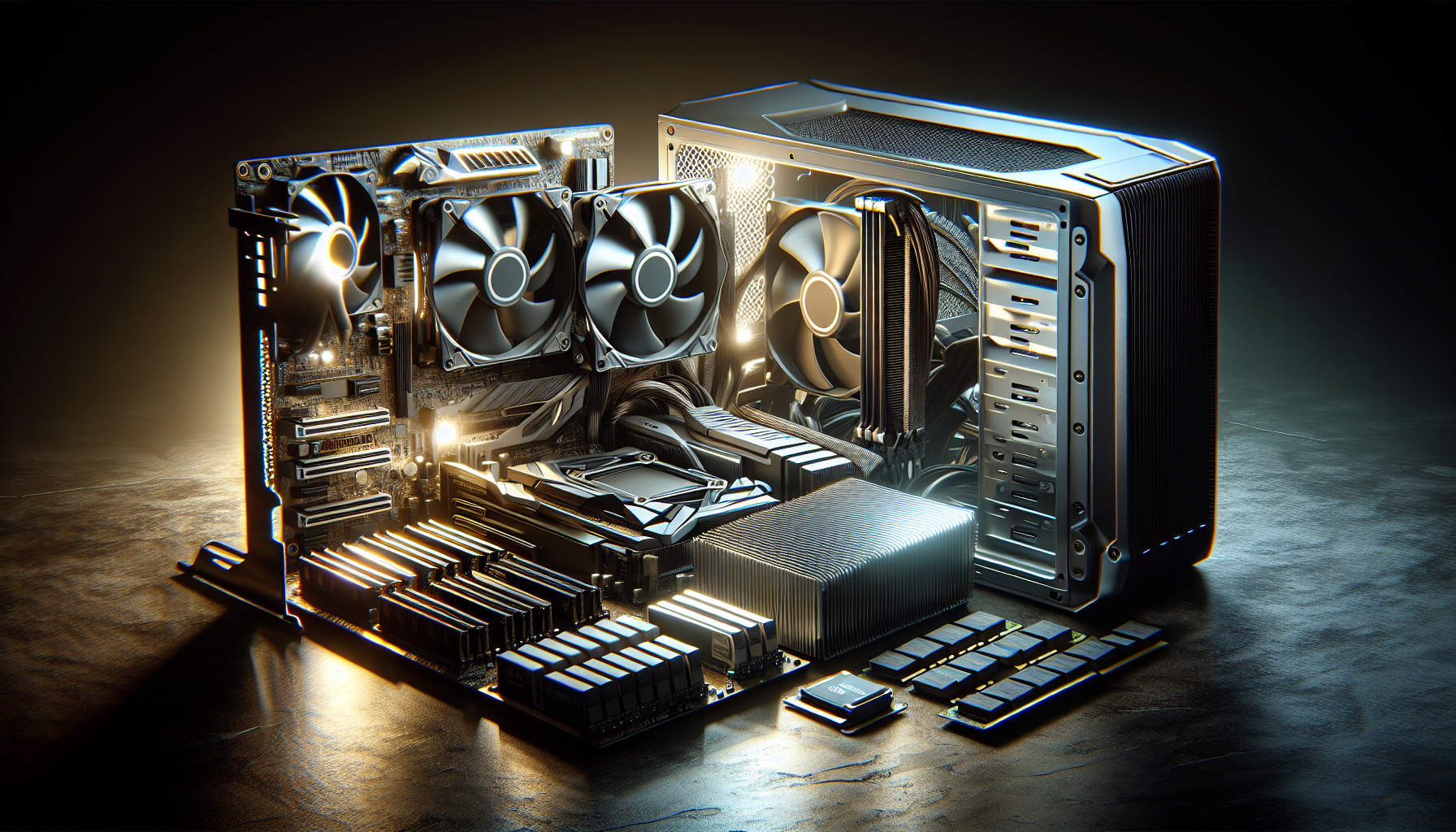
Building Your Gaming PC
Building a gaming PC can be a rewarding experience, providing customisation and performance tailored to your needs. Understanding the basics and knowing the necessary components is the first step to creating a powerful gaming rig.
Understanding the Basics
A gaming PC is a computer designed to handle the demanding requirements of modern video games. Unlike standard computers, gaming PCs are built with high-performance components to ensure smooth gameplay, high frame rates, and stunning graphics. The main components include the processor (CPU), graphics card (GPU), memory (RAM), storage drives, power supply unit (PSU), motherboard, and cooling system.
Each component plays a crucial role in the overall performance of the gaming PC. For example, the CPU handles the game's logic and physics, while the GPU renders the visuals. RAM provides the system with quick access to data, and storage drives hold the game's files. The motherboard connects all these components, and the cooling system keeps everything running at optimal temperatures.
Components Needed for a Gaming PC
To build a gaming PC, you need to gather all the essential components. Here's a breakdown of what you'll need:
| Component | Description |
|---|---|
| Processor (CPU) | The brain of the PC, handling all computational tasks. |
| Graphics Card (GPU) | Responsible for rendering images, videos, and animations. |
| Memory (RAM) | Temporary storage for data that the CPU needs to access quickly. |
| Storage Drives | Permanent storage for the operating system, games, and other files. |
| Power Supply Unit (PSU) | Provides power to all components. |
| Motherboard | The main circuit board that connects all components. |
| Cooling System | Keeps the CPU, GPU, and other components cool to prevent overheating. |
Each component must be compatible with the others to ensure the system runs smoothly. For more detailed information on each part, you can refer to our articles on different gaming PC components like the processor (CPU), graphics card (GPU), and memory (RAM).
Building a gaming PC in Australia involves not only understanding these components but also considering factors like the cost of gaming PC, power usage, and specific gaming requirements. For a comprehensive guide, visit our article on build a gaming PC.
By understanding the basics and knowing the necessary components, you're well on your way to building a gaming PC that meets your gaming needs and provides an immersive gaming experience.
Essential Components
When building a gaming PC, selecting the right components is crucial for optimal performance. Here, we explore three essential components: the processor (CPU), graphics card (GPU), and memory (RAM).
Processor (CPU)
The CPU is the brain of your gaming PC, handling all the instructions from various software applications. A powerful CPU is essential for running games smoothly and efficiently.
| CPU Feature | Details |
|---|---|
| Cores | 4 to 16 cores |
| Threads | 8 to 32 threads |
| Base Clock Speed | 3.5 GHz to 4.5 GHz |
| Turbo Boost Speed | 4.0 GHz to 5.0 GHz |
When choosing a CPU, consider the number of cores and threads. More cores and threads allow for better multitasking and handling demanding games. A higher clock speed translates to faster processing, enhancing gameplay.
Graphics Card (GPU)
The GPU is responsible for rendering images, videos, and animations, making it a crucial component for gaming. A high-performance GPU ensures that games run smoothly with high-resolution graphics and frame rates.
| GPU Feature | Details |
|---|---|
| Memory | 4 GB to 12 GB |
| Core Clock Speed | 1.5 GHz to 2.0 GHz |
| Memory Type | GDDR6 or GDDR5 |
| Output Ports | HDMI, DisplayPort, DVI |
When selecting a GPU, consider the memory size and type. Larger memory and faster memory types like GDDR6 provide better performance. The core clock speed also impacts the rendering capabilities of the GPU. For more details on optimising your PC for gaming, visit our article on optimise PC for gaming.
Memory (RAM)
RAM is the temporary storage used by the CPU to store data that is actively being used. Sufficient RAM is essential for smooth gameplay and quick loading times.
| RAM Feature | Details |
|---|---|
| Capacity | 8 GB to 32 GB |
| Speed | 2400 MHz to 3600 MHz |
| Type | DDR4 or DDR3 |
| Channels | Dual or Quad Channel |
For gaming, a minimum of 8 GB of RAM is recommended, with 16 GB being ideal for most modern games. Higher RAM speeds and dual or quad-channel configurations can enhance performance. Discover more about gaming PC RAM in our article on gaming PC RAM.
These essential components form the backbone of your gaming PC. Selecting the right CPU, GPU, and RAM ensures a powerful and efficient gaming experience. For a comprehensive guide on building a gaming PC, visit our article on build a gaming PC.
Storage and Power
In the quest to build the ultimate gaming PC, two critical components to consider are storage drives and the power supply unit (PSU). Both play a pivotal role in ensuring smooth gaming performance and system reliability.
Storage Drives
Storage drives are essential for storing your operating system, games, and other applications. There are primarily two types of storage drives used in gaming PCs: Hard Disk Drives (HDDs) and Solid State Drives (SSDs).
- HDDs offer larger storage capacities at a lower cost per gigabyte, making them ideal for storing large files and games.
- SSDs provide faster data access speeds, reducing loading times and improving overall system responsiveness. They are particularly beneficial for the operating system and frequently played games.
| Storage Type | Average Capacity | Average Read/Write Speed |
|---|---|---|
| HDD | 1TB - 4TB | 80 - 160 MB/s |
| SSD | 256GB - 1TB | 500 - 550 MB/s |
Combining both an SSD and an HDD can provide a balanced solution, leveraging the fast performance of SSDs and the large capacity of HDDs. For more information on how to add storage to a gaming PC, you can explore our dedicated article.
Power Supply Unit (PSU)
The PSU is the backbone of your gaming PC, supplying power to all the components. Choosing the right PSU is crucial for system stability and longevity. Key factors to consider include wattage, efficiency rating, and the quality of the PSU.
- Wattage: Ensure the PSU provides sufficient power for all components, including the CPU, GPU, and additional peripherals.
- Efficiency Rating: Look for a PSU with an 80 PLUS certification, which indicates higher efficiency and lower energy consumption.
- Quality: A high-quality PSU with good reviews ensures reliability and reduces the risk of component failure.
| PSU Rating | Efficiency at 50% Load |
|---|---|
| 80 PLUS | 80% |
| 80 PLUS Bronze | 85% |
| 80 PLUS Silver | 88% |
| 80 PLUS Gold | 90% |
| 80 PLUS Platinum | 92% |
| 80 PLUS Titanium | 94% |
For more insights on the power requirements of gaming PCs, visit our article on gaming PC power usage.
By carefully selecting the right storage drives and PSU, you can enhance the performance and reliability of your gaming PC. For a comprehensive guide on how to build a gaming PC and other essential components, explore our related articles.
Motherboard and Cooling
Motherboard
The motherboard is a crucial component in any gaming PC build. It serves as the backbone of the system, connecting all other components and facilitating communication between them. When selecting a motherboard, it's important to consider compatibility with your processor (CPU) and other gaming pc components. Key factors to consider include socket type, chipset, form factor, and the number of expansion slots.
| Feature | Description |
|---|---|
| Socket Type | Must match the CPU (e.g., AM4, LGA 1200) |
| Chipset | Determines features and compatibility (e.g., B450, Z490) |
| Form Factor | Size of the motherboard (e.g., ATX, Micro-ATX) |
| Expansion Slots | PCIe slots for GPUs, RAM slots, etc. |
For more information on selecting the right motherboard, check out our detailed guide on gaming pc parts.
Cooling System
A proper cooling system is essential for maintaining optimal performance and longevity of your gaming PC. Overheating can lead to throttling, instability, and potential damage to components. There are two main types of cooling systems: air cooling and liquid cooling.
Air Cooling:Air cooling uses fans and heat sinks to dissipate heat from the CPU and GPU. This method is generally more affordable and easier to install.
| Component | Description |
|---|---|
| CPU Cooler | Attached to the CPU, comes in stock or aftermarket options |
| Case Fans | Installed in the PC case to improve airflow and exhaust hot air |
Liquid Cooling:Liquid cooling uses a liquid coolant to transfer heat away from components. This method is more efficient and quieter but can be more expensive and complex to install.
| Component | Description |
|---|---|
| AIO Cooler | All-in-one liquid cooler, easy to install |
| Custom Loop | Custom liquid cooling setup, requires more expertise |
For tips on optimising your PC's cooling system, visit our article on gaming pc fans.
By understanding the importance of the motherboard and cooling system, gamers can ensure their gaming PC runs smoothly and efficiently. Proper selection and installation of these components are key steps in building a high-performance gaming rig. For more detailed guides on building your gaming PC, refer to our articles on build a gaming pc and build your own gaming pc.
Putting It All Together
Assembling Your Gaming PC
Building a gaming PC can be a rewarding experience. It involves putting together various components to create a powerful machine tailored to your gaming needs. Here are the steps to assemble your gaming PC:
- Prepare Your Workspace: Ensure you have a clean, static-free workspace. Gather all necessary tools, including screwdrivers and anti-static wristbands.
- Install the CPU: Carefully place the CPU into the socket on the motherboard. Secure it by locking the lever.
- Install the RAM: Insert the RAM sticks into the memory slots on the motherboard. Ensure they click into place.
- Mount the Motherboard: Secure the motherboard inside the PC case using screws. Align the ports with the case cutouts.
- Install Storage Drives: Mount your SSD or HDD in the designated slots within the case. Connect the drives to the motherboard using SATA cables.
- Install the GPU: Insert the graphics card into the PCIe slot on the motherboard. Secure it with screws.
- Connect the PSU: Place the power supply unit in its designated area. Connect the necessary power cables to the motherboard, GPU, storage drives, and other components.
- Install Cooling System: Attach your cooling system, whether it be air or liquid cooling, to the CPU and case. Ensure all fans are connected to the motherboard.
- Cable Management: Organize and secure all cables to ensure proper airflow within the case.
- Close the Case: Once everything is connected and secured, close the case and fasten it with screws.
For detailed instructions on each component, refer to our guide on build a gaming PC.
| Step | Component | Action |
|---|---|---|
| 1 | Workspace | Prepare and gather tools |
| 2 | CPU | Install in motherboard |
| 3 | RAM | Insert into slots |
| 4 | Motherboard | Mount in case |
| 5 | Storage Drives | Mount and connect |
| 6 | GPU | Insert into PCIe slot |
| 7 | PSU | Connect power cables |
| 8 | Cooling System | Attach and connect fans |
| 9 | Cables | Manage and secure |
| 10 | Case | Close and fasten |
Testing and Troubleshooting
After assembling your gaming PC, it's crucial to test and troubleshoot to ensure everything works correctly.
- Initial Power-On: Connect your PC to a power source. Power it on to see if it boots up. Look for any error messages or beeps.
- BIOS/UEFI Setup: Enter the BIOS/UEFI by pressing the designated key during boot (usually Del or F2). Ensure all components are detected and set the boot order.
- Install Operating System: Install your preferred OS using a bootable USB drive. Follow the on-screen instructions to complete the installation.
- Driver Installation: Install necessary drivers for your GPU, motherboard, and other components. This ensures optimal performance.
- Stress Testing: Use software tools to stress test your CPU, GPU, and RAM. This helps identify any potential issues under load.
- Monitor Temperatures: Keep an eye on component temperatures using monitoring software. Ensure they remain within safe limits.
For a comprehensive guide on optimising your PC for gaming, visit our article on optimise PC for gaming.
| Step | Action | Description |
|---|---|---|
| 1 | Initial Power-On | Check for boot and errors |
| 2 | BIOS/UEFI Setup | Configure settings |
| 3 | OS Installation | Install operating system |
| 4 | Driver Installation | Install necessary drivers |
| 5 | Stress Testing | Test system stability |
| 6 | Temperature Monitoring | Ensure safe temperatures |
By carefully following these steps, you can successfully assemble and test your gaming PC, ensuring it is ready for high-performance gaming. For more tips on building and maintaining your gaming rig, explore our articles on gaming PC components and build your own gaming PC.


