


The Ultimate List: Best PS5 M.2 SSDs for Serious Gamers
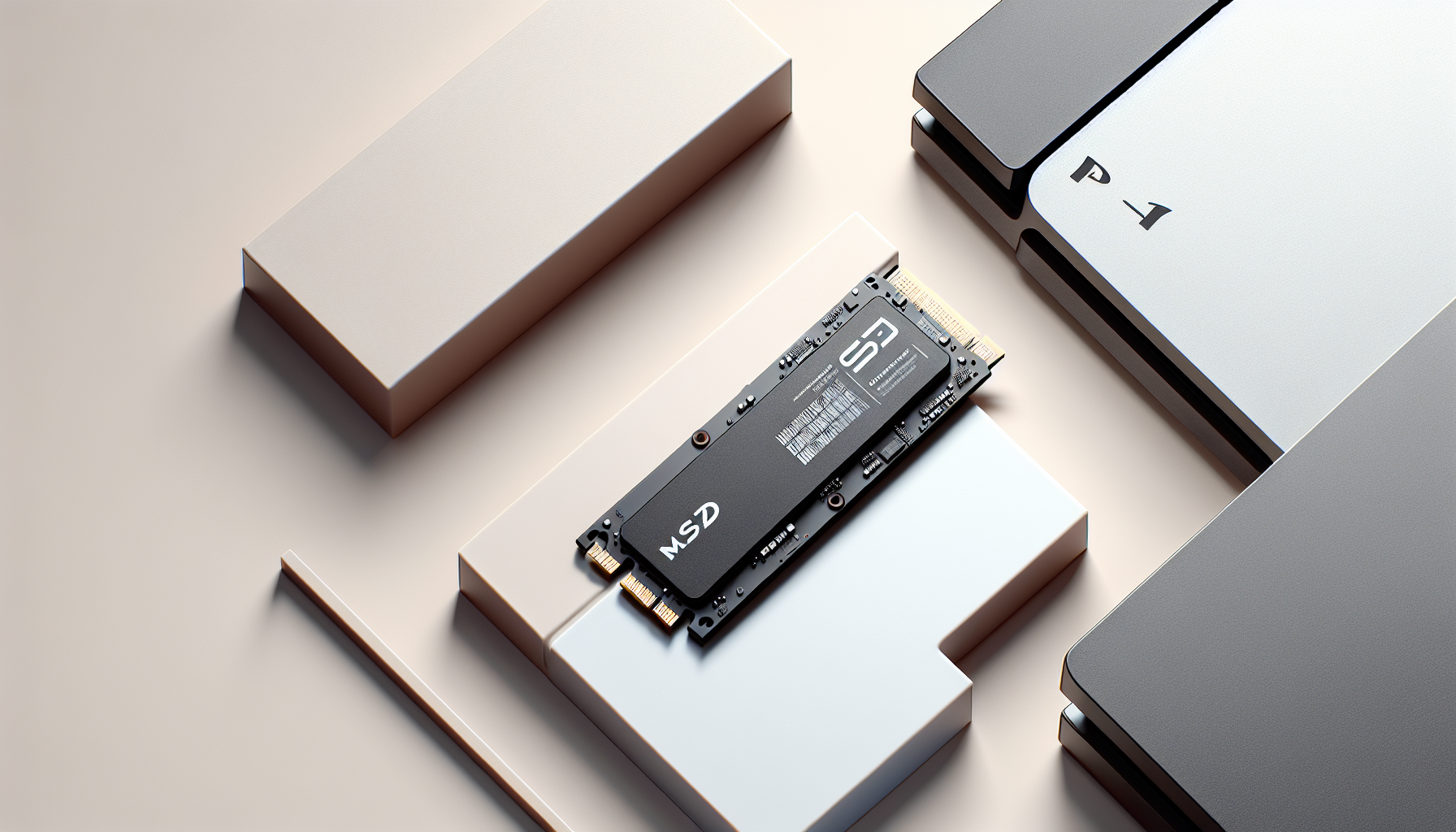
Understanding M.2 SSDs
M.2 SSDs represent a transformative technology for gamers looking to enhance their storage solutions, particularly for their PS5 consoles. Understanding their advantages and specific compatibility requirements is crucial for effective usage.
Benefits of M.2 SSDs
M.2 SSDs are high-speed solid-state drives that significantly expand storage capacity on PS5 consoles, allowing for seamless storage of PS5 games, PS4 games, and media applications. These SSDs enable users to download, play, and update games directly from the M.2 SSD, enriching the overall gaming experience. It is important to note that game data cannot be split between the console storage and M.2 SSD storage (PlayStation).
The use of M.2 SSDs allows for a greater capacity to be made available. Due to their high speeds, they can load games faster than the default internal storage of the PS5, often resulting in reduced load times. Switching from the internal storage to an M.2 SSD can show improvements of several seconds when loading games (MakeUseOf).
| Benefit | Description |
|---|---|
| Increased Storage | Supports multiple games and media applications |
| Faster Load Times | Significant improvement in game loading efficiency |
| Easy Installation | Can be installed quickly, enhancing user convenience |
PS5 Compatibility Requirements
To effectively enhance storage on the PS5 with an M.2 SSD, specific compatibility requirements must be met. It is crucial that the SSD includes a cooling structure, such as a heatsink or heat transfer sheet, to ensure proper heat dissipation (PlayStation).
Sony recommends using M.2 SSDs with a capacity up to 8TB and requires that they meet certain speed standards. For example, the Kingston FURY Renegade PCIe 4.0 NVMe M.2 SSD offers a rated speed of around 6,600MB/s, which is faster than the PS5’s internal SSD. Installing an internal SSD can be straightforward, requiring just a Phillips screwdriver and around 15 minutes of time (Kingston).
| Requirement | Specification |
|---|---|
| Maximum Capacity | Up to 8TB |
| Speed | Must meet or exceed PS5's internal SSD speed |
| Cooling Structure | Required for effective heat dissipation |
Understanding these aspects of M.2 SSDs can greatly improve a gamer’s experience by providing superior storage solutions for their PS5 setup. For information on installation, refer to our guide on how to install m.2 ssd.
Top M.2 SSDs for PS5
When it comes to gaming on the PS5, having the right M.2 SSD can drastically improve game load times and overall performance. Here are some of the top options currently available:
Lexar NM790
The Lexar NM790 is considered the best M.2 SSD for PS5 in 2024. It offers a substantial 4TB of storage for less than $300, making it a great value for gamers. This SSD achieves impressive read speeds of up to 7,400MB/s and write speeds of up to 6,500MB/s. One of its standout features is its optimal thermal management, ensuring that performance remains consistent even during intense gaming sessions (CNET).
| Feature | Specification |
|---|---|
| Capacity | 4TB |
| Read Speed | Up to 7,400MB/s |
| Write Speed | Up to 6,500MB/s |
| Price | Less than $300 |
Samsung 990 Pro with Heat Sink
The Samsung 990 Pro with Heat Sink is another excellent choice for PS5 users. Priced at around $90 for the 1TB model, it features exclusive NAND memory, a high-performance controller, and software technology designed specifically for gamers. Its heat sink ensures efficient thermal performance, which is crucial for maintaining speed during gaming sessions (CNET).
| Feature | Specification |
|---|---|
| Capacity | 1TB |
| Price | Approximately $90 |
| Unique Features | Exclusive NAND memory, tailored for gamers |
Seagate FireCuda 530 NVMe PCIe Gen4 x4
The Seagate FireCuda 530 NVMe PCIe Gen4 x4 M.2 SSD is highly regarded for its performance in the PS5. Offering a 4TB model with a built-in heat sink, it is specifically designed to meet the demands of internal storage on the console. This SSD also excels in game transfer speeds, demonstrating the capability to move nearly 200GB of data in about 2 minutes and 30 seconds (CNET).
| Feature | Specification |
|---|---|
| Capacity | 4TB |
| Transfer Speed | ~200GB in 2 mins 30 secs |
| Price | Varied (check retailers) |
With these options, PS5 gamers can significantly enhance their gaming experience by selecting the right M.2 SSD that best fits their needs. For guidance on installation and setup, refer to our article on how to install m.2 ssd.
Detailed Comparison of M.2 SSDs
When selecting the best PS5 M.2 SSD, it's essential to consider key features that enhance gaming performance. This section compares three noteworthy options: the Corsair MP600 PRO LPX, PNY XLR8 CS3140 1TB M.2 NVMe SSD, and Nextorage SSD for PS5.
Corsair MP600 PRO LPX
The Corsair MP600 PRO LPX stands out due to its PS5 compatibility and effective heat management. This M.2 drive comes with a built-in heat sink that helps maintain optimal operating temperatures, essential for sustained performance during intense gaming sessions.
| Feature | Specification |
|---|---|
| Storage Capacity | Up to 2TB |
| Read Speed | Up to 7,000 MB/s |
| Write Speed | Up to 6,850 MB/s |
| Form Factor | M.2 2280 |
| Heatsink | Yes |
For more details on installation, check out our guide on how to install M.2 SSD.
PNY XLR8 CS3140 1TB M.2 NVMe SSD
The PNY XLR8 CS3140 offers a user-friendly installation process, featuring an included PS5 SSD cover panel with a built-in heat sink. This SSD also delivers impressive read and write speeds, making it a reliable choice for gamers seeking rapid load times.
| Feature | Specification |
|---|---|
| Storage Capacity | 1TB |
| Read Speed | Up to 7,100 MB/s |
| Write Speed | Up to 5,000 MB/s |
| Form Factor | M.2 2280 |
| Heatsink | Yes |
The PNY model is particularly recommended for its ease of integration into existing setups.
Nextorage SSD for PS5
Nextorage's M.2 SSD is designed specifically for the PlayStation 5, offering seamless compatibility. It focuses on providing excellent speeds and ample capacity options for gamers looking to expand their storage effectively.
| Feature | Specification |
|---|---|
| Storage Capacity | Up to 4TB |
| Read Speed | Up to 7,300 MB/s |
| Write Speed | Up to 5,500 MB/s |
| Form Factor | M.2 2280 |
| Heatsink | Yes |
Although the performance metrics are impressive, it’s advisable to verify the compatibility requirements detailed in the official PS5 guidelines.
When considering an upgrade, keep in mind that with M.2 SSDs capable of delivering performance exceeding the PS5’s internal storage, users can significantly enhance game load times. For example, tests demonstrated that games like Demon's Souls loaded one second faster and Call of Duty: Black Ops Cold War up to 1.5 seconds faster when stored on an M.2 SSD than the PlayStation's default storage (MakeUseOf).
For additional insights, readers can explore various models of M.2 SSDs through our main article on what is M.2 SSD.
Installing and Using M.2 SSDs
Expanding the storage of a PS5 console can significantly enhance the gaming experience. Understanding the installation process and the benefits of M.2 SSDs is essential for gamers looking to maximise their system's performance.
Installation Process for M.2 SSD
Installing an M.2 SSD in a PS5 is a straightforward process, but following the correct steps is crucial for success. Users should ensure they have a supported M.2 SSD that meets the necessary requirements, including effective heat dissipation through a heatsink, as outlined by PlayStation.
Here is a simplified installation guide:
- Power Down the PS5: Completely turn off your console and unplug it from the power source.
- Access the SSD Slot: Carefully remove the PS5 cover to access the M.2 SSD expansion slot.
- Insert the SSD: Align the M.2 SSD into the socket and ensure it is secured by the screw provided with your PS5.
- Fit the Heatsink: If your SSD does not have a built-in heatsink, attach one to ensure proper thermal management. Note that adding a heatsink to an M.2 SSD with a built-in heatsink is not recommended, as it can diminish heat transfer efficiency (PlayStation).
- Reassemble: Replace the PS5 cover and reconnect all cables.
- Format the SSD: Upon turning on the console, the system will prompt you to format the new SSD for PS5 games.
For detailed instructions, refer to our guide on how to install M.2 SSD.
Using M.2 SSD for Faster Load Times
After successful installation, utilizing the newly added M.2 SSD enhances gaming performance significantly. M.2 SSDs are high-speed solid-state drives that allow for quicker load times when accessing games, media apps, and additional content. This performance upgrade is particularly beneficial for gamers who play more data-intensive titles.
The advantages of using an M.2 SSD include:
- Rapid Access Times: M.2 SSDs can deliver significantly faster read and write speeds than traditional hard drives, reducing loading times for games.
- Enhanced Gaming Experience: The increased speed means that players can jump into their games with minimal delay, improving overall enjoyment.
- Optimised Storage Management: The SSD allows for efficient installation and management of PS4 and PS5 games, while also supporting media applications.
To transfer games to an external SSD, ensure the PS5 is updated with the latest firmware. Connect a compatible USB drive and use the settings to move games from the PS5’s main storage to the USB drive, enhancing the overall gaming experience even further (Kingston).
For more tips on data management, see our article on how to transfer data from one M.2 SSD to another.
Expanding PS5 Storage Options
As the storage capacity of PS5 games continues to increase, gamers are often left seeking additional options to store their extensive game libraries. This section discusses the use of external SSDs and the process for transferring games to these secondary storage options.
External SSDs for PS5
The PS5 is equipped with a USB-C SuperSpeed port that permits the connection of external storage solutions such as external SSDs. A recommended option is Kingston’s XS2000 External Solid State Drive, which boasts impressive read and write speeds of up to 2,000MB/s. This speed is ideal for managing storage overflow from the PS5’s internal SSD as well as any secondary M.2 SSDs installed Kingston.
When selecting an external SSD, ensure that it meets the required specifications, such as capacity ranging from 256GB to 8TB and a connection speed of at least SuperSpeed USB 5Gbps. Many gamers prefer external SSDs due to their portability and ease of installation, making them a practical choice for expanding storage.
| External SSD Model | Read Speed (MB/s) | Write Speed (MB/s) | Capacity Range |
|---|---|---|---|
| Kingston XS2000 | Up to 2,000 | Up to 2,000 | 256GB - 8TB |
| Samsung T7 | Up to 1,050 | Up to 1,000 | 500GB - 2TB |
| Crucial X8 | Up to 1,050 | Up to 1,000 | 500GB - 2TB |
Transferring Games to External SSD
Transferring games to an external SSD is a straightforward process. First, ensure that the PS5 is online and has all necessary firmware updates applied. Once prepared, connect a compatible USB drive directly to the PS5 (do not use a USB hub).
To transfer games, navigate to Settings > Storage on the PS5 menu. From there, select Console Storage, then choose Games and Apps. Select the games you wish to move, and confirm the transfer to the connected USB drive. This method effectively frees up space on the main storage, allowing for a more organised and efficient gaming experience Kingston.
For additional information on installing M.2 SSDs, refer to our article on how to install m.2 ssd. If any issues arise, such as the SSD not appearing in BIOS, consult our guide on why is my m.2 ssd not showing up in bios.
Enhancing Gaming Experience with SSDs
Benefits of Internal SSDs
Internal SSDs provide an array of advantages for gamers, particularly those using the PS5. By utilising M.2 SSDs, gamers can significantly expand their storage capacity while maintaining high performance. When games are stored on the PS5's internal drives, they can be played immediately without the need for cumbersome transfers. This not only enhances convenience but also streamlines the gaming experience.
The PS5's internal storage boasts a read/write speed of 5,500 MB/s, which is pivotal for quick loading times and overall system responsiveness. Choosing an M.2 SSD that meets or exceeds this speed, such as those offering 7,000 MB/s, can lead to faster load times for games stored on the M.2 SSD compared to the console's default storage. In tests using SSDs like the WD Black SN850, games such as No Man's Sky and Demon's Souls demonstrated significantly improved launch times when stored on the SSD (MakeUseOf).
Speed Considerations and Heat Management
Speed considerations are essential when selecting an internal SSD. For optimal performance, users should look for M.2 SSDs with a minimum speed of 5,500 MB/s to match the pre-installed drive's capabilities. Additionally, employing a heatsink is highly recommended to maintain these speeds during intense gaming sessions. Effective heat dissipation is crucial as excessive heat can throttle performance and negatively impact the user's gaming experience.
It is vital to choose a supported M.2 SSD that not only meets speed requirements but also includes adequate cooling structures. This can entail using components with heat transfer sheets and heatsinks to ensure that the SSD operates efficiently (PlayStation). Keeping these considerations in mind will result in a seamless gaming experience, maximising the benefits of upgrading to an internal SSD. For more details on the installation process, see our guide on how to install M.2 SSD.


