


Prepping for Sale: How to Deep Clean Your Business Computers Before Selling
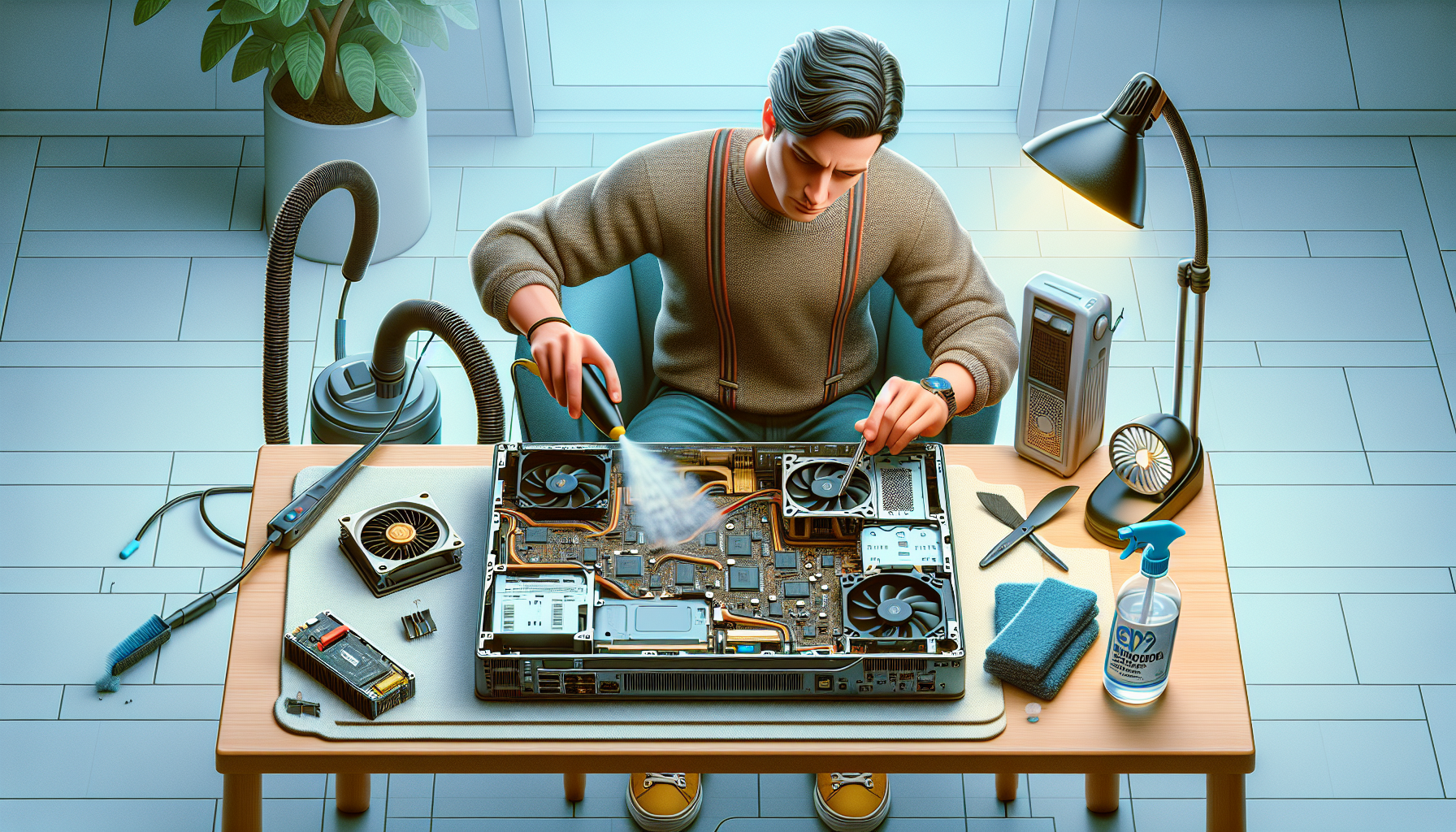
The Importance of Deep Cleaning Business Computers
Deep cleaning business computers is an essential practice for IT managers and business owners. It not only ensures data security but also enhances the overall performance and longevity of the devices.
Ensuring Data Security
One of the primary reasons for conducting a deep clean is to protect sensitive information. Computers often store a wealth of confidential data, including financial records, client information, and proprietary software. When preparing to sell a computer, it is vital to securely erase all personal data to prevent potential identity theft or data breaches.
The process of securely deleting data involves more than simply emptying the recycle bin. It requires using software that overwrites the data multiple times, making it nearly impossible to recover. This ensures that any sensitive information is permanently removed. For more insights on this, refer to the section on securely deleting personal data.
Enhancing Performance and Longevity
Deep cleaning also plays a crucial role in enhancing the performance and lifespan of business computers. Over time, dust, dirt, and other debris can accumulate inside the hardware, leading to overheating and sluggish performance. Regular cleaning helps to maintain optimal airflow and cooling, which is essential for the efficient operation of the computer.
The following table outlines common performance issues caused by neglecting regular cleaning:
| Issue | Description | Impact |
|---|---|---|
| Overheating | Dust obstructs fans and vents | Slower performance, potential hardware damage |
| Slow Performance | Accumulation of junk files and temp files | Decreased efficiency, longer load times |
| Crashes and Freezes | Dust buildup leading to hardware failure | Loss of productivity, data loss |
For more information on how cleaning can impact computer speed, check our article on pc cleaning performance impact. Regular maintenance not only improves performance but also extends the lifespan of the equipment, making it a worthwhile investment for any business.
In summary, the importance of deep cleaning computers cannot be overstated. It ensures data security and contributes to enhanced performance and longevity, making it essential for IT managers and business owners preparing to sell their devices.
Steps to Deep Clean Your Business Computers
To ensure that business computers are ready for sale, it is essential to perform a thorough deep clean. This process involves backing up important data, cleaning hardware components, and updating as well as resetting software.
Backing Up Important Data
The first step in deep cleaning a computer is to back up any crucial data. This ensures that important files are preserved and can be restored later if necessary. Various methods can be used for backing up data, including cloud storage or external hard drives.
| Backup Method | Storage Capacity | Advantages |
|---|---|---|
| Cloud Storage | Varies (GB to TB) | Accessible from anywhere, easy sharing |
| External Hard Drive | Up to 20 TB | Large storage capacity, one-time purchase |
| USB Flash Drive | Up to 1 TB | Portable, convenient for small files |
After backing up, it's important to verify that the data has been successfully saved before proceeding with the cleaning process.
Cleaning the Hardware Components
Cleaning the physical components of the computer is a vital step in the deep cleaning process. Dust and debris can accumulate over time, impacting performance.
- External Cleaning: Use microfiber cloths to wipe down the monitor, keyboard, and casing. For more effective cleaning, consider using a solution designed for electronics.
- Internal Cleaning: Dust can be removed from the internal components using compressed air. This helps to prevent overheating and improves airflow.
For a comprehensive guide on cleaning hardware, refer to our article on clean computer hardware guide.
| Component | Cleaning Method | Frequency |
|---|---|---|
| Monitor | Microfiber cloth with cleaning solution | Monthly |
| Keyboard | Compressed air | Monthly |
| Internal Components | Compressed air | Every 6 months |
Regular maintenance and cleaning can significantly enhance performance and longevity. For more insights on performance impact, see our article on pc dust cleaning benefits.
Updating and Resetting Software
After ensuring that the hardware is clean, the next step is to update and reset the software. This involves:
- Installing Updates: Ensure that the operating system and all software applications are up to date. This can improve security and performance.
- Resetting to Factory Settings: For a thorough clean before selling, resetting the computer to its factory settings removes personal data and applications, giving the new owner a fresh start.
To learn more about the effectiveness of disk cleanup, check our article on disk cleanup effectiveness.
| Step | Description | Importance |
|---|---|---|
| Install Updates | Download and install the latest software updates | Enhances security and performance |
| Reset to Factory Settings | Erase all personal data and restore default settings | Prepares the computer for a new owner |
Taking these steps will ensure that business computers are not only clean but also ready for sale with optimal performance. For tips on how to maintain a clean computer, refer to our article on best pc cleaning practices.
Data Erasure and Security Measures
Before selling business computers, it is critical to ensure that all personal and sensitive data is securely erased. This section outlines essential measures for securely deleting personal data and encrypting sensitive information.
Securely Deleting Personal Data
Simply deleting files or formatting a hard drive is not sufficient to protect sensitive information. To effectively erase personal data, one must utilise data destruction tools that overwrite existing data multiple times, making recovery virtually impossible. This process is known as data wiping and is essential for maintaining data security.
The following table outlines different methods of securely deleting personal data:
| Method | Description | Effectiveness |
|---|---|---|
| Basic Deletion | Removes file references, but data remains | Low |
| Formatting | Prepares the drive for new data, but does not remove data | Low |
| Data Wiping Software | Overwrites data with random information multiple times | High |
| Physical Destruction | Dismantling and destroying the hard drive | Very High |
For more information on effective data erasure methods, consider reading about wipe and give away computer options.
Encrypting Sensitive Information
Before selling a computer, encrypting sensitive files is an additional security measure to protect data. Encryption transforms readable data into a coded format, making it inaccessible without the appropriate decryption key. This is particularly important for businesses that handle confidential information.
Encryption methods vary in strength and complexity. The most commonly used encryption algorithms include:
| Algorithm | Description | Common Use Cases |
|---|---|---|
| AES (Advanced Encryption Standard) | Symmetric encryption, widely used and trusted | File encryption, secure communications |
| RSA (Rivest-Shamir-Adleman) | Asymmetric encryption, often used for secure data transmission | Email encryption, secure key exchange |
| Blowfish | Fast symmetric encryption, suitable for both small and large data | File storage encryption |
Implementing encryption can significantly enhance the security of sensitive information. For further guidance on maintaining data security, explore our article on clean computer junk files.
By following these data erasure and security measures, IT managers and business owners can ensure that their computers are free from personal data before sale, thereby protecting their business and clients.
Final Checks and Preparing for Sale
After completing the deep cleaning process, it is essential to conduct final checks and prepare the computer for sale. This ensures that the device is functioning correctly and is presented well to potential buyers.
Testing Functionality
Before listing the computer for sale, it is crucial to test its functionality. This includes checking all hardware components and ensuring that the software operates smoothly. A comprehensive functionality test should cover the following areas:
| Component | Check |
|---|---|
| Power Supply | Ensure the computer powers on without issues. |
| Display | Check for any dead pixels or screen flickering. |
| Keyboard | Test all keys for responsiveness. |
| Mouse/Trackpad | Ensure smooth operation and responsiveness. |
| USB Ports | Verify that all ports function correctly with various devices. |
| Network Connectivity | Test both wired and wireless connections. |
| Audio | Play sound to check speaker and microphone functionality. |
If any issues arise during testing, further investigation may be required to repair or replace faulty components. For slow or freezing performance, refer to our article on fix slow freezing computer.
Properly Packaging for Shipping
Once the computer has passed the functionality tests, it is time to package it securely for shipping or delivery. Proper packaging helps prevent damage during transit. Here are some steps to follow for effective packaging:
- Gather Materials: Use a sturdy box, bubble wrap, packing tape, and cushioning materials (such as foam peanuts or crumpled paper).
- Remove Accessories: Detach any peripherals and accessories such as keyboards, mice, and power cables. Wrap these separately.
- Wrap the Computer: Use bubble wrap to cover the computer entirely. Ensure that all corners are well padded.
- Secure in Box: Place the wrapped computer in the centre of the box and fill any empty spaces with cushioning materials to prevent movement.
- Seal the Box: Use packing tape to seal the box securely. Label it as "Fragile" if necessary.
By ensuring that the computer is properly packaged, sellers can mitigate the risk of damage during shipping. For more information on maintaining performance, consider reading about clean computer for faster performance.
Taking these final steps helps ensure a smooth transaction and increases the likelihood of a successful sale.


