


Inside Job: Should You Dust the Inside of Your Business PCs?
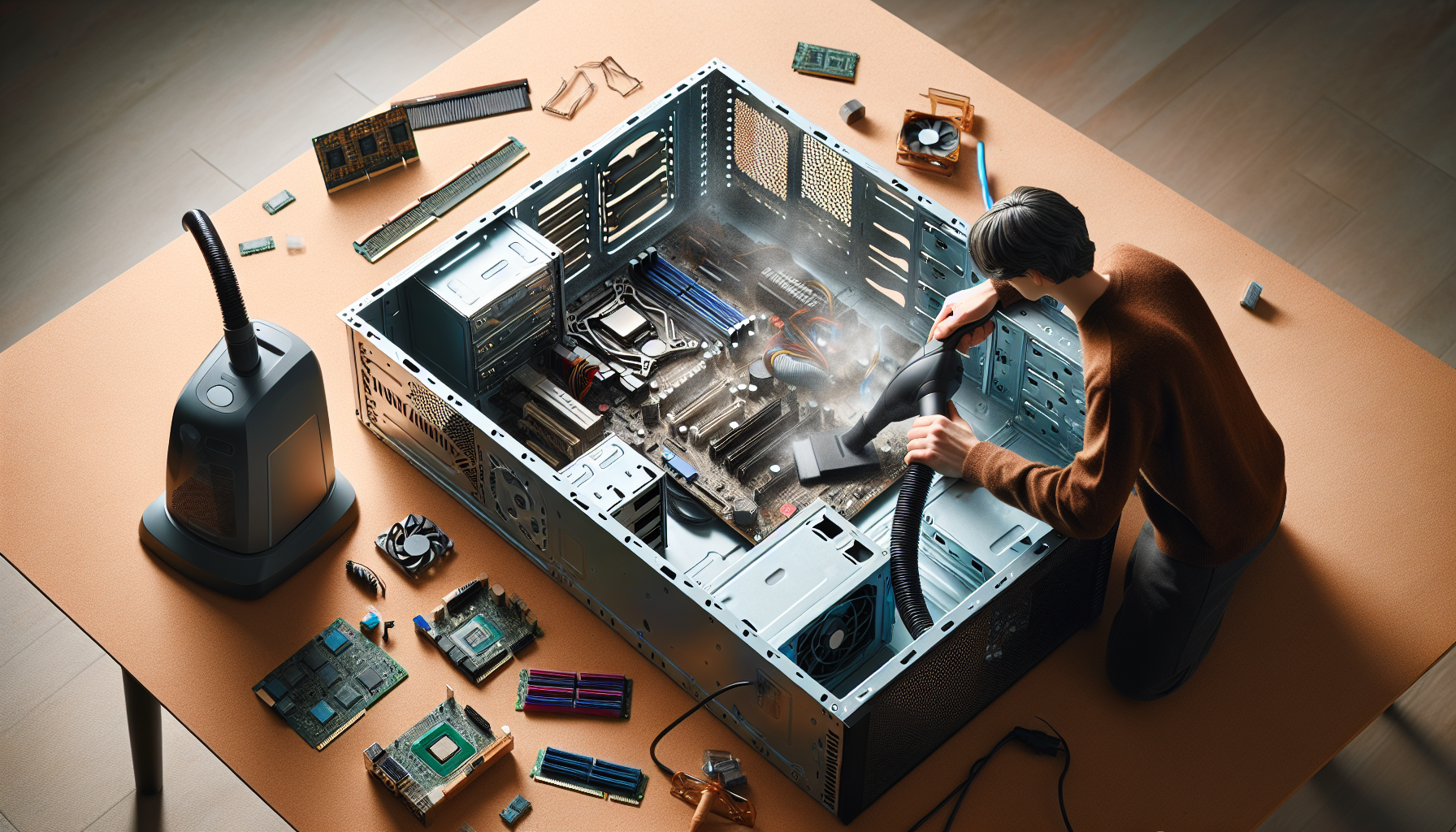
The Importance of PC Maintenance
Regular maintenance of business PCs is essential to ensure optimal performance and longevity. Neglecting this aspect can lead to a range of issues that ultimately affect productivity and efficiency.
Why Regular Maintenance is Crucial
Regular maintenance plays a vital role in preventing potential problems. It helps identify and resolve issues before they escalate, thus minimising downtime.
| Maintenance Activity | Frequency | Benefits |
|---|---|---|
| Internal PC Dusting | Every 6-12 months | Reduces overheating and improves airflow |
| Software Updates | Monthly | Ensures security and functionality |
| Disk Cleanup | Monthly | Frees up space and enhances speed |
By adhering to a maintenance schedule, IT managers can ensure that their systems operate smoothly, ultimately saving time and resources in the long run. For more on the positive effects of a clean computer, refer to our article on pc cleaning performance impact.
The Impact of Dust on PC Performance
Dust accumulation inside PCs can significantly hinder performance. It can block airflow, leading to overheating, which in turn causes components to work harder and potentially fail prematurely.
Dust can also cover critical components such as fans and heat sinks, reducing their effectiveness. This could lead to increased temperatures and decreased performance.
| Performance Issue | Cause of Dust Accumulation |
|---|---|
| Overheating | Blocked fans and vents |
| Slow performance | Throttling due to high temperatures |
| Hardware failure | Overworked components |
For more information on identifying causes of slowdown and how to fix them, check out our article on identify computer slowdown causes. Regular internal PC dusting can mitigate these issues, ensuring that systems remain reliable and efficient. For detailed advice on cleaning, see pc dust removal performance impact.
Understanding Internal PC Dusting
Maintaining the cleanliness of business PCs is essential for optimal performance. This section will discuss the risks associated with dust accumulation inside PCs and the benefits of regular cleaning.
Risks of Dust Build-Up Inside PCs
Dust can pose several risks to the functionality and longevity of computer systems. Over time, dust accumulation can obstruct airflow, leading to overheating. This can result in hardware failures, slow performance, and even data loss. Below are some potential consequences of neglecting internal dusting:
| Risk | Description |
|---|---|
| Overheating | Dust blocks ventilation, causing components to heat up excessively. |
| Hardware Damage | Prolonged overheating can damage sensitive components like the CPU and GPU. |
| Reduced Lifespan | Accumulated dust can shorten the lifespan of hardware due to constant stress. |
| Performance Issues | Dust interference can lead to slow performance and system crashes. |
For more information about the impact of dust on performance, refer to our article on pc cleaning performance impact.
Benefits of Cleaning the Inside of Business PCs
Regular internal PC dusting offers numerous advantages that can enhance the overall performance and reliability of computer systems. Some key benefits include:
| Benefit | Description |
|---|---|
| Improved Airflow | Cleaning reduces dust build-up, allowing for better airflow and cooling. |
| Enhanced Performance | A clean PC can operate more efficiently, improving speed and responsiveness. |
| Longer Hardware Lifespan | Regular maintenance reduces wear and tear, extending the life of components. |
| Prevention of Overheating | Maintaining cleanliness helps prevent overheating and associated hardware failures. |
Business owners and IT managers should consider regular dusting as part of a comprehensive maintenance strategy. For insights on how to effectively clean a PC, see our article on perfect computer cleaning.
How to Safely Dust Business PCs
Maintaining clean and dust-free business PCs is essential for optimal performance. This section outlines the necessary tools and equipment to perform internal PC dusting and provides a step-by-step guide to do it safely.
Tools and Equipment Needed
Before starting the internal dusting process, it is important to gather the right tools and equipment. Here is a list of essential items:
| Tool/Equipment | Purpose |
|---|---|
| Compressed Air Canister | To blow out dust from hard-to-reach areas |
| Microfiber Cloth | For wiping surfaces without scratching |
| Screwdriver Set | To open the PC case securely |
| Antistatic Wrist Strap | To prevent static electricity from damaging components |
| Vacuum Cleaner with Brush Attachment | For removing accumulated dust from surfaces |
| Soft Brush | To gently dislodge dust from sensitive areas |
Having these tools on hand will ensure a thorough and safe cleaning process.
Step-by-Step Guide to Internal PC Dusting
Prepare the Workspace
Ensure the area is clean and well-lit. Remove any items around the PC that may obstruct access.Power Down and Unplug the PC
Shut down the computer and disconnect all power sources and peripherals. This is crucial for safety.Wear an Antistatic Wrist Strap
Attach the wrist strap to prevent static electricity from damaging internal components. Connect the other end to a grounded surface.Open the PC Case
Using the screwdriver set, carefully remove the screws holding the case together. Gently lift or slide off the side panel to access the interior.Use Compressed Air
Hold the canister upright and use short bursts of air to blow away dust from components such as fans, heat sinks, and circuit boards. Maintain a distance of about 15 cm to avoid damage.Wipe Surfaces with Microfiber Cloth
Use the microfiber cloth to gently wipe down surfaces inside the case, avoiding any sensitive components. For stubborn stains, lightly dampen the cloth with water or isopropyl alcohol.Brush Away Remaining Dust
Use a soft brush to dislodge dust from areas that are difficult to reach with the compressed air. Be gentle to avoid damaging any components.Vacuum Dust from the Case
Use a vacuum cleaner with a brush attachment to remove any dust that has settled inside the case. Ensure the vacuum is not too powerful, as this could create static.Reassemble the PC
Once the cleaning is complete, carefully replace the side panel and secure it with screws. Ensure all connections are tight.Reconnect Peripherals and Power Up
Plug in all peripherals and power the PC back on. Check for any abnormalities in performance.
Regular internal dusting is a vital component of maintaining business PCs. For further information on the impact of dust on performance, refer to our article on pc dust removal performance impact.
Maintenance Best Practices
Establishing a routine for maintaining business PCs is essential for ensuring optimal performance and longevity. This section outlines best practices that IT managers and business owners should implement.
Establishing a Regular Cleaning Schedule
Creating a regular cleaning schedule is fundamental for effective internal PC dusting. A systematic approach ensures that PCs remain free of dust and debris, which can hinder performance and lead to overheating. The recommended cleaning frequency may vary based on the environment in which the PCs operate.
| Environment Type | Recommended Cleaning Frequency |
|---|---|
| Office with Low Dust | Every 6 months |
| Office with Moderate Dust | Every 3 months |
| Industrial or High Dust | Monthly |
In addition to internal dusting, external cleaning of peripherals and screens should also be included in the schedule. Regularly cleaning hardware not only maintains aesthetics but also contributes to better performance. For more insights on the impact of cleaning on performance, consider reviewing related articles.
Other Maintenance Tasks to Keep Business PCs Running Smoothly
Beyond internal dusting, several other maintenance tasks can enhance PC performance. These include:
- Running Disk Cleanup: Periodically using disk cleanup tools can free up space and improve speed. Refer to run disk cleanup for guidance.
- Managing Temporary Files: Regularly clearing temp files helps maintain system efficiency. More details can be found in our article on temp files and computer speed.
- Updating Software: Keeping operating systems and applications updated ensures that PCs benefit from performance improvements and security patches.
- Checking for Hardware Corrosion: Inspecting for corrosion can prevent potential hardware failures. For methods on how to remove hardware corrosion, see our detailed guide.
Implementing these practices, alongside regular internal PC dusting, will help maintain the reliability and efficiency of business computers. For a comprehensive overview of cleaning strategies, explore our article on best PC cleaning practices.


