


How to optimize your pc for gaming
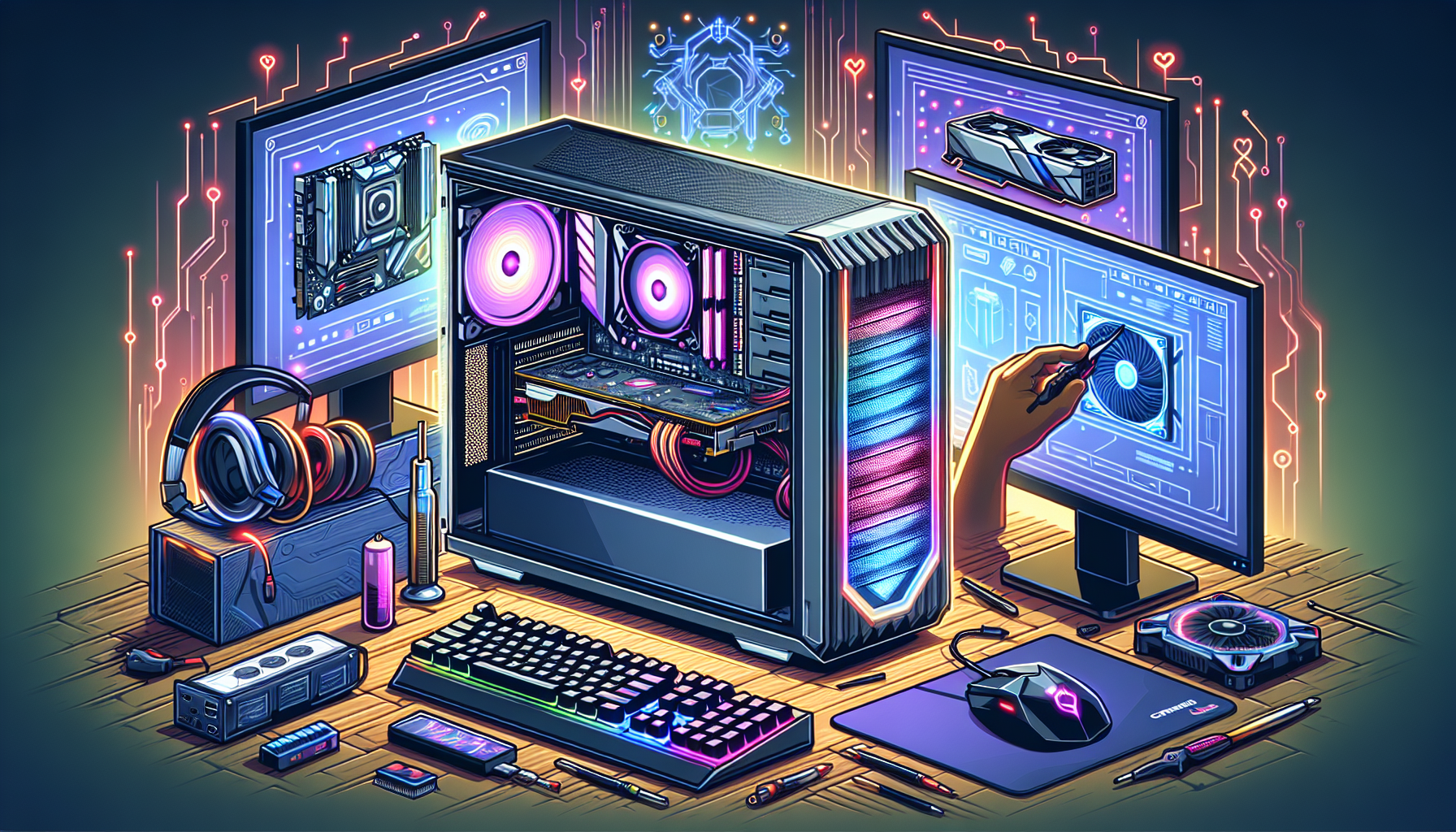
Understanding the Importance of Optimizing Your PC for Gaming
Optimizing your PC for gaming is essential to ensure a smooth and enjoyable gaming experience. By fine-tuning both hardware and software, gamers can significantly enhance performance and minimize common issues that disrupt gameplay.
Benefits of Optimizing Your PC for Gaming
Optimizing your gaming PC offers numerous benefits that enhance both performance and the overall gaming experience.
- Improved Performance: Proper optimization can lead to faster load times, smoother gameplay, and higher frame rates. This is particularly important for fast-paced games where every millisecond counts.
- Extended Lifespan: By keeping your hardware and software in optimal condition, you can extend the lifespan of your gaming components, saving money in the long run.
- Enhanced Visuals: Adjusting graphics settings and updating drivers can improve visual fidelity, making games look more immersive and detailed.
- Reduced Lag and Stuttering: Optimizing your PC helps minimize issues like lag and stuttering, providing a more fluid and enjoyable gaming experience.
- Lower Temperatures: Proper cooling solutions and regular maintenance can help keep your PC running at safe temperatures, preventing overheating and potential hardware damage.
Common Performance Issues in Gaming PCs
Several common performance issues can affect gaming PCs, hindering the overall experience. Identifying and addressing these issues is crucial for optimal performance.
- Low Frame Rates: Low frame rates can make games feel choppy and unresponsive. This issue is often caused by outdated hardware or incorrect graphics settings.
- Long Load Times: Extended load times can disrupt the gaming experience and diminish immersion. This problem can stem from insufficient RAM or a slow storage drive.
- Screen Tearing: Screen tearing occurs when the display shows multiple frames at once, creating a jarring visual effect. This is often a result of mismatched frame rates and display refresh rates.
- Overheating: Overheating can lead to thermal throttling, where the CPU or GPU reduces performance to prevent damage. This issue can be mitigated by proper cooling solutions and regular cleaning.
- Background Processes: Unnecessary background programs can consume valuable system resources, leading to decreased performance. Managing and closing these programs can help improve gaming performance.
Understanding these common performance issues can help gamers take proactive steps to optimize their PCs. For more detailed information on building and maintaining a gaming PC, visit our articles on build a gaming pc and gaming pc requirements.
By addressing these challenges and implementing proper optimization techniques, gamers can ensure their PCs are ready to deliver the best possible gaming experience.
Hardware Upgrades for Gaming
Upgrading your PC hardware is one of the most effective ways to enhance gaming performance. Key components to focus on include the graphics card, processor (CPU), and RAM (memory).
Graphics Card
The graphics card, or GPU, is critical for rendering high-quality visuals in games. A powerful GPU can significantly improve frame rates and visual fidelity. For PC gamers, especially those in Australia looking to optimise their gaming experience, investing in a good GPU is essential.
| GPU | Performance | Power Consumption |
|---|---|---|
| Entry-Level | 1080p, 30-60 FPS | Low |
| Mid-Range | 1440p, 60-90 FPS | Medium |
| High-End | 4K, 60+ FPS | High |
Processor (CPU)
The CPU is the brain of your gaming PC, responsible for executing game logic, AI, and processing game physics. A robust CPU ensures smooth gameplay and reduces bottlenecks. When considering a CPU upgrade, look for higher clock speeds and multiple cores to handle modern games efficiently.
| CPU Type | Clock Speed (GHz) | Cores/Threads |
|---|---|---|
| Entry-Level | 3.0 - 3.5 | 4/8 |
| Mid-Range | 3.5 - 4.0 | 6/12 |
| High-End | 4.0+ | 8/16 |
RAM (Memory)
Sufficient RAM is essential for multitasking and ensuring that games run smoothly. Insufficient RAM can lead to stuttering and longer load times. For gaming, a minimum of 8GB is recommended, but 16GB or more is ideal for a seamless experience.
| RAM Capacity | Recommended For | Performance |
|---|---|---|
| 8GB | Casual Gaming | Basic |
| 16GB | Most Modern Games | Optimal |
| 32GB | Heavy Multitasking, Future-Proofing | Excellent |
By focusing on these hardware upgrades, gamers can significantly enhance their gaming PCs and achieve a more immersive and enjoyable gaming experience. For more detailed information on gaming PC components and build a gaming pc, check out our related articles.
Software Optimization for Gaming
Optimising your PC for gaming involves several software tweaks that can significantly enhance your gaming experience. This section covers three key areas: updating drivers, adjusting graphics settings, and managing background programs.
Updating Drivers
Keeping your drivers up to date is crucial for optimal gaming performance. Graphics card drivers, in particular, can have a significant impact on your gaming experience. Updated drivers often include performance improvements and bug fixes that can make games run smoother and faster.
| Driver Type | Update Frequency | Impact on Gaming |
|---|---|---|
| Graphics Card | Monthly | High |
| Sound Card | Quarterly | Medium |
| Network Adapter | Biannually | Low |
Regular updates ensure compatibility with the latest games and help you get the most out of your hardware. For detailed steps on updating drivers, refer to our comprehensive guide on optimising your PC for gaming.
Adjusting Graphics Settings
Tweaking the graphics settings in your games can make a significant difference in performance. Lowering certain settings can help achieve a smoother frame rate without compromising too much on visual quality.
| Graphics Setting | Performance Impact | Recommended Adjustment |
|---|---|---|
| Resolution | High | Lower to 1080p |
| Anti-Aliasing | Medium | Set to Medium or Low |
| Texture Quality | High | Set to Medium |
| Shadows | High | Set to Low or Medium |
Each game has its own set of graphics settings, so it's essential to experiment to find the best balance between performance and visual quality. For more tips, see our article on customizing game settings.
Managing Background Programs
Running multiple applications in the background can consume valuable system resources and impact gaming performance. It's essential to manage these programs to ensure your PC is running at its best.
Steps to manage background programs include:
- Open Task Manager (
Ctrl + Shift + Esc). - Identify resource-heavy applications.
- Right-click and select "End Task" for non-essential programs.
For more detailed guidance, visit our section on managing background programs.
By focusing on these software optimisations, you can significantly enhance your gaming experience. For further insights on hardware upgrades and cooling solutions, explore our other articles such as gaming pc components and types of cooling systems.
Cooling Solutions for Gaming PCs
Proper cooling is fundamental for optimising your PC for gaming. Effective cooling not only enhances performance but also extends the lifespan of your components. This section will cover the importance of proper cooling and the different types of cooling systems available.
Importance of Proper Cooling
Heat is a byproduct of the heavy computational tasks performed while gaming. Excessive heat can lead to thermal throttling, where the CPU or GPU reduces its performance to prevent overheating. This can result in lagging, reduced frame rates, and even hardware failure. Proper cooling solutions help maintain optimal temperatures, ensuring stable and enhanced performance.
| Component | Ideal Temperature (°C) |
|---|---|
| CPU | 60 - 70 |
| GPU | 65 - 75 |
| RAM | Below 85 |
Regular monitoring of your PC's temperature is crucial. Tools and software can assist in keeping track of thermal levels. For more details on monitoring temperatures, you can refer to our article on monitoring temperatures.
Types of Cooling Systems
There are several cooling systems available, each with its advantages and disadvantages. Understanding these options can help you choose the best solution for your gaming PC.
Air Cooling
Air cooling is the most common and cost-effective method. It involves using fans to dissipate heat from the components. There are two main types of air coolers:
- Case Fans: Installed in the PC case to enhance airflow.
- CPU/GPU Coolers: Dedicated fans attached directly to the CPU or GPU.
| Cooling System | Noise Level | Cost | Maintenance |
|---|---|---|---|
| Air Cooling | Moderate | Low | Low |
Liquid Cooling
Liquid cooling systems use a liquid coolant to transfer heat away from the components. This system is more efficient than air cooling and is ideal for high-performance gaming PCs.
- Closed-Loop Systems: Pre-filled and sealed units requiring minimal maintenance.
- Custom Loop Systems: Customizable setups offering superior cooling but requiring regular upkeep.
| Cooling System | Noise Level | Cost | Maintenance |
|---|---|---|---|
| Liquid Cooling | Low | High | High |
Hybrid Cooling
Hybrid cooling combines both air and liquid cooling methods. This system uses liquid to cool the main components and fans to dissipate the remaining heat.
| Cooling System | Noise Level | Cost | Maintenance |
|---|---|---|---|
| Hybrid Cooling | Low | Moderate to High | Moderate |
For more detailed information on the types of cooling systems and how to implement them, you can check our article on gaming pc fans.
Proper cooling is essential for optimising your PC for gaming. By understanding the importance of cooling and the different types of cooling systems available, you can make informed decisions to enhance your gaming experience.
Maintenance Tips for Gaming PCs
Proper maintenance is crucial for keeping your gaming PC running smoothly and optimally. Regular upkeep can prolong the lifespan of your system and ensure peak performance during gaming sessions. Here are essential maintenance tips for gaming PCs.
Cleaning Your PC
Dust and debris can accumulate inside your PC, causing overheating and performance issues. Regular cleaning helps to prevent these problems. Use compressed air to blow out dust from the internal components, paying close attention to the fans, heat sinks, and vents. Avoid using a vacuum cleaner as it can generate static electricity, which may damage sensitive components.
| Cleaning Frequency | Action |
|---|---|
| Every 3-6 months | Use compressed air to clean internal components |
| As needed | Wipe down the exterior and clean peripheral devices |
Monitoring Temperatures
Monitoring your PC's temperatures is essential to prevent overheating, which can lead to hardware damage and reduced performance. Use software tools to keep an eye on the temperatures of your CPU, GPU, and other components. If you notice consistently high temperatures, it may be time to improve your cooling solutions or reapply thermal paste.
| Component | Ideal Temperature Range (°C) |
|---|---|
| CPU | 30-70 |
| GPU | 40-80 |
| Motherboard | 20-60 |
For more information on cooling solutions, check out our section on gaming pc fans.
Regular Software Updates
Keeping your software up to date is another critical aspect of maintaining your gaming PC. Regular updates can improve system stability, security, and performance. This includes updating your operating system, drivers, and gaming software.
- Operating System Updates: Ensure your OS is up-to-date with the latest patches and security updates.
- Driver Updates: Regularly update drivers for your graphics card, motherboard, and other hardware components.
- Game Updates: Keep your games updated to the latest versions for optimal performance and bug fixes.
For more detailed steps on updating drivers, visit our guide on optimise pc for gaming.
By following these maintenance tips, you can ensure that your gaming PC remains in top condition, providing you with the best possible gaming experience. Regular cleaning, temperature monitoring, and software updates are all crucial aspects of maintaining a high-performance gaming system. For more information on building and maintaining gaming PCs, check out our articles on build a gaming pc and cost to build gaming pc.
Fine-Tuning Your Gaming Experience
Optimising a PC for gaming involves more than just hardware upgrades and software tweaks. Fine-tuning game settings and utilising gaming optimisation tools can further enhance your gaming experience.
Customising Game Settings
Customising game settings is essential for maximising performance and visual quality. Adjusting settings allows you to find a balance between graphical fidelity and smooth gameplay. Key settings to consider include:
- Resolution: Higher resolutions provide better image quality but require more processing power.
- Texture Quality: Affects the detail of surfaces in a game. Higher settings look better but use more video memory.
- Shadow Quality: Determines the sharpness and detail of shadows. Lower settings can improve performance.
- Anti-Aliasing: Reduces jagged edges on objects. Higher settings offer smoother visuals but can reduce frame rates.
- Frame Rate Cap: Limits the number of frames per second. Setting a cap can stabilise performance.
- V-Sync: Synchronises the frame rate with the monitor's refresh rate to prevent screen tearing.
Here's a table showing the impact of various settings on performance:
| Setting | Low | Medium | High | Ultra |
|---|---|---|---|---|
| Resolution | High FPS | Medium FPS | Low FPS | Lowest FPS |
| Texture Quality | High FPS | Medium FPS | Low FPS | Lowest FPS |
| Shadow Quality | High FPS | Medium FPS | Low FPS | Lowest FPS |
| Anti-Aliasing | High FPS | Medium FPS | Low FPS | Lowest FPS |
| Frame Rate Cap | Stable FPS | Stable FPS | Stable FPS | Stable FPS |
| V-Sync | Stable FPS | Stable FPS | Stable FPS | Stable FPS |
For more detailed guidance on adjusting game settings, visit our article on good gaming pc specs.
Utilising Gaming Optimisation Tools
Gaming optimisation tools are software applications designed to enhance the performance of your PC. These tools can help manage system resources, update drivers, and tweak settings for optimal gameplay. Key optimisation tools include:
- Game Boosters: These tools can temporarily disable unnecessary background processes and services, freeing up system resources for gaming.
- Driver Updaters: Keeping your graphics drivers up to date ensures compatibility with the latest games and can improve performance.
- System Cleaners: These applications can remove junk files, clear cache, and optimise storage, resulting in a smoother gaming experience.
- Overclocking Software: Allows advanced users to increase the clock speed of their CPU or GPU for better performance.
For more information on software optimisation, check out our article on optimise pc for gaming.
By customising game settings and using gaming optimisation tools, gamers in Australia can significantly enhance their gaming experience. Whether you're building a new gaming PC or fine-tuning an existing one, these strategies will help you achieve the best possible performance. For additional tips and resources, explore our articles on build a gaming pc and gaming pc components.


