


How to make pc run faster for gaming
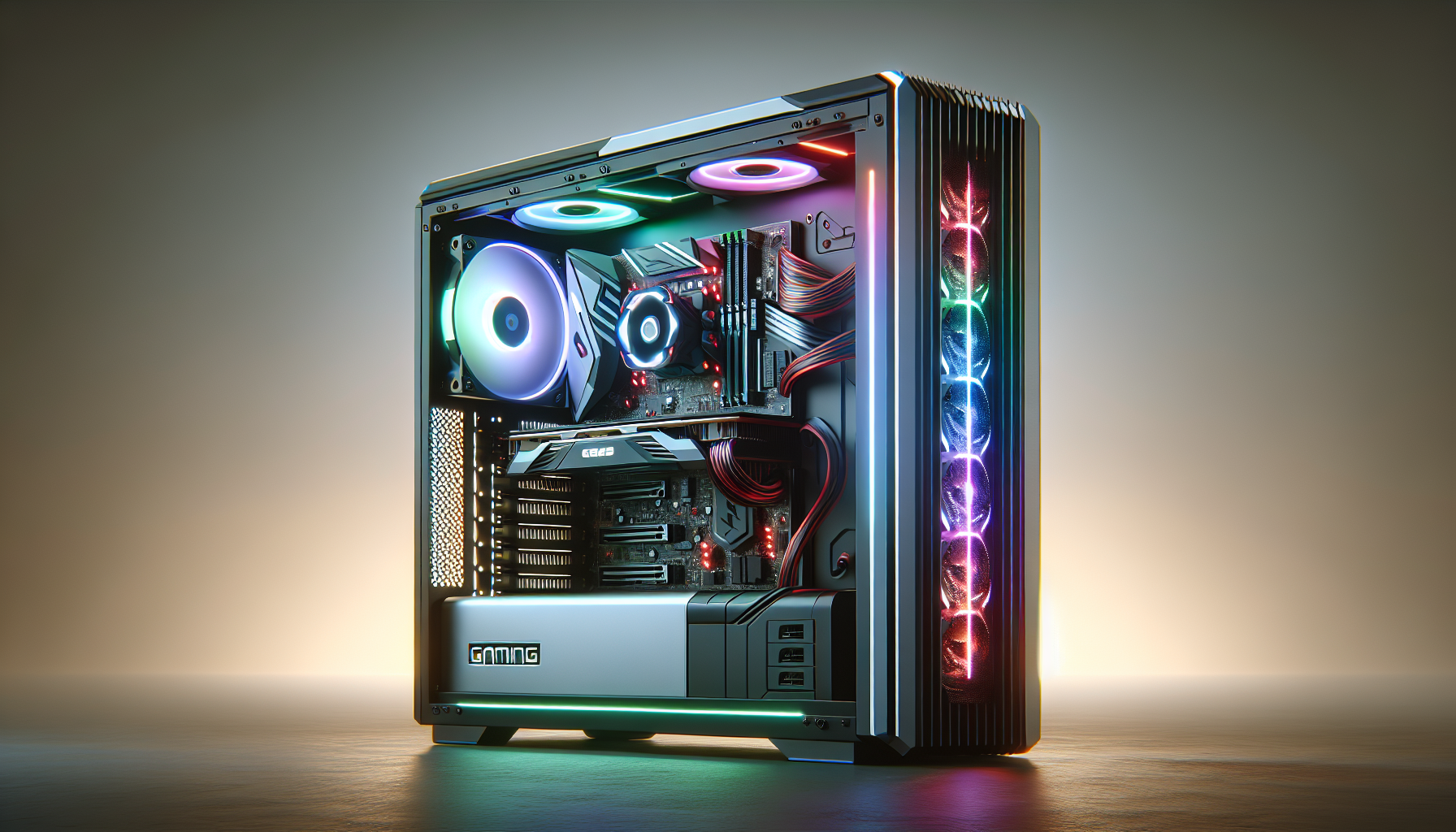
Improving Your Gaming Experience
Maximising your gaming experience involves ensuring your PC runs efficiently and smoothly. Understanding why a faster PC matters and identifying common performance issues can significantly enhance gameplay.
Why a Faster PC Matters for Gaming
A faster PC is crucial for gaming because it directly impacts the game's performance and the player's experience. High-speed processing and quick response times allow games to run smoothly without lag or interruptions. This is essential for competitive gaming, where every millisecond counts.
A powerful CPU, GPU, and sufficient RAM are the key components that contribute to a fast gaming PC. These elements work together to handle complex graphics, quick load times, and seamless transitions between game scenes. For those looking to build a gaming PC, investing in high-quality components is essential.
| Component | Function | Impact on Gaming |
|---|---|---|
| CPU | Processes game logic and AI | Reduces lag and improves responsiveness |
| GPU | Renders graphics and visuals | Enhances visual quality and frame rate |
| RAM | Stores game data temporarily | Allows for quicker load times and smoother gameplay |
Common Issues Affecting Gaming Performance
Several common issues can affect the performance of your gaming PC. Identifying and addressing these problems can help you optimise your system for the best gaming experience.
Outdated Drivers: Drivers are essential for the proper functioning of hardware components. Using outdated drivers can lead to compatibility issues and poor performance. Regularly updating drivers can resolve many performance problems. For more information, check out our article on optimise pc for gaming.
Insufficient RAM: Running games with insufficient RAM can cause slow load times and frequent crashes. Upgrading your RAM can significantly improve performance. Learn more about gaming pc ram and its importance.
Overheating: Excessive heat can throttle your CPU and GPU, leading to decreased performance. Ensuring proper cooling and regular maintenance can help prevent overheating. Explore our tips on gaming pc fans to keep your system cool.
Fragmented Storage: Fragmented hard drives can slow down data access times, affecting game load speeds. Regular disk cleanup and defragmentation can improve performance. For more details, visit add storage to gaming pc.
Background Programs: Running resource-intensive programs in the background can take away valuable resources from your games. Closing unnecessary applications can free up CPU and RAM. For additional tips, see avoid resource-intensive background programs.
Addressing these issues can help you make pc run faster for gaming and enhance your overall gaming experience. By understanding the importance of a fast PC and recognising common performance pitfalls, you can enjoy smoother, more immersive gameplay.
Hardware Upgrades
To make a PC run faster for gaming, upgrading hardware components can bring significant improvements. Here, we discuss upgrading the CPU, GPU, and RAM.
Upgrading Your CPU
The CPU (Central Processing Unit) is the brain of the computer. For gaming, a powerful CPU ensures smooth gameplay and quick load times. When upgrading, consider the number of cores and threads, clock speed, and compatibility with your motherboard.
| CPU Specification | Impact on Gaming |
|---|---|
| Cores and Threads | More cores and threads allow for better multitasking and handling of complex game mechanics. |
| Clock Speed (GHz) | Higher clock speeds can enhance game performance, especially in CPU-intensive games. |
| Cache Size | Larger caches can improve processing efficiency. |
| Compatibility | Ensure the new CPU is compatible with your motherboard socket and chipset. |
For more guidance on choosing the right CPU, read our article on gaming pc components.
Upgrading Your GPU
The GPU (Graphics Processing Unit) handles rendering images, videos, and animations. Upgrading the GPU can drastically improve graphics quality and frame rates, making your gaming experience more immersive.
| GPU Specification | Impact on Gaming |
|---|---|
| VRAM (GB) | More VRAM allows for better handling of high-resolution textures and complex shaders. |
| Core Clock Speed (MHz) | Higher speeds can lead to smoother performance. |
| CUDA Cores/Stream Processors | More cores/processors can improve rendering capabilities. |
| Ray Tracing | Enhances realistic lighting and shadows in supported games. |
For further information on GPU options, check out our article on build a gaming pc.
Upgrading Your RAM
RAM (Random Access Memory) is crucial for multitasking and running games smoothly. Upgrading RAM can reduce lag and improve overall performance.
| RAM Specification | Impact on Gaming |
|---|---|
| Capacity (GB) | More RAM allows for better multitasking and handling of memory-intensive games. |
| Speed (MHz) | Faster RAM can improve game load times and responsiveness. |
| Type (DDR4, DDR5) | Newer RAM types offer better performance and efficiency. |
| Latency (CL) | Lower latency can enhance performance, especially in gaming. |
For more details on upgrading RAM, visit our article on gaming pc ram.
By upgrading these critical components, gamers in Australia can significantly enhance their gaming PCs, ensuring a faster and more enjoyable gaming experience. For more tips on optimising your PC, read our article on optimise pc for gaming.
Software Optimisations
Enhancing the performance of your gaming PC isn't solely about upgrading hardware. Software optimisations play a crucial role in ensuring your system runs efficiently. This section will delve into three key areas: updating drivers, cleaning up your storage, and adjusting graphics settings.
Updating Drivers
Keeping your drivers up-to-date is essential for optimal gaming performance. Drivers act as a bridge between your hardware and software, ensuring that your system components communicate effectively. Outdated drivers can lead to performance issues, glitches, and even crashes.
- Graphics Drivers: Ensure you have the latest graphics drivers to leverage the full potential of your GPU.
- Audio Drivers: Updated audio drivers can enhance sound quality and reduce latency.
- Network Drivers: Up-to-date network drivers can improve online gaming performance and reduce lag.
Regularly check for updates from the manufacturer’s website or use automated driver update software for convenience. For a comprehensive guide on optimising your gaming PC, check out our article on optimise pc for gaming.
Cleaning Up Your Storage
A cluttered storage drive can severely impact your gaming experience. Freeing up space and organising your files can lead to smoother performance and faster load times.
- Remove Unnecessary Files: Delete old games, redundant files, and unused applications.
- Disk Cleanup: Use built-in tools like Disk Cleanup on Windows to remove temporary files and system caches.
- Defragmentation: Regularly defragment your hard drive to ensure that data is stored efficiently.
| Task | Frequency |
|---|---|
| Remove Unnecessary Files | Monthly |
| Disk Cleanup | Weekly |
| Defragmentation (HDD) | Monthly |
For more on adding storage solutions, explore our detailed guide on add storage to gaming pc.
Adjusting Graphics Settings
Tweaking your graphics settings can have a significant impact on your gaming performance. Adjusting these settings can help balance visual quality and frame rates, ensuring a smoother gaming experience.
- Resolution: Lowering the resolution can drastically improve frame rates.
- Texture Quality: Adjust texture settings based on your GPU’s capabilities.
- Anti-Aliasing: Reducing or disabling anti-aliasing can enhance performance.
- V-Sync: Disable V-Sync to reduce input lag and screen tearing.
| Setting | Performance Impact | Visual Impact |
|---|---|---|
| Resolution | High | High |
| Texture Quality | Medium | Medium |
| Anti-Aliasing | Medium | High |
| V-Sync | Low | Low |
Experiment with these settings to find the optimal balance for your specific setup. For more tips on enhancing your gaming rig, read our article on pc gaming setup requirements.
Implementing these software optimisations can significantly improve your gaming PC's performance, making your gaming experience more enjoyable and seamless.
System Maintenance
Proper system maintenance is crucial to ensure optimal gaming performance and keep your PC running smoothly. This involves regular updates, maintaining the cooling system, and performing disk cleanup and defragmentation.
Regular System Updates
Keeping your system updated is essential for maintaining performance and security. Regular updates include operating system patches, driver updates, and firmware updates. These updates can fix bugs, improve stability, and enhance compatibility with the latest games.
| Update Type | Frequency |
|---|---|
| Operating System | Monthly |
| Drivers | As Needed |
| Firmware | Annually |
Regularly checking for updates ensures that your system is running the latest versions of software and drivers, which can help in making your PC run faster for gaming. For more on how to keep your system updated, visit our guide on optimise pc for gaming.
Cooling System Maintenance
A well-maintained cooling system is vital for preventing overheating, which can throttle performance and cause hardware damage. This involves cleaning dust from fans and heat sinks, ensuring proper airflow, and occasionally reapplying thermal paste.
| Maintenance Task | Recommended Frequency |
|---|---|
| Dust Cleaning | Every 3 Months |
| Thermal Paste Reapplication | Every 1-2 Years |
| Checking Airflow | Monthly |
Maintaining the cooling system helps to keep temperatures in check, ensuring that your gaming PC operates efficiently. For more details on cooling systems, check out our article on gaming pc fans.
Disk Cleanup and Defragmentation
Disk cleanup and defragmentation are essential for maintaining storage efficiency. Disk cleanup involves removing unnecessary files, while defragmentation reorganizes data to improve access speed.
| Task | Frequency |
|---|---|
| Disk Cleanup | Monthly |
| Disk Defragmentation | Quarterly |
Regularly performing these tasks can free up storage space and enhance your PC's performance. For tips on managing storage, see our guide on add storage to gaming pc.
By adhering to these maintenance practices, gamers in Australia can ensure their PCs remain in top condition, providing a smoother and more enjoyable gaming experience. For more comprehensive advice, explore our articles on build a gaming pc and best gaming pc.
Networking Optimisations
In the quest to make a PC run faster for gaming, optimising network settings is crucial. A stable and fast internet connection can significantly enhance the gaming experience, especially for online multiplayer games. Let's delve into the key aspects of networking optimisations.
Optimising Network Settings
Optimising network settings involves tweaking various parameters to ensure the best possible connection. This can reduce latency and improve overall gaming performance.
Quality of Service (QoS) Settings: Many modern routers have QoS settings that allow prioritisation of gaming traffic. By allocating more bandwidth to gaming applications, users can experience reduced lag.
DNS Settings: Changing DNS settings to a faster, more reliable DNS server can decrease the time it takes to resolve domain names, thus improving connection speed.
Port Forwarding: Specific games require certain ports to be open for optimal performance. Configuring port forwarding on the router ensures that these ports are open, providing a more stable connection.
Wireless Channel Selection: If using a Wi-Fi connection, selecting a less congested channel can improve signal strength and reduce interference from other devices.
| Optimisation Method | Description |
|---|---|
| Quality of Service (QoS) | Prioritises gaming traffic |
| DNS Settings | Changes to faster DNS servers |
| Port Forwarding | Opens specific ports for games |
| Wireless Channel Selection | Reduces interference on Wi-Fi |
For an in-depth guide on setting up your gaming equipment, visit our article on set up gaming pc.
Using Ethernet Connection for Gaming
Using an Ethernet connection instead of Wi-Fi is one of the most effective ways to ensure a stable and fast internet connection. Ethernet connections provide several advantages over Wi-Fi:
Lower Latency: Ethernet cables offer a direct connection to the router, resulting in lower latency compared to wireless connections.
Increased Stability: Ethernet connections are less susceptible to interference from other electronic devices, ensuring a more stable connection.
Higher Speeds: Wired connections typically offer higher speeds compared to wireless, which is beneficial for downloading game updates and patches.
| Connection Type | Latency | Stability | Speed |
|---|---|---|---|
| Ethernet | Low | High | High |
| Wi-Fi | Variable | Medium | Variable |
For more tips on optimizing your gaming setup, check out our article on optimise pc for gaming.
By focusing on these networking optimisations, gamers can significantly enhance their gaming experience. Whether tweaking network settings or using an Ethernet connection, these adjustments help in making your PC run faster for gaming. For more insights on building and maintaining a gaming PC, explore our articles on build a gaming pc and gaming pc components.
Additional Tips
To ensure the best performance from your gaming PC, consider these additional tips that can make your system run faster for gaming.
Overclocking Your Hardware
Overclocking involves increasing the clock speed of your CPU or GPU beyond the manufacturer's specifications. This can significantly boost your gaming performance but should be done with caution to avoid overheating and potential damage.
| Component | Base Clock Speed | Overclocked Speed | Performance Increase |
|---|---|---|---|
| CPU | 3.6 GHz | 4.2 GHz | ~15% |
| GPU | 1600 MHz | 1800 MHz | ~12% |
Ensure your cooling system is adequate to handle the increased heat generated by overclocking. For more information on the necessary components, visit our guide on gaming pc components.
Monitoring Performance Metrics
Regularly monitoring your PC’s performance metrics can help you identify bottlenecks and areas for improvement. Key metrics to watch include CPU and GPU temperatures, frame rates, and memory usage. Software tools can provide real-time data, allowing you to make informed adjustments.
| Metric | Ideal Range | Action If Exceeded |
|---|---|---|
| CPU Temperature | 30°C - 70°C | Improve cooling |
| GPU Temperature | 30°C - 80°C | Adjust fan speed |
| Frame Rate | 60 FPS+ | Lower settings if below 60 FPS |
| Memory Usage | ≤ 80% | Close background applications |
For a deeper dive into optimising your PC, see our article on optimise pc for gaming.
Avoiding Resource-Intensive Background Programs
Background programs can significantly impact gaming performance by consuming CPU, memory, and disk resources. Close any unnecessary applications before starting your game to free up system resources.
| Program Type | Impact on Performance | Suggested Action |
|---|---|---|
| Web Browsers | High | Close all tabs |
| Antivirus Scans | Medium | Schedule scans for non-gaming hours |
| Software Updates | Low to Medium | Postpone updates |
Disabling startup programs can also improve boot times and overall system responsiveness. For more tips on software optimisations, visit our article on optimise pc for gaming.
Implementing these tips can help you maximise the performance of your gaming PC, ensuring a smoother and more enjoyable gaming experience. For further advice on building or upgrading your gaming setup, check out our comprehensive guides on build a gaming pc and good gaming pc specs.


