


How to add more storage to pc for gaming
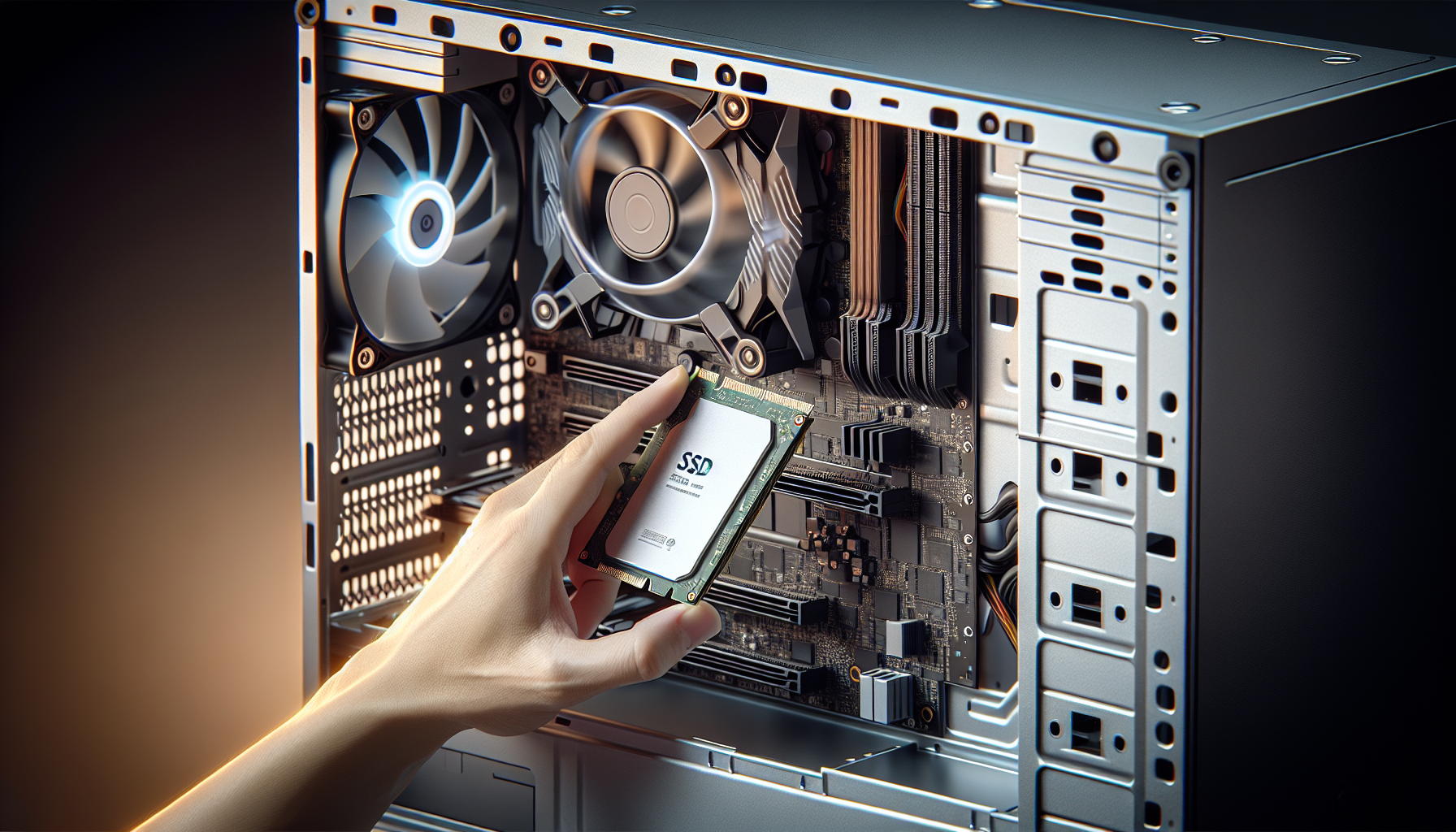
Enhancing Your Gaming PC Storage
Importance of Storage in Gaming PCs
Storage is a fundamental aspect of any gaming PC. It impacts not only the capacity to store games but also the overall performance and load times. Modern games are becoming increasingly large, requiring substantial storage space. Efficient storage solutions can enhance gaming experiences by reducing load times and improving system responsiveness.
For gamers in Australia looking to build a gaming PC, understanding the importance of storage is essential. Adequate storage ensures that a PC can handle multiple games, downloadable content, and other media without running into space limitations. Moreover, faster storage solutions, such as Solid State Drives (SSDs), can significantly reduce game load times, providing a smoother and more enjoyable gaming experience.
Overview of Adding Storage to Your Gaming PC
Adding storage to a gaming PC involves selecting the appropriate type of storage solution and installing it correctly. There are several storage options available, including internal hard drives, SSDs, and external hard drives. Each option offers unique benefits and should be chosen based on individual needs and system compatibility.
When considering adding storage to a gaming PC, it’s essential to assess the existing system configuration. Factors such as available drive bays, power supply capacity, and motherboard compatibility play a crucial role in determining the best storage solution. Gamers should also consider their storage capacity needs, with larger drives allowing for more game installations and media storage.
In the following sections, we will delve into the different types of storage solutions, their advantages, and how they can be integrated into a gaming PC setup. For more details on components needed for a gaming PC, refer to our article on gaming pc components.
| Storage Type | Typical Capacity | Performance | Best For |
|---|---|---|---|
| Internal Hard Drive | 500GB - 10TB | Moderate | Large game libraries |
| SSD | 120GB - 4TB | High | Fast load times |
| External Hard Drive | 1TB - 20TB | Moderate to High | Portable storage, backup solutions |
By understanding the importance of storage and the options available, gamers can make informed decisions to enhance their gaming setups. For those interested in optimizing their PC for gaming, check out our guide on optimise pc for gaming.
Types of Storage Solutions
Adding more storage to a gaming PC involves choosing the right type of storage solution. Each type has its own benefits and considerations.
Internal Hard Drives
Internal hard drives (HDDs) are a common storage solution for gaming PCs. They offer large storage capacities at a relatively low cost. HDDs are ideal for storing large game files, media, and backups.
| Specification | Details |
|---|---|
| Average Capacity | 500GB – 10TB |
| Speed | 5400 RPM – 7200 RPM |
| Price Range | $50 – $150 |
HDDs are slower compared to SSDs, which can affect game loading times. However, they are reliable for mass storage. For more on choosing components for your gaming PC, see our article on gaming pc components.
Solid State Drives (SSDs)
Solid State Drives (SSDs) offer faster data access speeds compared to HDDs. This makes them a popular choice for gamers looking to improve game load times and overall system performance.
| Specification | Details |
|---|---|
| Average Capacity | 250GB – 4TB |
| Read/Write Speed | 500MB/s – 3500MB/s |
| Price Range | $60 – $500 |
SSDs use flash memory, which allows for quicker data retrieval. They're more expensive per gigabyte than HDDs but provide significant performance boosts. For tips on optimising your PC for gaming, check out optimise pc for gaming.
External Hard Drives
External hard drives are versatile and portable storage solutions. They are perfect for gamers who need extra storage without the hassle of installing an internal drive.
| Specification | Details |
|---|---|
| Average Capacity | 500GB – 8TB |
| Speed | 5400 RPM – 7200 RPM |
| Price Range | $50 – $200 |
These drives connect via USB and can be used across multiple devices. They are ideal for backing up game files and transferring data between systems. For more information on building a gaming setup, visit build a gaming pc.
Each type of storage solution has its own set of benefits. Internal hard drives offer large capacities at a lower cost, SSDs provide faster performance, and external hard drives offer portability and ease of use. When choosing the best option for your gaming PC, consider your specific needs and budget to make an informed decision.
Factors to Consider
When looking to add storage to a gaming PC, there are several key factors to consider to ensure optimal performance and compatibility. These include compatibility with your system, storage capacity needs, and speed and performance.
Compatibility with Your System
Before purchasing any storage device, it's crucial to verify its compatibility with your gaming PC. This involves checking the available slots on your motherboard, the type of storage interface (e.g., SATA, NVMe), and the physical space within your PC case.
- Motherboard Slots: Verify if your motherboard has available slots for additional storage devices.
- Storage Interface: Determine whether your system supports SATA, NVMe, or both.
- Physical Space: Ensure there is enough physical space within your PC case to accommodate the new storage device.
For gamers in Australia, it's also important to consider the local availability of compatible components. For more information on gaming PC components, visit our detailed guide.
Storage Capacity Needs
The storage capacity you require depends on the number of games you plan to install and the size of each game. Modern games can take up significant space, so it's essential to plan accordingly.
| Game Type | Approximate Size (GB) |
|---|---|
| Indie Games | 1 - 5 |
| AAA Titles | 40 - 100 |
| MMORPGs | 50 - 150 |
Consider your current library and future gaming needs. If you frequently download and play new games, opting for a higher capacity storage solution may be beneficial. For a breakdown of good gaming PC specs, check our comprehensive guide.
Speed and Performance
Speed and performance are critical when choosing storage for a gaming PC. The type of storage device you select can significantly impact game loading times and overall system responsiveness.
- HDDs (Hard Disk Drives): Generally slower with lower read/write speeds. Suitable for storing large files and less frequently played games.
- SSDs (Solid State Drives): Faster read/write speeds, leading to quicker game load times and improved system performance. Ideal for storing frequently played games and the operating system.
- NVMe SSDs: Offer the highest speeds and performance, making them perfect for high-end gaming setups.
| Storage Type | Read Speed (MB/s) | Write Speed (MB/s) |
|---|---|---|
| HDD | 80 - 160 | 80 - 160 |
| SATA SSD | 500 - 550 | 450 - 500 |
| NVMe SSD | 2000 - 3500 | 1500 - 3000 |
Selecting the right storage type based on speed and performance will ensure a smooth and enjoyable gaming experience. For more tips on how to optimise your PC for gaming, visit our detailed guide.
By considering compatibility, capacity needs, and performance, gamers can make informed decisions when adding storage to their gaming PCs. This will enhance their gaming setup and provide a seamless experience. For those looking to build a gaming PC in Australia, these factors are especially critical.
Installation Process
Adding storage to a gaming PC can significantly enhance its performance and capacity. Follow these steps to ensure a smooth installation process.
Preparing Your PC
Before installing a new storage device, it's crucial to prepare your PC. This involves a few essential steps to ensure safety and compatibility.
- Backup Important Data: Ensure all critical data is backed up to avoid potential loss during the installation process.
- Shut Down and Unplug: Turn off the computer and disconnect it from the power source. Unplug all peripherals.
- Open the Case: Remove the side panel of your PC case to access the internal components. Refer to your PC's manual if needed.
Installing the New Storage Device
Once your PC is prepared, proceed with installing the new storage device. Different types of storage solutions may require slightly different installation steps.
Internal Hard Drives
- Locate the Drive Bays: Identify the available drive bays inside your PC case.
- Mount the Hard Drive: Secure the hard drive into the drive bay using screws or a tool-less mounting system.
- Connect the Cables: Attach the SATA data cable to the hard drive and then to the motherboard. Connect the SATA power cable from the power supply to the hard drive.
Solid State Drives (SSDs)
- Determine the Mounting Location: SSDs can be installed in 2.5-inch drive bays or mounted directly onto the motherboard if it's an M.2 SSD.
- Install the SSD:
- 2.5-inch SSD: Mount the SSD in the drive bay and connect the SATA data and power cables.
- M.2 SSD: Insert the M.2 SSD into the appropriate slot on the motherboard and secure it with a screw.
External Hard Drives
- Connect the External Drive: Plug the external hard drive into an available USB port on your PC.
- Power On the Drive: If the external drive requires a separate power source, ensure it is connected and turned on.
| Storage Type | Installation Steps | Connection |
|---|---|---|
| Internal Hard Drive | Mount in drive bay, connect SATA cables | SATA |
| 2.5-inch SSD | Mount in drive bay, connect SATA cables | SATA |
| M.2 SSD | Insert into motherboard slot, secure with screw | M.2 |
| External Hard Drive | Connect via USB, power on | USB |
For more detailed steps on enhancing your gaming PC, explore our guide on build a gaming pc. Additionally, ensuring your storage device is compatible with your system is key. Visit our article on gaming pc components for more insights.
Managing Your Storage
Proper management of your gaming PC's storage is essential to ensure smooth performance and easy access to your gaming library. This section covers key strategies for organizing your game library and backing up important data.
Organizing Your Game Library
A well-organized game library makes it easier to locate and launch your favourite titles, while also freeing up space on your storage devices.
Steps for Organizing Your Game Library:
- Categorize Games: Group games by genre, developer, or personal preference.
- Utilize Folders: Create specific folders for different categories on your storage device.
- Remove Unplayed Games: Regularly delete games you no longer play to free up space for new titles.
- Use Game Launchers: Game launchers like Steam, Epic Games Store, and others help in organizing and managing your game library efficiently.
Example Table for Organizing Games by Genre:
| Genre | Games |
|---|---|
| Action | Game A, Game B, Game C |
| Role-Playing | Game D, Game E |
| Strategy | Game F, Game G |
| Simulation | Game H, Game I, Game J |
For more tips on optimizing your PC for gaming, visit our article on optimize pc for gaming.
Backing Up Important Data
Backing up your data is crucial to prevent loss of game progress, settings, and other important files. Regular backups ensure that your data is safe in case of hardware failure or other issues.
Backup Strategies:
- Cloud Storage: Use cloud services to store game saves and important documents.
- External Hard Drives: Regularly transfer important files to an external hard drive.
- Automated Backup Software: Use backup software to schedule automatic backups of your data.
Example Table for Backup Methods:
| Backup Method | Pros | Cons |
|---|---|---|
| Cloud Storage | Accessible from anywhere, automatic sync | Requires internet, limited free space |
| External Hard Drives | Large storage capacity, secure | Can be lost or damaged, manual updates |
| Automated Backup Software | Regular automated backups | May require additional software, setup time |
For more information on building a gaming PC, check out our article on build a gaming pc.
By organizing your game library and backing up important data, you can ensure that your gaming experience remains smooth and uninterrupted. For additional guidance on managing your gaming PC, visit our resources on build your own gaming pc and gaming pc components.
Future-Proofing Your Storage
Future-proofing your gaming PC storage ensures that your system remains capable of handling new games and software updates. This section will explore upgrading your storage over time and staying informed about new storage technologies.
Upgrading Your Storage Over Time
Upgrading the storage of your gaming PC is a strategic way to maintain performance and accommodate the increasing size of modern games. Regularly assessing your storage needs and replacing or adding new drives can help you stay ahead.
- Monitoring Storage Usage: Keep an eye on your current storage usage and remaining capacity. Tools like built-in system monitors can help track this information.
- Incremental Upgrades: Instead of waiting for your storage to run out completely, consider incremental upgrades. Adding a new SSD or HDD can provide the additional space needed for new games.
- Data Migration: When upgrading, ensure that your game data and important files are securely transferred to the new drive. This can be done using cloning software or manual transfers.
| Storage Type | Average Lifespan | Upgrade Frequency |
|---|---|---|
| HDD | 3-5 years | Every 3 years |
| SSD | 5-7 years | Every 5 years |
| NVMe SSD | 5-7 years | Every 5 years |
For more information on building a gaming PC, refer to our guide on build a gaming pc.
Staying Informed About New Storage Technologies
The world of storage technology is constantly evolving, with new innovations offering better performance and reliability. Staying informed about these developments can help you make future-proof decisions for your gaming setup.
- Follow Tech News: Regularly check reputable tech news websites and forums to stay updated on the latest storage technologies.
- Read Reviews: Before investing in new storage solutions, read reviews and benchmarks to understand their performance and compatibility with gaming PCs.
- Join Communities: Participate in online gaming and tech communities where enthusiasts share their experiences and insights about new storage devices.
| Technology | Description | Benefits |
|---|---|---|
| PCIe 4.0 SSDs | Next-gen SSDs with faster read/write speeds | Improved game loading times |
| 3D NAND | Advanced flash memory technology | Higher storage density and reliability |
| Hybrid Drives | Combination of SSD and HDD | Balance between speed and capacity |
For tips on optimizing your gaming PC, see our article on optimize pc for gaming.
By upgrading your storage over time and staying informed about new technologies, you can ensure that your gaming PC remains capable of handling future demands. For more insights into gaming PC components, visit our detailed guide on gaming pc components.


