


Hardware Hygiene 101: A Comprehensive Guide to Cleaning Computer Hardware
Importance of Hardware Hygiene
Maintaining the cleanliness of computer hardware is a critical aspect of IT management. This section discusses why cleaning computer hardware is essential and the impact that unclean hardware can have on business operations.
Why Cleaning Computer Hardware is Essential
Regular cleaning of computer hardware is vital for several reasons. Dust, dirt, and grime can accumulate over time, leading to various issues that can affect performance and longevity.
Performance Improvement: Clean hardware operates more efficiently. When components are free from dust, airflow is unobstructed, and heat can dissipate effectively. This helps in maintaining optimal performance. For more details, refer to our article on clean computer for faster performance.
Extended Lifespan: Regular maintenance helps prolong the life of hardware. Components such as fans and processors can suffer from overheating if dust is allowed to build up. By cleaning regularly, businesses can avoid premature hardware failures.
Health Benefits: Dust and allergens can impact the health of employees. A clean workspace contributes to a healthier environment, reducing sickness and improving productivity. For additional insights, see pc dust cleaning benefits.
Impact of Unclean Hardware on Business Operations
Neglecting to clean computer hardware can lead to a range of negative consequences that affect business operations. Below are some significant impacts:
| Impact Area | Consequences |
|---|---|
| Performance | Slower systems, increased downtime, and potential data loss due to hardware failure. Refer to identify computer slowdown causes for more information. |
| Cost | Higher repair and replacement costs due to hardware damage. See fix slow freezing computer for tips on addressing performance issues. |
| Employee Productivity | Decreased efficiency and effectiveness due to slow systems. For ways to optimize performance, check optimize computer speed. |
| Reputation | A poorly maintained IT environment can affect the perception of the business by customers and clients. |
In conclusion, prioritising hardware hygiene is not just a matter of aesthetics; it has tangible effects on performance, costs, and overall business efficiency. For tips on maintaining a clean workspace, refer to our article on best pc cleaning practices.
Cleaning Tools and Materials
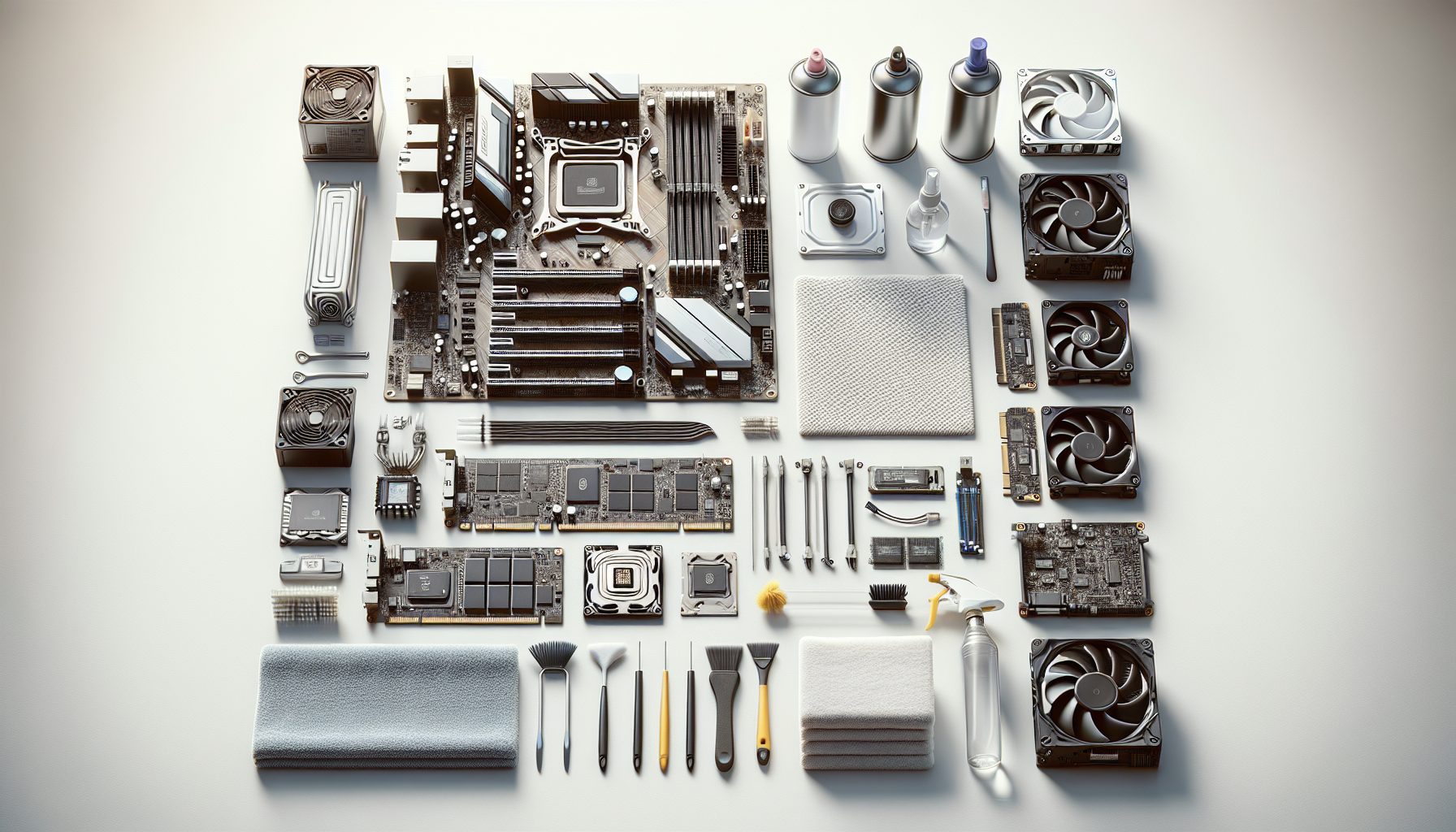
Maintaining clean computer hardware requires the right tools and materials. Proper cleaning techniques not only enhance the appearance of equipment but also contribute to better performance and longevity.
Essential Tools for Cleaning Computer Hardware
A variety of tools are necessary to effectively clean computer hardware. These tools help to reach tight spaces and ensure thorough cleaning without causing damage.
| Tool | Purpose |
|---|---|
| Microfiber Cloths | Ideal for dusting and wiping surfaces without scratching. |
| Compressed Air Canister | Removes dust and debris from hard-to-reach areas, such as keyboards and CPU fans. |
| Soft-Bristle Brush | Cleans delicate components like circuit boards and connectors without creating static. |
| Isopropyl Alcohol | Used for sanitizing surfaces and cleaning stubborn stains. |
| Cotton Swabs | Effective for cleaning small crevices and detailed areas. |
| Vacuum Cleaner with Brush Attachment | For removing dust from larger surfaces and internal hardware. |
Recommended Cleaning Solutions
Choosing the right cleaning solutions is vital for maintaining hardware hygiene without causing damage. The following solutions are commonly used for cleaning various components.
| Cleaning Solution | Application |
|---|---|
| Isopropyl Alcohol (70% or higher) | Ideal for disinfecting surfaces and cleaning electronic components. |
| Distilled Water | Safe for diluting cleaning agents and wiping screens. |
| Screen Cleaner | Specifically formulated to clean monitors and screens without leaving streaks. |
| Mild Soap Solution | Suitable for cleaning external surfaces but should be used sparingly. |
| Baking Soda | Can be used as a gentle abrasive for removing tough stains. |
Using these tools and solutions contributes to a comprehensive approach to hardware maintenance. For more information on the importance of cleaning computer hardware, visit our article on pc cleaning performance impact. Regular maintenance practices will help ensure that the equipment runs efficiently and lasts longer, ultimately benefiting business operations.
Cleaning Process for Different Hardware Components
Maintaining clean computer hardware is vital for optimal performance and longevity. This section outlines the cleaning processes for various hardware components, including monitors and screens, keyboards and mice, and CPU towers and laptops.
Cleaning Monitors and Screens
Monitors and screens can accumulate dust, fingerprints, and smudges, affecting visibility and performance. To ensure proper cleaning, follow these steps:
- Turn Off the Monitor: Always turn off the monitor and unplug it before cleaning to avoid any electrical issues.
- Use a Microfiber Cloth: Dampen a microfiber cloth with water or a suitable screen cleaner. Avoid using paper towels as they can scratch the screen.
- Wipe Gently: Wipe the screen in a circular motion to remove dirt and smudges. Do not apply excessive pressure.
- Dry the Screen: Use a dry part of the cloth to wipe any remaining moisture.
| Cleaning Step | Description |
|---|---|
| Turn Off Monitor | Prevents electrical issues |
| Use Microfiber Cloth | Reduces risk of scratches |
| Wipe Gently | Ensures thorough cleaning without damage |
| Dry the Screen | Leaves a clean, streak-free finish |
For more information on maintaining screen cleanliness, refer to our article on cleaning dirty computer screens.
Cleaning Keyboards and Mice
Keyboards and mice can harbour dust, crumbs, and bacteria, making regular cleaning essential. Here’s how to clean them effectively:
- Unplug the Devices: Disconnect the keyboard and mouse from the computer.
- Shake Out Debris: Turn the keyboard upside down and gently shake to dislodge any loose debris.
- Use Compressed Air: Use compressed air to blow out dirt from between the keys and around the mouse.
- Wipe with a Cloth: Dampen a cloth with alcohol or a suitable cleaning solution and wipe the surfaces. Avoid getting liquid inside the keys.
- Dry Thoroughly: Allow the keyboard and mouse to dry completely before reconnecting.
| Cleaning Step | Description |
|---|---|
| Unplug Devices | Ensures safety during cleaning |
| Shake Out Debris | Removes loose particles |
| Use Compressed Air | Cleans hard-to-reach areas |
| Wipe with Cloth | Disinfects surfaces |
| Dry Thoroughly | Prevents moisture damage |
For tips on sanitising computer hardware, see our article on sanitize computer hardware.
Cleaning CPU Towers and Laptops
Dust accumulation inside CPU towers and laptops can lead to overheating and performance issues. Follow these steps to clean them properly:
- Power Down and Unplug: Shut down the computer and disconnect all cables.
- Open the Case: For CPU towers, remove the side panel. For laptops, refer to the user manual for safe disassembly.
- Use Compressed Air: Blow out dust from fans, heatsinks, and other components. Hold the can upright to avoid moisture.
- Wipe Surfaces: Use a microfiber cloth to wipe down surfaces gently. Do not touch any components directly with your fingers.
- Reassemble: After cleaning, reassemble the case or laptop and reconnect all cables.
| Cleaning Step | Description |
|---|---|
| Power Down and Unplug | Ensures safety during cleaning |
| Open the Case | Access to internal components |
| Use Compressed Air | Removes dust effectively |
| Wipe Surfaces | Cleans visible areas |
| Reassemble | Ensures all components are secured |
For more details on internal cleaning techniques, check our article on internal PC dusting.
Regular cleaning of computer hardware not only enhances performance but also extends the lifespan of the equipment. For additional tips on maintaining a clean system, refer to our guide on pc cleaning frequency.
Best Practices for Maintaining Clean Hardware
Keeping computer hardware clean is vital for optimal performance and longevity. IT managers and business owners should adopt best practices to maintain hardware hygiene effectively.
Regular Cleaning Schedule
Establishing a regular cleaning schedule is essential for maintaining the cleanliness of computer hardware. Regular cleaning helps prevent the buildup of dust, grime, and bacteria, which can affect performance and health.
| Cleaning Frequency | Hardware Component | Recommended Actions |
|---|---|---|
| Weekly | Keyboards and Mice | Wipe with disinfectant wipes, remove debris. |
| Monthly | Monitors and Screens | Use a microfiber cloth and appropriate cleaner. |
| Quarterly | CPU Towers and Laptops | Dust removal, internal cleaning if necessary. |
| Biannually | All Hardware | Deep clean, check for dust buildup, replace filters if applicable. |
A consistent schedule ensures that hardware remains in good condition. For more on the impact of cleaning on performance, refer to our article on pc cleaning performance impact.
Safe Cleaning Techniques
Using safe cleaning techniques is paramount to avoid damaging hardware. Follow these guidelines to ensure effective yet gentle cleaning:
- Avoid Excessive Moisture: Use damp cloths rather than soaking materials in cleaning solutions.
- Use Appropriate Cleaners: Choose cleaners designed for electronics, avoiding harsh chemicals that can damage surfaces. For more on suitable cleaners, see alcohol for cleaning hardware.
- Gentle Dusting: When cleaning internal components, use compressed air to dislodge dust without physical contact. For tips on using compressed air safely, visit our article on compressed air pc cleaning.
- Handle with Care: Always turn off and unplug devices before cleaning, especially when dealing with internal components.
Implementing these techniques can help prevent mishaps during the cleaning process. For a comprehensive approach, discover more about best pc cleaning practices.
Troubleshooting Common Hardware Cleaning Issues
Even with careful cleaning, issues may arise. Here are solutions to common problems:
| Issue | Possible Cause | Solution |
|---|---|---|
| Sticky Keys | Residue buildup | Use a damp cloth with a mild cleaner, allow to dry thoroughly. |
| Screen Smudges | Improper cleaning technique | Use a microfiber cloth with appropriate screen cleaner. |
| Overheating | Dust accumulation | Regularly clean vents and fans to ensure airflow. For internal cleaning tips, see internal pc dusting. |
| Unresponsive Trackpad | Dirt or grime | Clean with a soft, dry cloth and check settings. |
By addressing these common cleaning issues, IT managers can maintain efficient operation. For more insights on maintaining performance, explore identify computer slowdown causes.
Implementing these best practices will help ensure that computer hardware remains clean, functional, and efficient.


