


Germ-Free Computing: How to Properly Sanitize Your Business Hardware
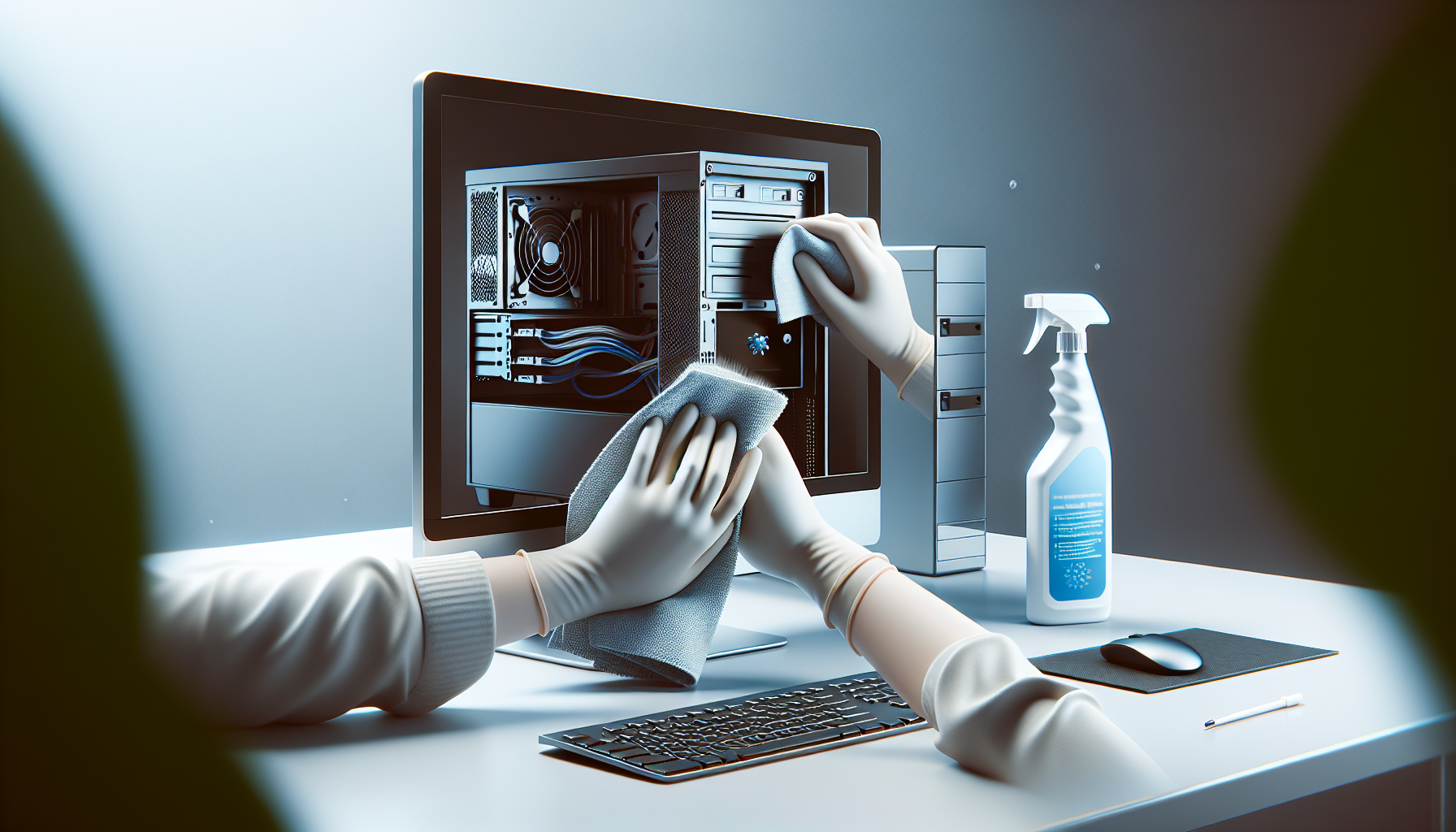
Importance of Sanitizing Business Hardware
Sanitizing business hardware is a critical aspect of maintaining a healthy and efficient workplace. It not only ensures the longevity of devices but also protects the health of employees.
Why Proper Sanitization is Essential
Proper sanitization of computer hardware is essential for various reasons, including health, performance, and productivity:
Health and Hygiene: Regular cleaning and sanitization reduce the spread of germs and bacteria, particularly in shared workspaces. This is vital as many illnesses can be transmitted through contaminated surfaces.
Device Longevity: Dust, dirt, and grime can accumulate on hardware, leading to overheating and reduced functionality. Proper sanitization helps to maintain the devices, ensuring they operate effectively for a longer period.
Enhanced Performance: A clean device performs better. Regularly sanitizing hardware can prevent slowdowns caused by dust and debris affecting the internal components. For more information on how cleaning impacts performance, refer to our article on pc cleaning performance impact.
| Benefit of Sanitization | Impact |
|---|---|
| Health and Hygiene | Reduces illness transmission |
| Device Longevity | Extends hardware lifespan |
| Enhanced Performance | Improves operational efficiency |
Risks of Neglecting Hardware Sanitization
Neglecting the sanitization of computer hardware can lead to significant risks, including:
Increased Illness: A lack of regular cleaning can result in a buildup of harmful bacteria and viruses on devices, leading to higher rates of employee illness. This can negatively affect productivity and morale.
Hardware Failure: Dust and grime can clog vents and fans, leading to overheating and eventual hardware failure. The cost of replacing hardware can be substantial, making regular maintenance a more economical choice.
Data Security Risks: Neglected devices may also pose a risk to data security. If hardware is not properly sanitized before disposal or repurposing, sensitive information may be exposed. For guidelines on safely disposing of hardware, see our article on wipe and give away computer.
| Risk of Neglect | Consequence |
|---|---|
| Increased Illness | Lower productivity |
| Hardware Failure | Higher replacement costs |
| Data Security Risks | Potential data breaches |
In summary, the importance of sanitizing business hardware cannot be overstated. Ensuring that devices are clean and well-maintained is vital for the health of employees, the performance of technology, and the overall success of the business.
Steps to Sanitize Your Business Hardware
To maintain a germ-free computing environment, it is essential to follow specific steps to properly sanitise business hardware. This section outlines the key processes involved in cleaning various components of your IT equipment.
Cleaning External Surfaces
The first step in sanitising computer hardware is to clean the external surfaces. This involves removing dust, dirt, and germs that accumulate on devices over time.
| Surface Type | Recommended Cleaning Method |
|---|---|
| Desktops and Laptops | Use a microfiber cloth dampened with a mild detergent solution. Wipe down the exterior surfaces, including the casing and keyboard. |
| Monitors | Use a screen-safe cleaner or a solution of water and vinegar. Apply it to a cloth and gently clean the screen. |
| Mice | Wipe the exterior with a disinfectant wipe or cloth. Make sure to clean between the buttons and the scroll wheel. |
Disinfecting Keyboards and Mice
Keyboards and mice are hotspots for germs due to frequent contact. Regular disinfecting is necessary to reduce the risk of illness.
- Turn off the device: Always switch off the keyboard and mouse before cleaning.
- Shake out debris: Turn the keyboard upside down and gently shake to remove crumbs and dust.
- Use disinfectant wipes: Wipe down all surfaces, including the keys and grips of the mouse. Ensure the wipes are not overly wet to prevent moisture from seeping into the devices.
| Device Type | Cleaning Frequency | Recommended Products |
|---|---|---|
| Keyboards | Weekly | Disinfectant wipes, isopropyl alcohol solution |
| Mice | Weekly | Disinfectant wipes, isopropyl alcohol solution |
For more details on cleaning methods, refer to our guide on clean computer hardware.
Sanitizing Monitors and Screens
Monitors and screens should be cleaned regularly to maintain visibility and reduce the spread of germs.
- Use a soft cloth: A microfiber cloth is ideal for cleaning screens without scratching.
- Apply a suitable cleaner: Use a screen cleaner or a mixture of water and vinegar. Avoid ammonia-based cleaners that can damage the screen.
- Wipe in circular motions: Gently wipe the screen in a circular motion to prevent streaks.
| Screen Type | Cleaning Frequency | Recommended Products |
|---|---|---|
| LCD/LED Monitors | Bi-weekly | Screen cleaner, vinegar and water solution |
| Touchscreens | Daily | Screen-safe cleaner, disinfectant wipes |
Maintaining clean monitors not only promotes hygiene but also enhances the overall performance of the hardware. Regular cleaning ensures a clear view and supports better productivity. For more insights on the impact of cleaning on computer performance, check our article on pc cleaning performance impact.
Deep Cleaning Procedures
Deep cleaning of business hardware is vital to ensure a germ-free environment and optimal performance. This section outlines essential procedures for internal hardware cleaning, proper ventilation and dust removal, and handling and disinfecting cables and ports.
Internal Hardware Cleaning
Internal hardware cleaning is crucial to maintain both hygiene and functionality. Dust and debris can accumulate inside machines, affecting performance and potentially leading to overheating. IT managers should follow these steps for effective internal cleaning:
- Power Down and Unplug: Ensure all devices are turned off and unplugged before starting any cleaning.
- Open the Case: For desktops, carefully remove the side panel to access internal components.
- Use Compressed Air: Utilize compressed air to blow out dust from components such as fans, heat sinks, and power supplies. This method is effective in removing stubborn dust particles without damaging sensitive parts.
- Wipe Surfaces: Use a lint-free cloth slightly dampened with isopropyl alcohol to wipe surfaces and components, ensuring no liquid enters sensitive areas.
| Cleaning Item | Recommended Frequency |
|---|---|
| Dusting internal parts | Every 6 months |
| Full internal clean | Annually |
For more insights on the impact of cleaning on performance, refer to our article on pc cleaning performance impact.
Proper Ventilation and Dust Removal
Proper ventilation is key to maintaining a clean environment for business hardware. Good airflow prevents overheating and reduces dust accumulation. Here are some recommendations:
- Positioning: Place computers in well-ventilated areas, away from walls or obstructions that can restrict airflow.
- Air Filters: Consider using air filters in the room to trap dust particles.
- Regular Dusting: Establish a routine for dusting surfaces around the hardware to prevent dust from settling inside.
| Ventilation Tip | Benefit |
|---|---|
| Keep devices away from walls | Enhances airflow |
| Use air filters | Reduces airborne dust |
| Regularly dust surroundings | Minimizes internal dust |
For additional cleaning strategies, check out our article on internal pc dusting.
Handling and Disinfecting Cables and Ports
Cables and ports are often overlooked during sanitization processes. However, these areas can harbour germs and dust. Proper handling and disinfecting are essential for a comprehensive clean:
- Unplug Cables: Safely unplug all cables before cleaning to avoid damage or shock.
- Wipe Down Cables: Use a cloth with a disinfectant solution to wipe cables. Ensure that the cloth is not overly wet to prevent moisture from entering connections.
- Disinfect Ports: Carefully use a cotton swab dipped in isopropyl alcohol to clean ports, ensuring they are free from dirt and debris.
| Cable Type | Cleaning Method | Recommended Frequency |
|---|---|---|
| USB Cables | Wipe with disinfectant cloth | Every month |
| Power Cables | Wipe with disinfectant cloth | Every month |
| HDMI/Display Cables | Wipe with disinfectant cloth | Every 3 months |
For further guidance on maintaining cleanliness, refer to our article on best pc cleaning practices.
Best Practices for Maintaining a Germ-Free Environment
Ensuring a germ-free environment within a workplace involves a comprehensive approach to maintaining and sanitising computer hardware. Establishing cleaning protocols, educating staff on hygiene practices, and conducting regular maintenance and inspections are key components of this strategy.
Establishing Cleaning Protocols
Creating clear and effective cleaning protocols is essential for maintaining a sanitised workspace. These protocols should outline specific cleaning tasks, the frequency of these tasks, and the products to be used. Consider implementing a checklist for daily, weekly, and monthly cleaning tasks.
| Cleaning Task | Frequency | Responsible Person |
|---|---|---|
| Wipe down external surfaces | Daily | IT Staff |
| Disinfect keyboards and mice | Daily | IT Staff |
| Deep clean monitors and screens | Weekly | IT Staff |
| Internal hardware dusting | Monthly | IT Staff |
These protocols should be communicated clearly to all team members. Regularly reviewing and updating these procedures will ensure they remain effective and relevant.
Educating Staff on Hygiene Practices
Educating employees on proper hygiene practices is vital for maintaining a germ-free environment. Staff should be trained on the importance of regular sanitisation of their workstations and how to properly clean their equipment.
Topics to cover in training sessions include:
- The significance of hand hygiene before and after using shared equipment.
- Techniques for effectively sanitising computer hardware, including the use of appropriate cleaning agents.
- The importance of reporting any equipment malfunctions or issues that may hinder sanitisation efforts.
Providing visual aids, such as posters or infographics, can help reinforce these practices in the workplace.
Regular Maintenance and Inspection
Conducting regular maintenance and inspections of computer hardware is crucial for ensuring long-term performance and cleanliness. Scheduled maintenance allows for the identification and resolution of potential issues before they escalate.
Key maintenance activities include:
- Inspecting cables and ports for wear and tear.
- Cleaning internal components to prevent dust accumulation, which can affect performance.
- Monitoring the effectiveness of sanitisation efforts and making adjustments as needed.
For more information on maintaining hardware for optimal performance, refer to our article on clean computer for faster performance.
Incorporating these best practices into daily operations will help create a safe and hygienic working environment, ultimately contributing to the overall productivity and health of the business.


