


From Sluggish to Speedy: Fixing Slow and Freezing Computers in Your Office
Identifying Computer Performance Issues
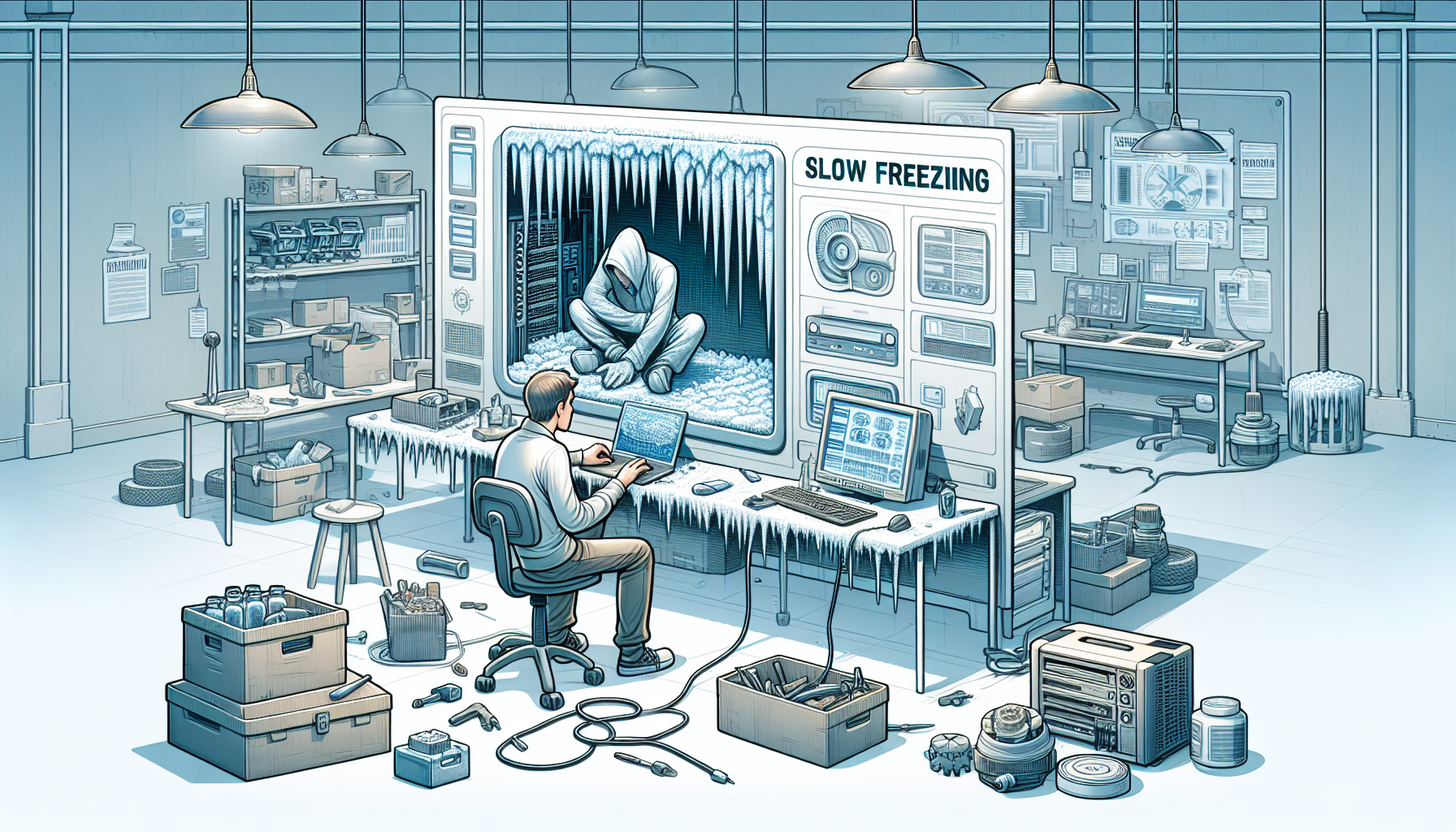
Understanding and identifying computer performance problems is essential for IT managers and business owners. Recognising the signs early can help in implementing effective solutions to fix slow freezing computer.
Signs of a Slow and Freezing Computer
There are several indicators that a computer is experiencing performance issues. The following table outlines common signs that a computer may be sluggish or freezing:
| Sign | Description |
|---|---|
| Frequent Freezing | The computer often becomes unresponsive for several seconds. |
| Slow Startup | The time taken to boot up the computer is noticeably longer. |
| Lagging Applications | Programs take a long time to open or respond. |
| Excessive Load Times | Web pages and files take much longer to load than usual. |
| Unusual Noises | The computer makes sounds indicating hardware strain or failure. |
| High CPU Usage | Task Manager shows consistently high CPU usage even with minimal applications running. |
Common Causes of Performance Problems
Various factors can lead to a slow or freezing computer. Understanding these causes can assist in troubleshooting and finding solutions. Below are some frequent culprits:
| Cause | Description |
|---|---|
| Insufficient RAM | The system lacks adequate memory to handle multiple tasks. |
| Malware or Viruses | Malicious software can significantly slow down performance. |
| Overloaded Hard Drive | A hard drive that is nearly full can impact speed and responsiveness. |
| Outdated Software | Running outdated operating systems or applications can lead to inefficiencies. |
| Background Processes | Too many applications running simultaneously can consume resources. |
| Hardware Failures | Physical issues with components like the hard drive or RAM can cause freezing. |
For further insights on identifying computer slowdown causes, refer to our article on identify computer slowdown causes. Recognising these signs and causes is the first step towards restoring optimal performance in computers.
Troubleshooting and Solutions
Addressing the issue of a slow or freezing computer involves a systematic approach to troubleshooting. Several practical solutions can help restore optimal performance.
Clearing Temporary Files and Cache
Temporary files and cache can accumulate over time, leading to sluggish performance. Regularly clearing these files can free up valuable disk space and improve speed. The process involves using built-in system tools or third-party applications designed for maintenance.
| Action | Description |
|---|---|
| Run Disk Cleanup | Utilise the built-in Disk Cleanup tool to remove temporary files and system cache. Learn more about disk cleanup effectiveness. |
| Clear Temp Files | Manually clear temp files by navigating to the Temp folder and deleting unnecessary files. For guidance, refer to clear temp and prefetch files. |
| Clean Junk Files | Use software to identify and remove junk files that may be affecting performance. For more techniques, see clean computer junk files. |
Updating Software and Drivers
Outdated software and drivers can contribute significantly to performance issues. Regular updates ensure that the system runs smoothly and securely. This process involves checking for updates in the operating system and all installed applications.
| Action | Description |
|---|---|
| Check for OS Updates | Regularly check for updates to the operating system to ensure it is up to date. This can prevent compatibility issues. |
| Update Drivers | Ensure that hardware drivers are current. This is particularly important for graphics and network drivers which are critical for performance. For more insights, explore identify computer slowdown causes. |
Checking for Malware and Viruses
Malware and viruses can severely impact computer performance. Conducting regular scans with reliable security software can help detect and remove these threats, thereby improving overall speed.
| Action | Description |
|---|---|
| Run Antivirus Software | Use an up-to-date antivirus program to perform full system scans. This can identify and quarantine malicious software. For information on free options, see free computer cleaning methods. |
| Use Anti-Malware Tools | In addition to antivirus software, consider using anti-malware tools for a comprehensive check. This ensures that various types of threats are addressed. |
Implementing these troubleshooting steps can significantly help to fix slow freezing computers. Regular maintenance and vigilance are key to keeping systems running efficiently. For ongoing performance enhancement, explore our articles on optimize computer speed and pc cleaning performance impact.
Optimizing Computer Performance
To improve the performance of a slow or freezing computer, several strategies can be employed. These include managing startup programs, increasing RAM and storage, and implementing regular maintenance practices.
Managing Startup Programs
A common cause of slow computer performance is the number of programs that launch automatically when the computer starts. By managing these startup programs, one can significantly enhance boot time and overall system responsiveness.
| Startup Program Type | Impact on Performance |
|---|---|
| Essential Programs | Minimal impact, necessary for operation |
| Non-Essential Programs | High impact, can slow down startup |
| Background Services | Variable impact, may be disabled if not needed |
To manage startup programs, users can access the Task Manager on Windows or System Preferences on macOS. Disabling unnecessary applications can lead to quicker start times and improved performance.
Increasing RAM and Storage
Insufficient RAM and storage can hinder a computer's performance, particularly when running multiple applications. Upgrading RAM can provide the system with more memory to handle tasks efficiently, reducing sluggishness and freezing.
| RAM Size | Typical Use Case |
|---|---|
| 4 GB | Basic tasks like browsing and document editing |
| 8 GB | Moderate multitasking and software use |
| 16 GB or more | Heavy applications, gaming, and professional software |
Additionally, increasing storage capacity through upgrading to a larger hard drive or switching to a solid-state drive (SSD) can enhance file access speeds and overall responsiveness. Users can read more about the effects of cleaning temp files and how it impacts computer speed in our article on temp files and computer speed.
Regular Maintenance Practices
Implementing regular maintenance practices is vital for sustaining optimal performance. This includes cleaning the system of unnecessary files, updating software, and checking for potential issues.
| Maintenance Task | Frequency |
|---|---|
| Disk Cleanup | Monthly |
| Software Updates | Bi-monthly |
| Hardware Dusting | Quarterly |
Routine maintenance can prevent many performance-related issues. For detailed guidance on cleaning a computer for better performance, refer to our article on clean computer for faster performance. By adopting these practices, one can effectively fix slow and freezing computers, ensuring they run smoothly and efficiently.
Seeking Professional Support
As businesses rely heavily on technology, it is crucial to ensure that computer systems operate efficiently. When internal troubleshooting does not resolve issues, seeking professional support becomes necessary.
When to Consult IT Support
IT managers and business owners should consider consulting IT support in the following situations:
| Scenario | Description |
|---|---|
| Persistent Performance Issues | When slow or freezing problems continue despite troubleshooting efforts. |
| Data Loss Concerns | If there are signs of potential data loss or corruption. |
| System Errors | Frequent error messages or crashes that disrupt business operations. |
| Network Problems | Issues with connectivity or network speed that affect productivity. |
| Security Risks | Suspected malware or virus infections that require expert intervention. |
Recognising these signs early can help prevent further complications and ensure smooth operations. For more insights on identifying issues, refer to our article on identify computer slowdown causes.
Benefits of Professional Maintenance
Enlisting the help of IT professionals offers several advantages for businesses:
| Benefit | Description |
|---|---|
| Expertise | Access to skilled technicians with specialised knowledge in diagnosing and resolving issues. |
| Time-Saving | Frees up time for internal staff to focus on core business functions rather than troubleshooting. |
| Preventative Measures | Regular maintenance can prevent future issues, reducing downtime and improving productivity. |
| Enhanced Security | Professionals can implement stronger security measures to protect sensitive data. |
| Tailored Solutions | IT support can provide customised strategies based on specific business needs. |
Utilising professional maintenance services can significantly impact a business’s overall performance. For more on how cleaning affects performance, check our article on pc cleaning performance impact.
Choosing Reliable Tech Support
Selecting the right tech support provider is essential for effective assistance. Consider the following factors:
| Factor | Considerations |
|---|---|
| Reputation | Look for reviews and testimonials from other businesses. |
| Experience | Ensure the provider has a track record of handling similar issues. |
| Response Time | Evaluate how quickly they can respond to emergencies. |
| Service Range | Confirm that they offer comprehensive services tailored for business needs. |
| Cost | Assess whether their pricing structure aligns with your budget and expectations. |
Choosing a reliable tech support partner can enhance the efficiency and reliability of computer systems. Exploring options for cleaning computers can also be beneficial; visit our article on free computer cleaning methods for more details.


