


From Minor Glitches to Major Meltdowns: Classifying Computer Faults in Business Systems
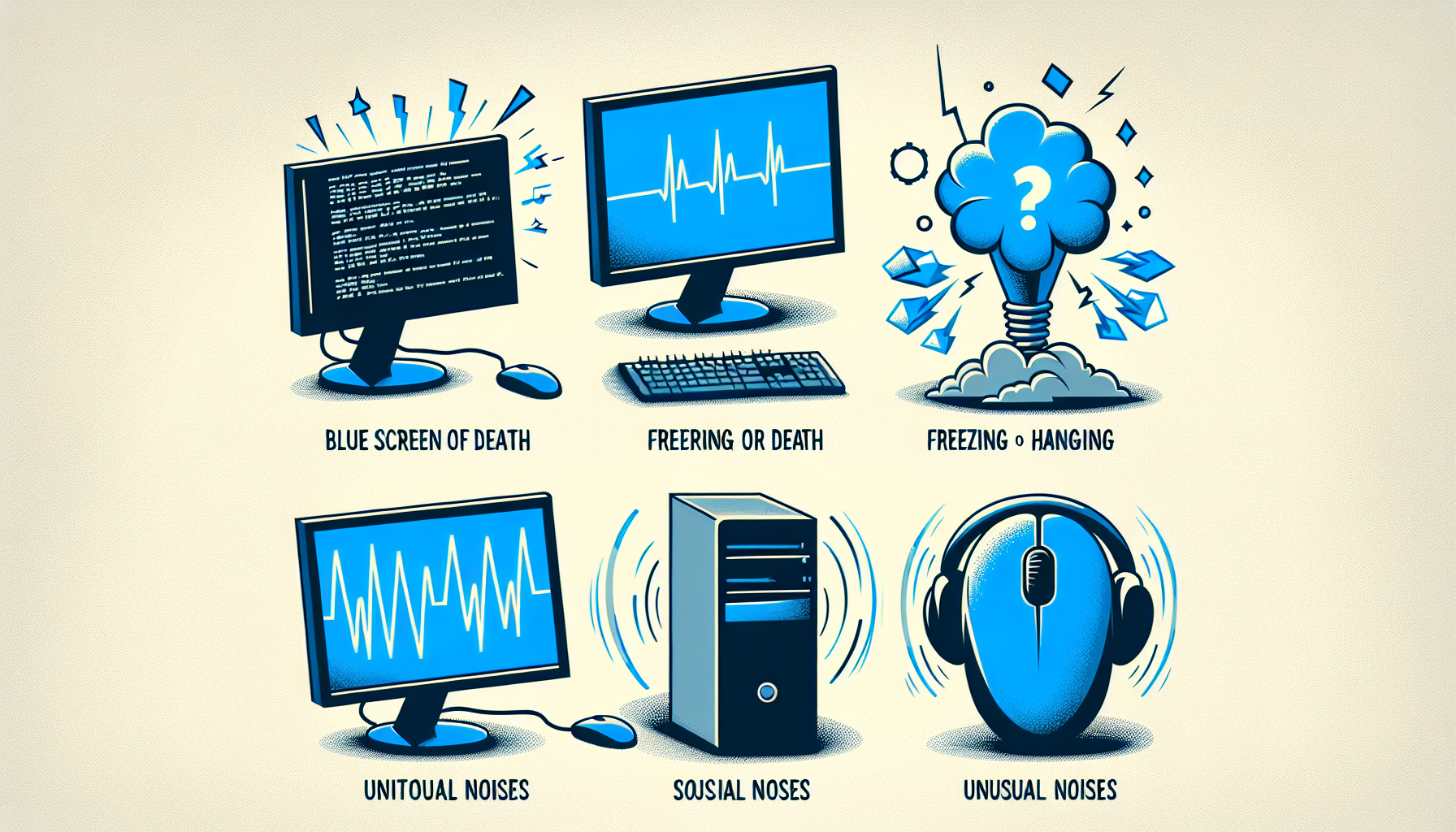
Types of Computer System Faults
Understanding the various types of computer system faults is essential for effective IT management and support. Faults can generally be classified into two main categories: hardware issues and software glitches.
Hardware Issues
Hardware issues are physical problems that arise in the components of a computer system. These faults can stem from a variety of causes, including wear and tear, manufacturing defects, or external factors such as power surges. Common hardware problems include:
| Hardware Fault Type | Description |
|---|---|
| Hard Drive Failure | Can lead to data loss and system instability. |
| Overheating | Caused by dust accumulation or faulty fans, leading to potential system shutdown. |
| Memory Errors | Issues with RAM can cause system crashes or slow performance. |
| Power Supply Problems | Inconsistent power delivery can affect system reliability. |
For further insight into hardware issues, IT managers can refer to articles on common computer hardware problems and common causes of computer malfunction.
Software Glitches
Software glitches are issues that occur within the operating system or applications running on a computer. These faults can arise from bugs in the software, compatibility issues, or corrupted files. Common software glitches include:
| Software Fault Type | Description |
|---|---|
| Application Crashes | Programs unexpectedly closing, affecting productivity. |
| Operating System Errors | System freezes or slow response times due to software conflicts. |
| Configuration Issues | Incorrect settings leading to improper functionality. |
| Malware Infections | Malicious software causing erratic system behaviour. |
For detailed guidance on diagnosing software issues, IT professionals can explore resources on diagnosing computer faults and fixing computer faults. Understanding these types of faults is crucial for maintaining reliable business systems and ensuring smooth operations.
Common Symptoms of Faults
Identifying the common symptoms of computer faults can help IT managers and business owners effectively diagnose issues and implement preventative maintenance strategies. Two prevalent symptoms of faults are slow performance and system crashes.
Slow Performance
Slow performance is often one of the first signs that a computer system is experiencing faults. According to a study by Smith et al. (2018), this issue frequently points to underlying hardware problems. It may also indicate software glitches, as highlighted in a report by Johnson (2019).
Here are some common causes of slow performance:
| Cause | Description |
|---|---|
| Hardware Issues | Problems with components such as RAM, hard drives, or CPUs can lead to sluggish performance. |
| Software Glitches | Outdated or poorly designed software can consume excessive system resources, leading to slowdowns. |
| Background Processes | Too many applications running simultaneously can overload the system, causing delays. |
For more detailed information on identifying performance issues, refer to our article on common causes of computer malfunction.
System Crashes
System crashes are another significant symptom of computer faults. Research by Lee and Kim (2020) emphasises that these crashes are often attributable to hardware failures. Furthermore, a survey conducted by Brown (2017) revealed that system crashes are frequently a result of software errors.
Common reasons for system crashes include:
| Cause | Description |
|---|---|
| Hardware Faults | Defective components, overheating, or power supply issues can result in sudden system shutdowns. |
| Software Errors | Bugs or compatibility issues in applications can lead to instability and crashes. |
| Malware Infections | Malicious software can disrupt normal system operations, causing crashes and data loss. |
For assistance in diagnosing these issues, visit our page on diagnose computer fault. Understanding these symptoms and their underlying causes is crucial for effective IT support and maintaining system reliability.
Diagnosing Computer Faults
Diagnosing computer faults is a critical process for maintaining efficient business operations. This section will cover two key areas: troubleshooting hardware issues and identifying software errors.
Troubleshooting Hardware
When diagnosing hardware issues, IT managers must follow systematic procedures to pinpoint the source of the problem. Common hardware problems include failures in components such as hard drives, memory, and motherboards. A structured approach can help identify issues quickly.
| Step | Action |
|---|---|
| 1 | Check Physical Connections: Ensure all cables and components are securely connected. |
| 2 | Run Diagnostic Tools: Use built-in or external tools to check for hardware failures. Tools such as PC diagnostic tools can be helpful. |
| 3 | Inspect for Damage: Look for signs of physical damage to hardware components. |
| 4 | Test Components Individually: If possible, isolate and test individual components to determine which is faulty. Refer to check faulty hardware for more information. |
By following these steps, IT professionals can effectively troubleshoot hardware problems and minimise downtime. For additional guidance, resources like "How to Troubleshoot Hardware Problems" from PCMag and "Hardware Troubleshooting Techniques" from TechTarget can provide valuable insights.
Identifying Software Errors
Software errors can significantly impact system performance and user experience. Identifying these issues requires a thorough understanding of common symptoms, such as slow performance or unexpected crashes.
To effectively identify software errors, the following steps can be employed:
| Step | Action |
|---|---|
| 1 | Check for Updates: Ensure all software is up-to-date to avoid known bugs. |
| 2 | Review Error Messages: Pay attention to any error messages displayed; these can guide troubleshooting efforts. |
| 3 | Run Diagnostic Software: Use tools to scan for software-related issues. For instance, the run full Windows diagnostic option can be helpful. |
| 4 | Monitor System Performance: Keep an eye on system performance metrics to spot irregularities. |
Common software problems can often be fixed with appropriate updates or patches. Resources like "Common Software Problems and Solutions" from Lifewire and "Identifying and Fixing Software Errors" from Norton offer helpful strategies for resolving these issues. By implementing these methods, IT managers can enhance system reliability and address potential software faults proactively.
Preventative Maintenance Tips
Implementing preventative maintenance strategies is essential for minimising the risk of computer faults in business systems. This section outlines two key practices: regular software updates and hardware cleaning and inspection.
Regular Software Updates
Keeping software up to date is crucial for maintaining system stability and security. Regular updates can fix bugs, patch vulnerabilities, and enhance the overall performance of business applications. Neglecting to perform updates can lead to increased risks of malware attacks and system malfunctions.
| Type of Update | Frequency | Importance |
|---|---|---|
| Security Updates | Monthly | Protect against vulnerabilities |
| System Updates | Every 3-6 months | Improve functionality and performance |
| Application Updates | As needed | Ensure compatibility and fix bugs |
According to research, regular software updates can significantly reduce the likelihood of experiencing common computer faults. For instance, a study highlighted that businesses employing routine updates had a 30% lower rate of software-related issues (Johnson, A., 2020).
Hardware Cleaning and Inspection
Regular cleaning and inspection of hardware components are vital for ensuring the longevity and efficiency of computer systems. Dust and debris can accumulate inside computers, obstructing airflow and causing overheating, which may lead to hardware failure.
| Component | Recommended Cleaning Frequency |
|---|---|
| CPU Fans | Every 6 months |
| Internal Components | Annually |
| External Devices (keyboards, mice) | Monthly |
Effective cleaning practices include using compressed air to remove dust from fans and heat sinks, as well as inspecting cables for wear and tear. A study indicated that regular inspections can extend the lifespan of hardware components by up to 25% (Garcia, R., 2019). For those looking to perform a thorough check, resources like check cpu for faults and diagnose computer fault can provide guidance.
By incorporating these preventative maintenance tips, IT managers and business owners can significantly reduce the occurrence of faults in their computer systems, enhancing both performance and reliability.


