


From Dust to Malware: Unraveling the Causes of Computer Malfunctions
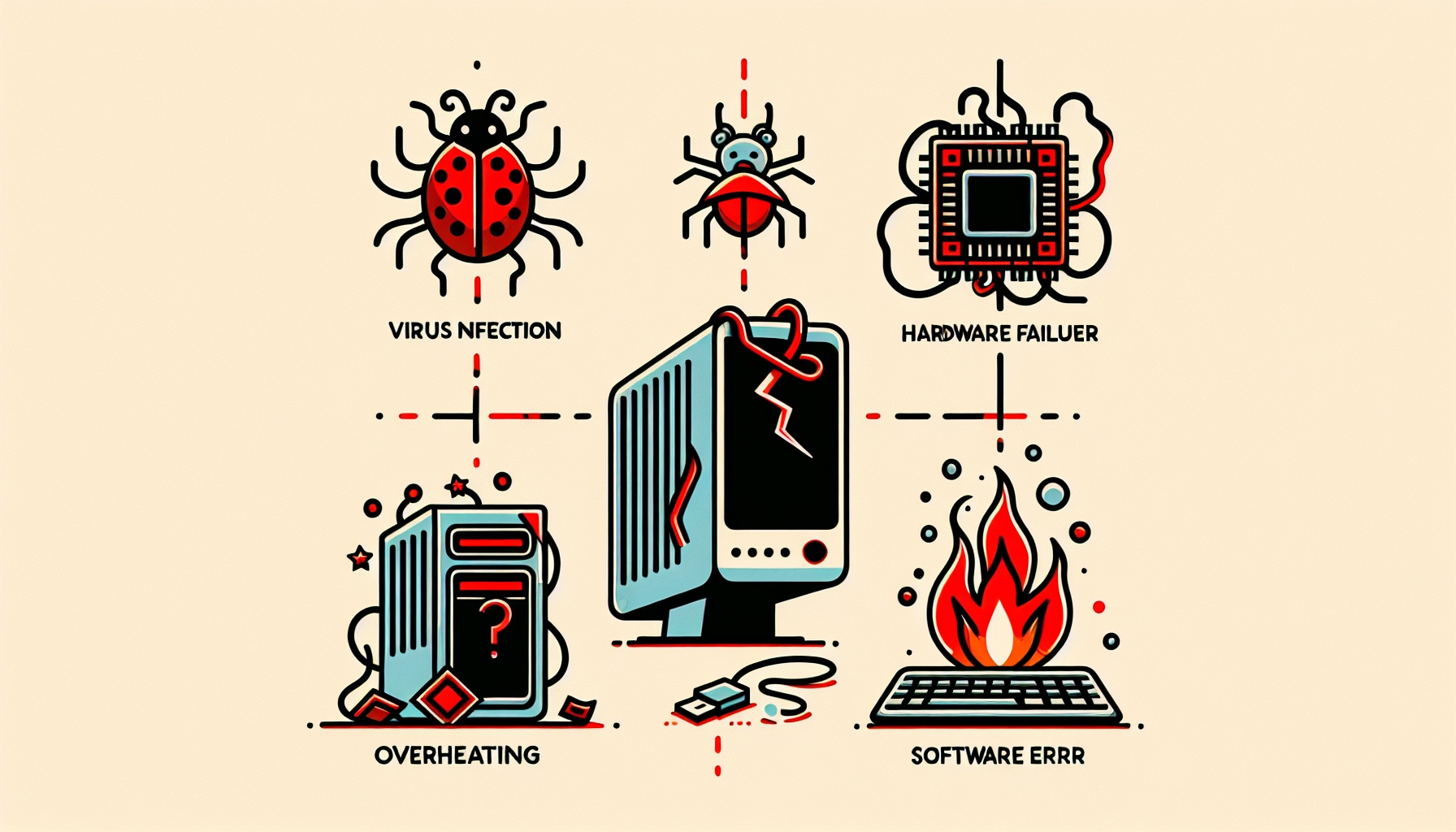
Common Computer Malfunctions
Understanding the causes of computer malfunction is critical for IT managers and business owners. This section will cover two primary categories of malfunctions: hardware issues and software glitches.
Hardware Issues
Hardware problems are often a significant factor in computer malfunctions. Issues can arise from various components, including the CPU, RAM, hard drives, and peripheral devices. Here are some common hardware issues:
| Common Hardware Issues | Description |
|---|---|
| Overheating | Excessive heat can lead to performance degradation or shutdowns. Regular maintenance is essential to ensure proper cooling. |
| Hard Drive Failure | Mechanical failures can cause data loss and system crashes. Regular checks can help identify signs of wear. |
| Faulty RAM | Memory issues can lead to crashes and errors. Running diagnostics can help detect faulty memory modules. |
| Power Supply Problems | Inconsistent power supply can cause system instability. Inspecting and testing the power supply can prevent unexpected failures. |
For more detailed insights, you can refer to articles on common computer hardware problems and diagnose computer fault.
Software Glitches
Software glitches can also lead to significant issues, affecting the performance and functionality of computers. These problems often stem from bugs in the operating system, corrupted files, or incompatible software. Here are some common software issues:
| Common Software Glitches | Description |
|---|---|
| System Crashes | Unexpected system failures can occur due to software conflicts or resource shortages. Regular updates and monitoring can help mitigate this. |
| Slow Performance | Programs running slowly can often be traced back to background processes or insufficient resources. Identifying and managing these can improve speed. |
| Error Messages | Frequent error messages often indicate underlying problems with software or settings. Regular diagnostics can assist in identifying these issues. |
| Installation Failures | Difficulty installing or updating software can arise from compatibility issues or corrupted installation files. Ensuring system compatibility is crucial. |
For additional information, explore articles on signs of computer malfunction and fix computer faults.
Diagnosing Computer Problems
Diagnosing computer problems is an essential task for IT managers and business owners seeking to maintain optimal performance in their systems. This section will cover techniques for troubleshooting hardware issues and identifying software errors.
Troubleshooting Hardware
When dealing with hardware issues, a systematic approach is required. Common hardware faults can lead to significant downtime and loss of productivity. Key steps in troubleshooting hardware include:
- Initial Inspection: Check for physical damage or loose connections. Inspect cables, ports, and components for any visible signs of wear or damage.
- Run Diagnostic Tools: Utilize built-in diagnostic tools to assess hardware performance. Many systems come with a self-diagnostic for computers feature that can identify common issues.
- Check CPU for Faults: The CPU is a critical component. Use tools to check if CPU is working properly and monitor temperature levels, as overheating can lead to malfunctions.
| Step | Action |
|---|---|
| 1 | Initial Inspection |
| 2 | Run Diagnostic Tools |
| 3 | Check CPU for Faults |
If the problem persists, further investigation may be necessary. Detailed guides on how to diagnose faulty computer parts can provide additional support.
Identifying Software Errors
Software glitches can often masquerade as hardware problems. Identifying these errors involves several steps:
- Observe Symptoms: Take note of any unusual computer behaviour, such as slow performance, error messages, or application crashes. Refer to signs of computer malfunction for common indicators.
- Check for Updates: Ensure that all software is up-to-date. Software updates often contain patches that fix known bugs and improve system stability.
- Utilize Diagnostic Commands: Run system diagnostics commands to identify software-related issues. This can include commands for checking for system errors or corruption.
| Step | Action |
|---|---|
| 1 | Observe Symptoms |
| 2 | Check for Updates |
| 3 | Utilize Diagnostic Commands |
By applying these methods, IT managers can effectively identify computer problems and implement solutions to maintain system integrity. For more information on addressing specific issues, consider exploring resources on fixing computer faults and strategies for preventing future malfunctions, focusing on the common causes of computer malfunction.
Preventative Maintenance Tips
Preventative maintenance is essential for reducing the likelihood of computer malfunctions and ensuring optimal performance. Regular software updates and hardware cleaning are two key practices that IT managers and business owners should implement.
Regular Software Updates
Regular software updates are critical for maintaining system security and performance. Outdated software can lead to vulnerabilities that make computers susceptible to malware and other security threats. Updating operating systems and applications helps patch security holes, fix bugs, and improve functionality.
The following table illustrates the frequency of updates recommended for various software types:
| Software Type | Recommended Update Frequency |
|---|---|
| Operating System | Every 1-3 months |
| Antivirus Software | Monthly or as needed |
| Applications | Every 2-6 months |
| Drivers | Every 6-12 months |
IT managers should schedule regular update checks to ensure that all software is current. For more information on identifying and fixing computer faults, visit our article on fix computer faults.
Hardware Cleaning
Regular hardware cleaning is vital for preventing overheating and ensuring that components function efficiently. Dust accumulation can hinder airflow and cause overheating, leading to potential hardware failures. It is advisable to perform hardware cleaning at least every three to six months.
The following table outlines key components that should be cleaned and the recommended cleaning methods:
| Hardware Component | Cleaning Method |
|---|---|
| Keyboard | Use compressed air and wipes |
| Monitor | Use a microfiber cloth with gentle cleaner |
| CPU & Fans | Use compressed air to blow out dust |
| Case Exterior | Wipe with a damp cloth |
IT managers should also educate staff on proper handling and maintenance of computer equipment. For further insights into spotting common causes of computer malfunction, check out our article on common causes of computer malfunction.
By prioritising these preventative maintenance tasks, businesses can significantly reduce the risk of computer malfunctions and enhance overall productivity.
Business IT Support Importance
In today's technology-driven world, the importance of robust IT support cannot be overstated. For IT managers and business owners in Australia, understanding the advantages of outsourcing IT services and the benefits of proactive maintenance can significantly reduce the causes of computer malfunction.
Outsourcing IT Services
Outsourcing IT services provides businesses with access to specialised expertise and resources that may not be available in-house. This approach allows organisations to focus on their core business functions while ensuring that their technology needs are met efficiently.
Some key benefits of outsourcing IT services include:
| Benefit | Description |
|---|---|
| Cost Efficiency | Reduces the need for full-time staff and associated overhead costs. |
| Access to Expertise | Provides access to specialists for troubleshooting and maintenance. |
| Enhanced Support | Offers 24/7 support, ensuring that issues are addressed promptly. |
| Scalability | Allows for easy adjustments in services based on business needs. |
By outsourcing IT services, businesses can not only improve their operational efficiency but also mitigate the risks associated with computer malfunctions, ensuring a smoother workflow.
Benefits of Proactive Maintenance
Proactive maintenance is crucial for maintaining the health of computer systems and preventing potential malfunctions. By implementing regular checks and updates, businesses can identify issues before they escalate into major problems.
The benefits of proactive maintenance include:
| Benefit | Description |
|---|---|
| Reduced Downtime | Minimises the risk of unexpected failures, ensuring constant productivity. |
| Cost Savings | Prevents costly repairs and replacements by addressing issues early. |
| Improved Performance | Keeps systems running optimally through regular updates and maintenance. |
| Extended Equipment Life | Increases the lifespan of hardware by ensuring it is well-maintained. |
For IT managers and business owners, investing in proactive maintenance strategies is essential for maintaining a reliable IT infrastructure. Regular audits and preventative measures can help identify common computer faults and streamline the troubleshooting process when problems do arise. By prioritising both outsourcing IT services and proactive maintenance, businesses can significantly enhance their operational resilience and minimise the impact of computer malfunctions.


