


First Things First: The Simplest Yet Most Overlooked PC Troubleshooting Step for Businesses
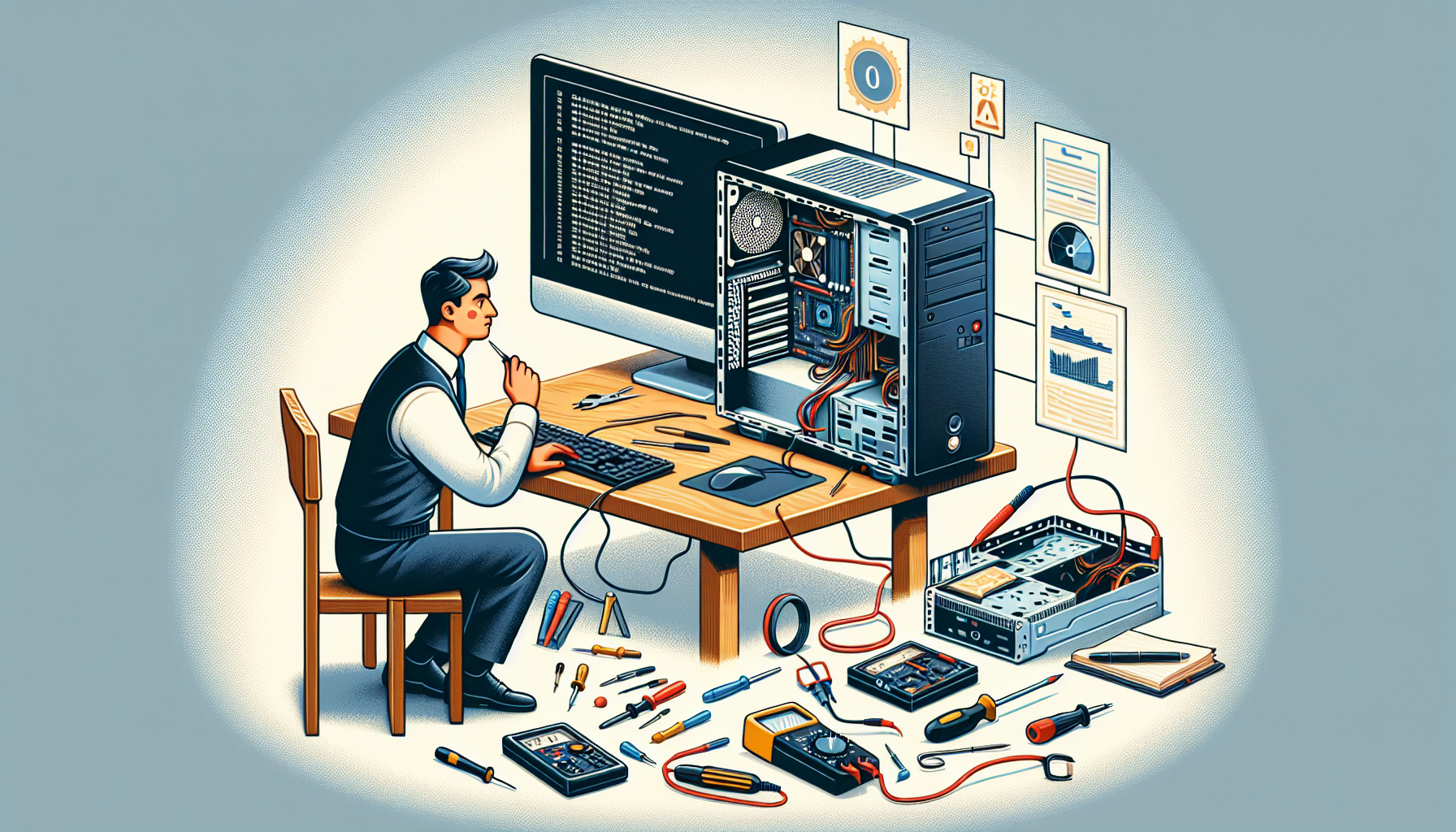
Computer Troubleshooting Basics
In the realm of IT support, understanding the fundamental aspects of computer troubleshooting is vital. Two key steps that are often overlooked yet are among the simplest computer troubleshooting checks are regular cleaning and ensuring proper power supply.
Importance of Regular Cleaning
Regularly cleaning computer hardware is essential for maintaining optimal performance and longevity. Dust and debris can accumulate inside the computer, leading to overheating and potential hardware failure. This cleaning process is one of the simplest computer troubleshooting checks that can significantly impact a system's reliability (BPC Technology).
| Cleaning Task | Frequency | Purpose |
|---|---|---|
| Dusting exterior surfaces | Monthly | Prevents dust buildup and maintains aesthetics |
| Cleaning fans and vents | Every 3 months | Reduces overheating and ensures proper airflow |
| Removing dust from inside case | Every 6 months | Prevents hardware failure due to overheating |
Incorporating a regular cleaning schedule helps to avoid potential issues and ensures that the computer operates smoothly.
Power Supply Check
One of the simplest computer troubleshooting checks is to ensure that the computer is plugged in and the power is turned on (BPC Technology). Many problems can arise from a faulty power supply or loose connections, so verifying these elements is crucial.
| Power Supply Task | Action |
|---|---|
| Check power cable | Ensure it is securely connected to both the outlet and the computer |
| Inspect power switch | Confirm that the power switch is turned on |
| Examine surge protector | Make sure it is functioning properly and not tripped |
By performing these checks, IT managers and business owners can quickly diagnose and resolve issues related to power supply, saving time and reducing downtime. Regular attention to these basic troubleshooting steps can make a significant difference in maintaining a healthy IT environment. For more information on diagnosing faults, explore our resources on common computer faults and fixing computer faults.
Preventative Maintenance Tips
Implementing preventative maintenance is essential for ensuring the longevity and performance of computer systems in a business environment. This section focuses on two crucial aspects: hardware inspection and software updates.
Hardware Inspection
Conducting regular hardware inspections is one of the simplest computer troubleshooting checks that can significantly reduce the risk of overheating and hardware failure. By routinely examining components such as fans, power supplies, and internal connections, IT managers can identify potential issues before they escalate into major problems.
Here is a checklist for a comprehensive hardware inspection:
| Hardware Component | Inspection Tips |
|---|---|
| Fans | Ensure they are clean and functioning properly. Dust buildup can lead to overheating. |
| Power Supply | Check for signs of wear or damage. Ensure all connections are secure. |
| Cables | Inspect for fraying or damage. Replace any compromised cables immediately. |
| Internal Components | Look for loose parts or connections, especially RAM and graphics cards. Regularly reseat these components. |
Regular inspections help to maintain optimal performance and can prevent common computer faults that disrupt business operations.
Software Updates
Keeping software up to date is another critical aspect of preventative maintenance. Software updates often include important security patches, performance enhancements, and bug fixes that help improve overall system stability. Neglecting software updates can expose systems to vulnerabilities and increase the likelihood of malfunction.
IT managers should implement the following strategies to ensure all software remains current:
| Software Type | Update Strategy |
|---|---|
| Operating System | Enable automatic updates to ensure the OS is always up to date. Regularly check for updates if automatic options are not available. |
| Applications | Schedule routine checks for updates on key applications. Many programs have built-in update notifications. |
| Drivers | Regularly check for hardware driver updates to ensure compatibility and performance. Use system diagnostics tools to identify outdated drivers. |
By staying proactive with software updates, businesses can mitigate issues related to causes of computer malfunction and maintain an efficient IT environment. Regular updates also enhance security, reducing the risk of data breaches and system failures.
Incorporating these preventative maintenance tips into regular IT practices will support a stable and efficient computing environment, ultimately leading to better productivity and reduced downtime.
Advanced Troubleshooting Techniques
In the realm of IT support, knowing advanced troubleshooting techniques is essential for maintaining optimal performance in business settings. Two critical areas to focus on are diagnosing overheating issues and checking hardware connections.
Diagnosing Overheating Issues
Overheating is a common problem that can lead to severe hardware failure. It is vital to monitor the temperature of computer components, especially the CPU and graphics card. Regularly cleaning your computer hardware is one of the simplest computer troubleshooting checks that can prevent overheating and hardware failure.
| Component | Optimal Temperature Range (°C) | Signs of Overheating |
|---|---|---|
| CPU | 30 - 70 | Frequent shutdowns, fan running loudly |
| GPU | 30 - 85 | Artifacts on screen, decreased performance |
| Hard Drive | 30 - 50 | Slow read/write speeds, unusual noises |
To diagnose overheating issues, IT managers can employ various strategies, including:
- Monitoring Software: Use temperature monitoring tools to keep track of component temperatures.
- Physical Inspection: Check for dust buildup in fans and vents that could be obstructing airflow.
- Thermal Paste Check: Ensure thermal paste on the CPU and GPU is applied correctly and not dried out.
For more detailed information on identifying specific issues, refer to our guide on signs of computer malfunction.
Checking Hardware Connections
Loose or faulty hardware connections can lead to a myriad of problems, including system instability and performance issues. Regular checks of internal and external connections can help avoid these complications.
| Connection Type | Common Issues | Recommended Action |
|---|---|---|
| Power Supply | Loose cables, damaged connectors | Tighten connections, replace damaged cables |
| RAM | Improper seating, dust buildup | Reseat RAM modules, clean contacts |
| Peripheral Devices | Connectivity issues, driver conflicts | Check USB connections, update drivers |
To effectively check hardware connections, consider the following steps:
- Visual Inspection: Open the case and examine all internal connections, including power cables and component seating.
- Testing Components: Disconnect and reconnect components to ensure they are seated properly.
- Utilise Diagnostic Tools: Employ hardware diagnostic tools to detect issues with connections and components.
For a deeper understanding of diagnosing hardware faults, explore our resources on diagnosing computer faults and check for PC errors. By implementing these advanced techniques, IT managers can enhance the reliability and performance of their systems.
Professional IT Support Services
Maintaining an efficient IT environment is essential for any business. Professional IT support services play a critical role in ensuring that computer systems run smoothly. This section highlights the benefits of professional maintenance and offers guidance on finding reliable tech support.
Benefits of Professional Maintenance
Professional maintenance services can significantly enhance the longevity and performance of computer systems. Regular cleaning of hardware is one of the simplest computer troubleshooting checks that can prevent overheating and hardware failure. Here are some key benefits:
| Benefit | Description |
|---|---|
| Increased Efficiency | Regular maintenance ensures systems operate at optimal performance, reducing downtime and improving productivity. |
| Preventative Care | Early detection of potential issues can prevent costly repairs and replacements, minimising long-term expenses. |
| Expertise | IT professionals possess the knowledge and skills necessary to identify and resolve complex issues quickly and effectively. |
| Up-to-Date Technology | Regular maintenance helps businesses stay current with technology advancements, ensuring hardware and software are up to date. |
By investing in professional IT support, businesses can focus on their core activities, knowing their systems are in capable hands.
Finding Reliable Tech Support
When searching for reliable tech support, it is essential to consider several factors to ensure that the chosen provider meets the business's needs. Recommendations from peers and online reviews can provide insight into the reputation of a tech support service.
Key points to consider include:
- Experience and Specialisation: Look for companies with experience specifically in business IT support. A provider that understands the unique challenges businesses face will be more effective.
- Response Time: Evaluate the response times offered by potential tech support providers. Quick responses are critical in minimising downtime.
- Service Offerings: Ensure the provider offers a comprehensive range of services, including preventative maintenance, troubleshooting, and emergency support.
- Customer Support: Reliable tech support should provide excellent customer service, with accessible communication channels for assistance.
For further information on how to diagnose computer faults and identify issues effectively, businesses can refer to resources such as common computer faults and troubleshooting steps.


