


Empower Your SSD: Step-by-Step Guide on Cloning m.2 with Single Slot
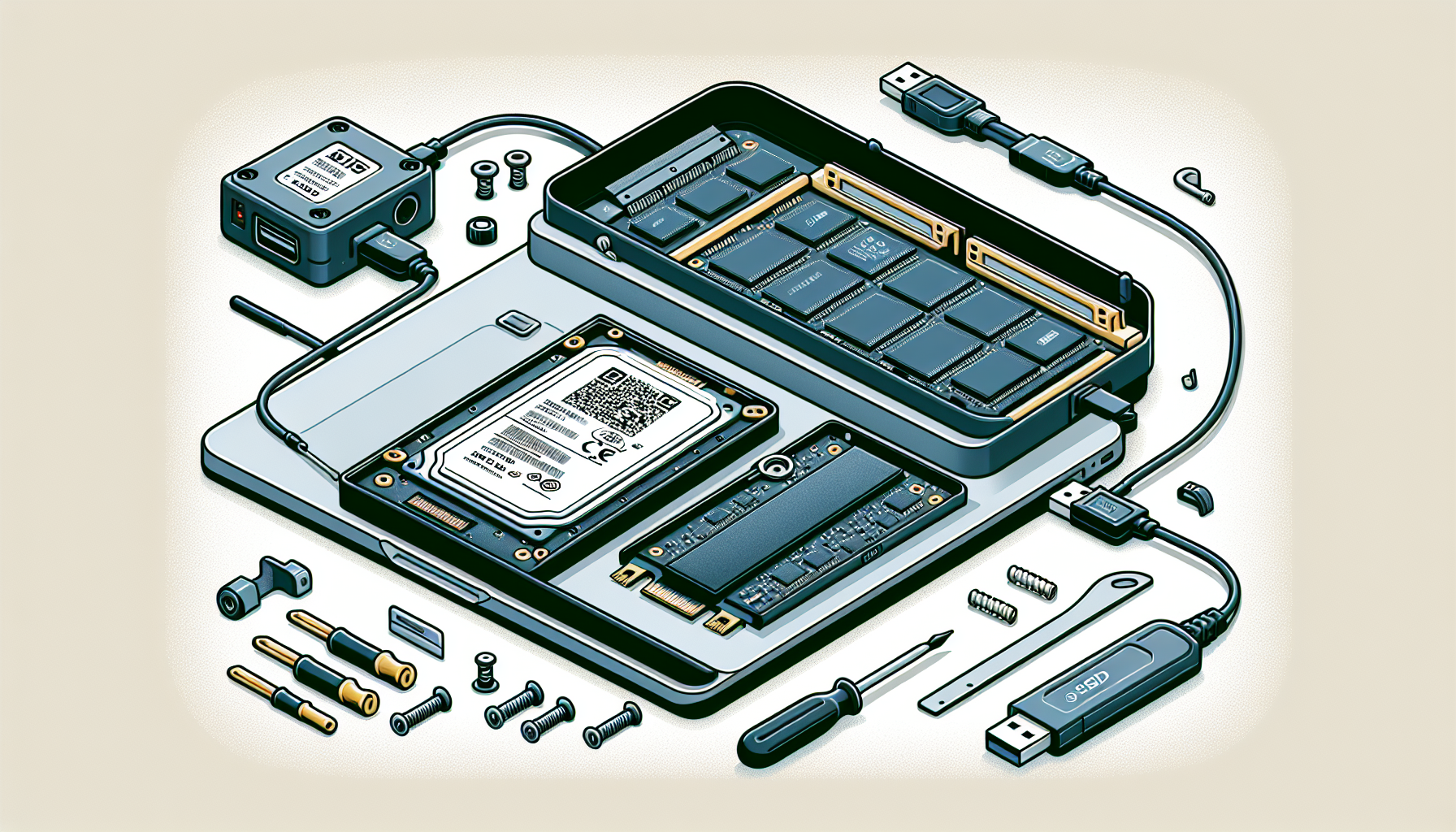
Understanding M.2 SSDs
M.2 Form Factor Overview
The M.2 form factor is a compact interface used primarily for SSDs in laptops and desktops. This gum-stick-shaped design has become the go-to format for modern slim laptops and convertibles, as it often eliminates the need for traditional 2.5-inch drives. Many laptop manufacturers have moved towards soldering storage directly onto the motherboard, which can complicate upgrade options. Potential users should always check their device manual or use tools like Crucial’s Advisor Tool to identify compatible storage solutions (Tom's Hardware).
M.2 drives typically measure 22mm in width, with lengths that can vary (commonly 80mm). The largest M.2 SSDs available can reach capacities of 2TB, 4TB, or even 8TB. The compact size of these drives provides substantial surface area for cooling, which is essential for performance during intense gaming sessions or heavy multitasking.
| M.2 Size | Width (mm) | Length (mm) | Capacity Options |
|---|---|---|---|
| 2242 | 22 | 42 | Up to 4TB |
| 2260 | 22 | 60 | Up to 4TB |
| 2280 | 22 | 80 | Up to 8TB |
| 22110 | 22 | 110 | Up to 8TB |
Benefits of M.2 Drives
M.2 SSDs provide a variety of advantages compared to traditional storage options. Firstly, they can sustain significant performance improvements, especially when utilizing the NVMe protocol. NVMe is designed exclusively for fast modern storage, allowing M.2 drives to deliver amazing speed for tasks that involve large file transfers, such as high-end photo editing and video transcoding.
Moreover, many high-end M.2 drives support both SATA and PCIe connections. While daily tasks like web browsing or gaming may not show significant performance differences between SATA and NVMe models, the latter shines in demanding environments where speed is crucial (Tom's Hardware).
Storage options can be tailored to users’ needs, making M.2 drives a cost-effective choice. Given that these drives can be installed in compact spaces, gamers can maximize their system's performance without compromising on speed or storage capacity.
For further information about installation, see our guide on how to install m.2 ssd, or learn about formatting with our resources on how to format m.2 ssd and how to format m.2 ssd windows 11. To explore data transfer techniques, check how to transfer data from one m.2 ssd to another.
Choosing the Right M.2 SSD
Selecting the appropriate M.2 SSD is essential for gamers seeking optimal performance and reliability in their setup. Factors such as compatibility, the type of drive, and its performance characteristics can significantly influence the user experience.
Compatibility Considerations
Before investing in an M.2 SSD, it's crucial to ensure compatibility with the user's device. M.2 drives come in various sizes and formats, primarily denoted as "2242," "2260," "2280," and "22110," which refers to the width and length of the drive in millimeters. Most commonly, gamers will encounter 2280-sized drives, which are 22mm wide and 80mm long.
Some compact desktops or laptops may not have space to accommodate an M.2 SSD, especially if they already have a graphics card installed. Users should consult their device manual or use tools like Crucial's Advisor Tool to determine available options and whether upgrading is feasible.
SATA vs. PCIe M.2 Drives
M.2 drives can operate over two major interfaces: SATA and PCIe. Understanding the difference is essential for choosing the best option.
| Drive Type | Interface | Max Transfer Speed |
|---|---|---|
| SATA M.2 SSD | SATA III | Up to 6 Gbps |
| PCIe M.2 SSD | PCIe 3.0 | Up to 32 Gbps |
| PCIe NVMe M.2 SSD | PCIe 4.0/3.0 (NVMe) | Up to 64 Gbps/32 Gbps |
SATA M.2 SSDs are generally less expensive but offer slower performance compared to PCIe M.2 drives. For tasks involving heavier workloads, such as gaming or content creation, PCIe drives are preferable due to their higher speeds.
NVMe Protocol and Performance
NVMe (Non-Volatile Memory Express) is a storage protocol specifically designed for high-speed SSDs. It allows for faster data transfer rates and reduced latency, making NVMe M.2 drives the ideal choice for gamers looking for peak performance. While high-end M.2 SSDs that support NVMe are not always noticeably faster than inexpensive SATA models during everyday tasks like browsing or gaming, they excel in handling larger file transfers and demanding applications, such as video editing or extensive data processing.
Using a high-performance M.2 SSD can significantly enhance load times and overall system responsiveness, especially in resource-intensive scenarios (Tom's Hardware).
For further details on installing an M.2 SSD, refer to our guide on how to install m.2 ssd or explore compatibility issues with our article on why is my m.2 ssd not showing up in bios. Understanding these core elements will assist gamers in making an informed choice and optimising their storage options.
Optimizing Storage Solutions
Exploring storage options can greatly enhance the gaming experience. For gamers in Australia, understanding how to make the most out of M.2 SSDs is essential for optimal performance.
Multiple SSD Setup
Utilising multiple SSDs in a single machine can be an effective strategy for boosting both capacity and performance. If the system allows for it, installing several smaller SSDs can often be more cost-effective than opting for one large drive. This configuration not only helps in managing file organisation but can also enhance read and write speeds by spreading the load across multiple drives. This method is particularly beneficial for desktop users and gaming laptop owners looking to enhance their systems without breaking the bank.
The following table shows a comparison of average speeds and capacities of different SSD configurations:
| SSD Configuration | Total Capacity | Average Read Speed | Average Write Speed |
|---|---|---|---|
| Single 2TB SSD | 2TB | 3400 MB/s | 3000 MB/s |
| Two 1TB SSDs | 2TB | 6800 MB/s | 6000 MB/s |
| Four 500GB SSDs | 2TB | 6800 MB/s | 6000 MB/s |
Note: Speeds may vary based on brand and model.
Cost-Effectiveness of Storage Options
When considering which storage solution to pursue, gamers should also factor in cost. Smaller SSDs often provide a more manageable price point while delivering competitive speeds and storage capacities. This makes them an attractive option for users who wish to expand their storage without investing heavily in larger drives.
For instance, if a gamer needs about 2TB of storage, choosing to install two 1TB M.2 drives might be more economical than purchasing a single 2TB drive. This strategy allows for easier upgrades and replacements as well. For additional guidance on expanding your SSD capabilities, you might consider reading about how to migrate SSD to M.2 or checking which are the best M.2 SSD options for gaming.
By optimising storage through multiple SSD setups and understanding cost-effective options, gamers can significantly improve their performance and storage capacity.
Future of SSD Technology
As technology continues to evolve, the landscape of SSDs is changing substantially. Two significant advancements in the field are Samsung's Z-NAND technology and alternatives to Intel's Optane, which are shaping the future of high-performance storage solutions.
Samsung's Z-NAND Technology
Samsung has developed Z-NAND technology, which offers a new level of performance that is set to challenge existing storage solutions, including Intel's Optane. Z-NAND is designed to provide lower latency and higher performance compared to traditional NAND flash storage, making it an attractive option for gamers and professionals who require quick data access and superior responsiveness. This technology promises to enhance the gaming experience by reducing load times and improving overall system efficiency.
The advantages of Samsung's Z-NAND can be summarized in the following table:
| Feature | Z-NAND Technology |
|---|---|
| Latency | Extremely low |
| Performance | Superior read/write speeds |
| Use Cases | Gaming, high-performance computing |
This Z-NAND technology could be a direct replacement for Intel's Optane, which Intel officially announced was being discontinued in early 2021 (Tom's Hardware). As such, gamers and enthusiasts should keep an eye on developments in Z-NAND as part of their ongoing SSD considerations.
Alternatives to Intel's Optane
With the discontinuation of Intel's Optane technology, various alternatives are rising in prominence to fill the gap left behind. These alternatives focus on providing high-speed data access and improved storage capabilities while leveraging emerging technologies.
Some notable alternatives include:
| Alternative | Description |
|---|---|
| PCIe NVMe SSDs | High throughput and low latency options |
| 3D NAND Technology | Stacked cells for increased storage density and speed |
| Hybrid SSDs | Combination of NAND flash with DRAM for enhanced performance |
Each of these options brings its own set of strengths, catering to different user requirements and preferences in the gaming community. Gamers who are looking to enhance their systems should consider these alternatives alongside emerging technologies like how to clone m.2 ssd with only one slot to ensure maximum performance and efficiency in their setups.
As storage technology continues to innovate, staying updated on developments will be essential for gamers seeking the best performance and capabilities in their gaming rigs.
Practical Tips for M.2 SSD Users
When utilising an M.2 SSD, understanding installation processes and cloning techniques is essential, especially for gamers looking to optimise their systems. Below are practical tips designed to assist M.2 SSD users in achieving optimal performance.
Installation Guide
Installing an M.2 SSD is a straightforward process, but ensuring compatibility with the existing hardware is crucial. Follow these steps:
Check Compatibility: Ensure that the motherboard has an available M.2 slot and supports the necessary interface (SATA or PCIe). Refer to the motherboard manual for specifications.
Prepare Tools: You will need a Phillips screwdriver for the installation, and an anti-static wrist strap can prevent static damage.
Power Down and Unplug: Before installation, power down your computer and unplug it from the electrical outlet.
Locate the M.2 Slot: Open the case and locate the M.2 slot on the motherboard. It usually resembles a small connector.
Insert SSD: Align the M.2 SSD with the connector at an angle (usually about 30 degrees). Gently push down until it is in place.
Secure the SSD: Use the screw provided with the motherboard to secure the SSD flat against the motherboard.
Close and Power Up: Replace the computer case and connect the power supply. Power up the system and check if the SSD is recognised in the BIOS.
For a comprehensive tutorial, please refer to our article on how to install m.2 ssd.
Cloning with a Single Slot Approach
Cloning an M.2 SSD with only one slot can seem challenging, but it is feasible with the right tools. Cloning allows users to transfer data from one SSD to another without reinstalling operating systems or applications.
Obtain a USB to M.2 Enclosure: This device allows the current SSD to be connected externally, making it possible to clone data onto a new M.2 SSD.
Choose Cloning Software: Select reliable cloning software that supports SSD cloning. There are numerous applications available, such as EaseUS Todo Backup or Macrium Reflect.
Connect Drives: Insert the old SSD into the USB casing. Connect the new M.2 SSD directly into the M.2 slot on the motherboard.
Run Cloning Software: Launch the cloning software. Follow the software prompts to select the source drive (the old SSD) and the destination drive (the new SSD).
Start Cloning Process: Once selections are made, initiate the cloning process. It might take some time, depending on the amount of data.
Swap Drives: After cloning is complete, swap the new SSD in the M.2 slot if required. Ensure the old SSD is disconnected from the USB enclosure.
For further guidance on data transfers, visit our article on how to transfer data from one m.2 ssd to another.
Utilising these practical tips will enhance the user experience with M.2 SSDs, ensuring seamless installations and successful data cloning for gamers and tech enthusiasts alike.


