


Efficiency Check: How Long Does It Take to Fully Clean a Business PC?
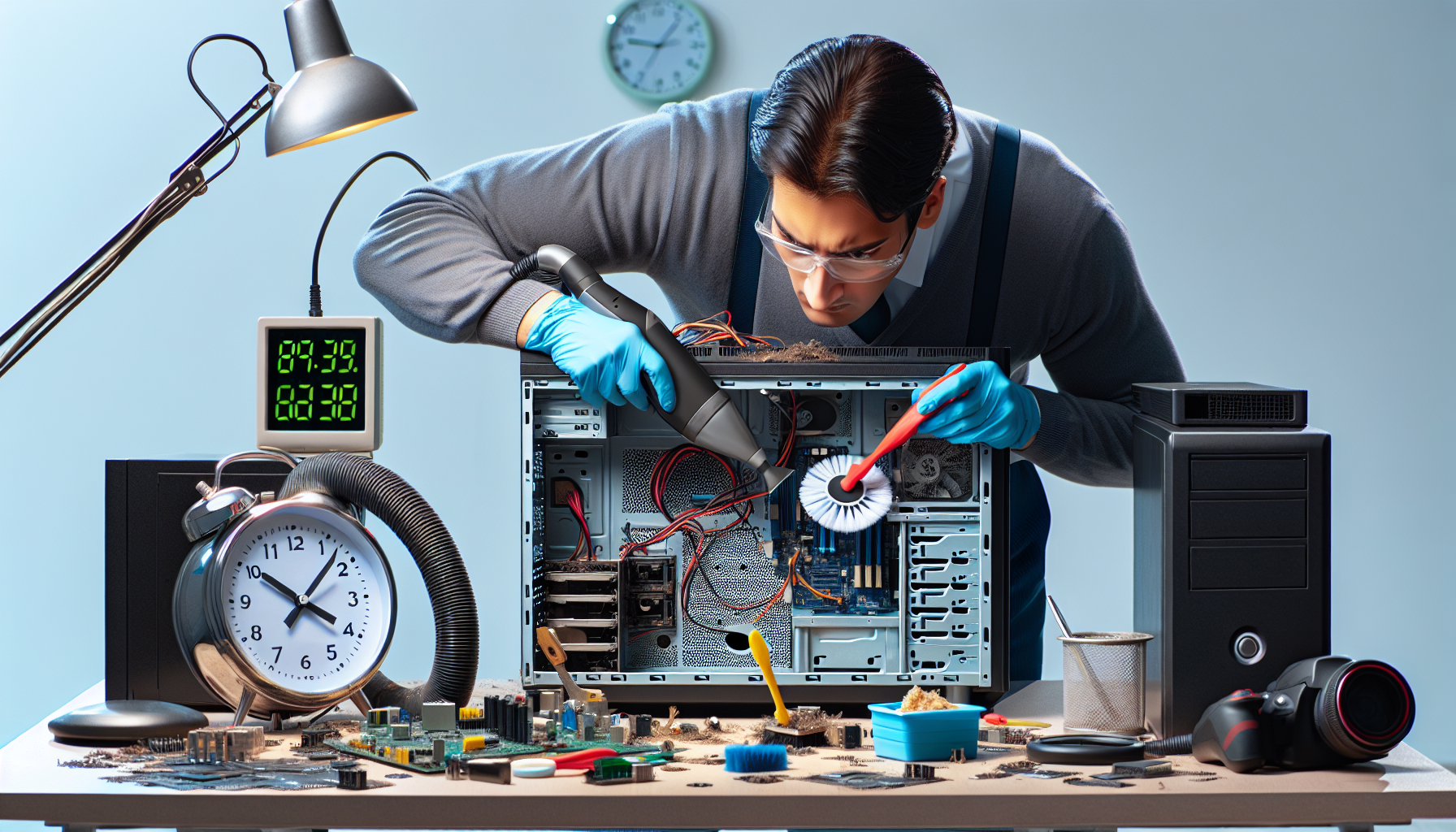
Understanding PC Cleaning
Importance of Regular PC Cleaning
Regular cleaning of business PCs is crucial for maintaining optimal performance and extending the lifespan of the equipment. Dust, dirt, and debris can accumulate over time, leading to overheating and decreased functionality. This can ultimately result in slower operations and possible hardware failures, which can disrupt business activities. By ensuring that PCs are regularly cleaned, organisations can mitigate risks associated with computer malfunction and improve overall efficiency.
Additionally, a clean PC can enhance the user experience. Employees are likely to work more effectively when their equipment functions smoothly. Regular cleaning also helps to maintain a professional environment, which is important for client interactions. Further insights on the impact of cleaning on performance can be found in our article on pc cleaning performance impact.
Factors Affecting Cleaning Time
Several factors influence the time required to fully clean a PC. These factors can vary depending on the individual circumstances of each business's IT environment.
| Factor | Description |
|---|---|
| Type of Cleaning | External cleaning typically requires less time than internal cleaning due to fewer components involved. |
| Condition of the PC | A PC that has not been cleaned for a long time may take longer to clean, especially if there is significant dust build-up. |
| Cleaning Method | The use of advanced tools, such as compressed air, can speed up the cleaning process compared to manual methods. |
| Experience Level | An experienced IT technician may perform cleaning tasks more efficiently than someone less familiar with the process. |
| Number of PCs | Cleaning multiple PCs simultaneously can increase the total time needed due to the need for thorough attention to each unit. |
Understanding these factors helps IT managers plan and allocate the necessary resources for effective PC maintenance. For more information on optimising computer speed and performance, refer to our article on optimize computer speed.
Steps in Cleaning a Business PC
Cleaning a business PC involves both external and internal processes to ensure optimal performance and longevity. Understanding the steps involved in each process can help IT managers and business owners maintain their systems effectively.
External Cleaning Process
The external cleaning of a PC focuses on the casing, peripherals, and other visible components. This step is essential for preventing dust accumulation and ensuring that devices remain aesthetically pleasing.
Power Off and Unplug: Before starting, ensure that the PC is turned off and unplugged to avoid any electrical hazards.
Dusting the Exterior: Use a microfiber cloth to wipe down the surface of the PC case, keyboard, and mouse. This helps remove dust and fingerprints. For hard-to-reach areas, a soft brush can be used.
Cleaning the Monitor: Apply a screen-safe cleaner to a microfiber cloth and gently wipe the monitor. Avoid applying cleaner directly to the screen.
Sanitising Peripherals: Use disinfectant wipes on the keyboard and mouse to eliminate germs. Pay special attention to frequently touched areas.
Regular Maintenance: Schedule regular external cleaning every few weeks to keep dust at bay. Refer to our article on pc cleaning frequency for guidance.
| Step | Time Estimate |
|---|---|
| Power Off and Unplug | 5 minutes |
| Dusting the Exterior | 10 minutes |
| Cleaning the Monitor | 5 minutes |
| Sanitising Peripherals | 5 minutes |
| Total External Cleaning Time | 25 minutes |
Internal Cleaning Process
Internal cleaning is crucial for maintaining the performance of a PC. Dust accumulation inside can lead to overheating and hardware failure.
Open the Case: Carefully remove the side panel of the PC case following manufacturer instructions to avoid damage.
Dust Removal: Using compressed air, blow out dust from the components, especially the fans and heatsinks. Ensure you do this in a well-ventilated area to avoid dust particles settling back into the PC.
Internal Component Inspection: Check for any loose connections or damaged components. Tighten any loose screws and ensure all cables are securely attached.
Cleaning Dust Filters: If the PC has dust filters, remove and clean them according to the manufacturer's guidelines.
Reassemble and Power On: Once cleaning is complete, reattach the case panel and power on the PC to ensure it operates smoothly.
Frequency of Internal Cleaning: It is advisable to perform internal cleaning every 3 to 6 months, depending on the environment. For more details, read our article on pc dust cleaning benefits.
| Step | Time Estimate |
|---|---|
| Open the Case | 5 minutes |
| Dust Removal | 15 minutes |
| Internal Component Inspection | 10 minutes |
| Cleaning Dust Filters | 5 minutes |
| Reassemble and Power On | 5 minutes |
| Total Internal Cleaning Time | 40 minutes |
By following these steps, IT managers and business owners can efficiently clean their business PCs, ensuring they maintain optimal performance. For further insights on enhancing PC performance, explore our article on clean computer for faster performance.
Time Estimate for PC Cleaning
Cleaning a PC is essential for maintaining performance and longevity. Understanding the average time required for both external and internal cleaning can help IT managers and business owners effectively plan maintenance schedules.
Average Time for External Cleaning
External cleaning typically focuses on the outer surfaces of the PC, including the monitor, keyboard, and casing. This process is relatively quick and can often be completed in a short timeframe.
| Cleaning Task | Average Time (Minutes) |
|---|---|
| Wiping the monitor | 5 |
| Cleaning the keyboard | 5 |
| Dusting the casing | 5 |
| Total External Cleaning | 15 |
Average Time for Internal Cleaning
Internal cleaning involves removing dust and debris from the internal components of the PC, which requires more time and care. This process is critical for preventing overheating and maintaining optimal performance.
| Cleaning Task | Average Time (Minutes) |
|---|---|
| Opening the case | 5 |
| Dusting components | 15 |
| Cleaning fans | 10 |
| Reassembling the case | 5 |
| Total Internal Cleaning | 35 |
The total time to fully clean a PC combines both external and internal cleaning. For businesses, allocating approximately 50 minutes for a complete cleaning session is advisable. Regular cleaning can significantly impact performance; for more details, refer to our article on pc cleaning performance impact.
Tips for Efficient PC Cleaning
Proper maintenance of business PCs is essential for optimal performance. Here are some effective tips to streamline the cleaning process.
Scheduling Regular Cleanings
Establishing a cleaning schedule is crucial for maintaining PC performance and longevity. Regular cleaning can prevent dust accumulation and reduce the time required for each session. A suggested cleaning frequency can be found in our article on pc cleaning frequency.
| Frequency | Recommended Cleaning Tasks |
|---|---|
| Monthly | External cleaning, dusting vents |
| Quarterly | Internal cleaning, deep dust removal |
| Annually | Comprehensive maintenance, hardware inspection |
Investing in Quality Cleaning Tools
Using the right tools can make a significant difference in the efficiency of PC cleaning. Investing in quality cleaning equipment ensures thorough cleaning without causing damage. Essential tools may include:
- Microfiber cloths for external surfaces
- Compressed air canisters for internal dust removal
- Brushes for crevices and tight spaces
Choosing the right tools can enhance the effectiveness of cleaning efforts. For more insights, explore our article on best pc cleaning practices.
Training Staff on Proper Cleaning Techniques
Educating staff on the correct cleaning techniques promotes a consistent approach to PC maintenance. Ensuring that employees understand the impact of effective cleaning on performance can lead to better upkeep. Key training elements should include:
- Safe handling of hardware components
- Appropriate use of cleaning products
- Identification of areas needing attention
Implementing a training program can significantly improve cleaning efficiency. For additional tips, refer to our article on pc cleaning precautions.
By following these tips, IT managers and business owners can ensure their PCs are maintained effectively, ultimately enhancing performance and reducing downtime.


