


Crystal Clear: The Best Way to Clean a Dirty Computer Screen in Your Office
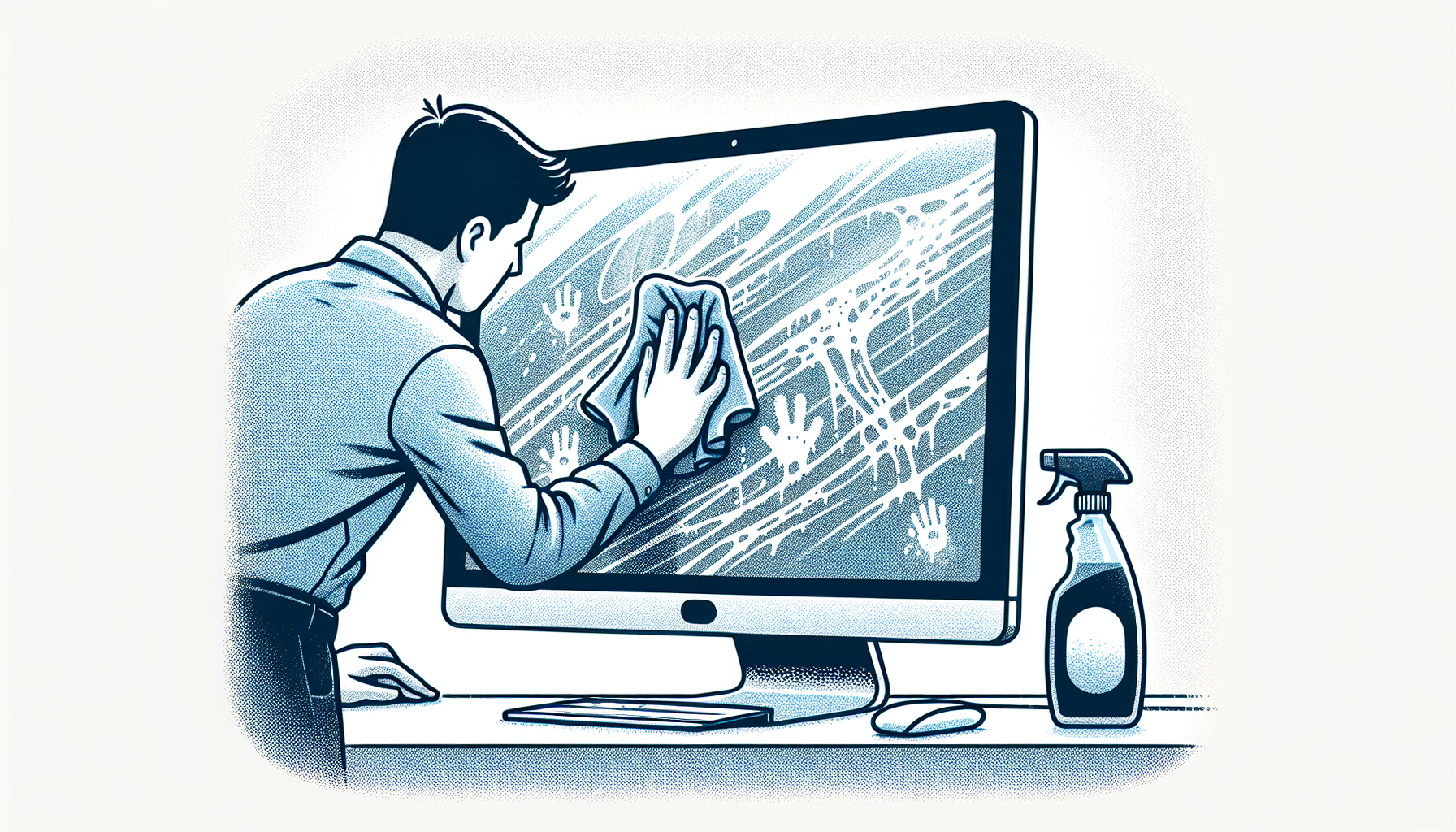
Importance of Maintaining Clean Computer Screens
Maintaining clean computer screens is essential in any office environment. It not only enhances the overall aesthetics but also plays a crucial role in ensuring optimal performance and productivity.
Benefits of Clean Computer Screens in the Office
Clean computer screens offer multiple benefits that contribute to a healthier work environment. Below are some key advantages:
| Benefit | Description |
|---|---|
| Improved Visibility | Clean screens provide clearer images and text, reducing eye strain and fatigue. |
| Enhanced Professionalism | A tidy workstation reflects professionalism and attention to detail, creating a positive impression on clients and visitors. |
| Reduced Spread of Germs | Regularly cleaning screens helps eliminate germs and bacteria, promoting a healthier workplace. |
Impact of Dirty Screens on Productivity
Dirty screens can significantly hinder productivity in the workplace. When screens are smudged or dusty, employees may struggle to see clearly, leading to decreased efficiency. Here are some specific impacts:
| Impact | Description |
|---|---|
| Eye Strain | Prolonged exposure to dirty screens can lead to discomfort and eye fatigue, affecting concentration. |
| Increased Errors | Difficulty in reading text or viewing images can result in mistakes and lower quality work. |
| Distraction | Visual clutter from dirt and smudges can distract employees, taking their focus away from tasks. |
For more information on the importance of maintaining a clean workspace, refer to our article on clean computer for faster performance. Keeping screens clean is a simple yet effective way to foster a more productive and healthy office environment.
Safe and Effective Cleaning Methods
Maintaining a clean computer screen is essential for optimal performance and a pleasant working environment. This section outlines the materials needed for cleaning and provides a step-by-step guide to ensure effective screen maintenance.
Materials Needed for Cleaning
To clean a dirty computer screen effectively, the following materials are recommended:
| Material | Purpose |
|---|---|
| Microfiber cloth | Gentle cleaning without scratching |
| Distilled water | Safe cleaning solution to avoid mineral deposits |
| Isopropyl alcohol (70% or less) | Disinfects and removes stubborn stains |
| Spray bottle | For mixing cleaning solutions |
| Soft brush or compressed air | For removing dust from hard-to-reach areas |
Using the right materials is crucial to prevent damage to the screen and achieve a clear view.
Step-by-Step Guide for Cleaning Computer Screens
Turn Off the Device
Always turn off the computer and unplug it from the power source before cleaning to avoid electric shock and damage to the device.Prepare the Cleaning Solution
Mix equal parts of distilled water and isopropyl alcohol in a spray bottle. This solution is effective for removing smudges and sanitizing the screen.Dampen the Microfiber Cloth
Lightly spray the cleaning solution onto the microfiber cloth. Do not spray directly onto the screen to prevent moisture from entering the device.Wipe the Screen
Gently wipe the screen in circular motions, applying light pressure. Start from the top and work your way down to avoid streaks. Use a dry part of the cloth to buff the screen if necessary.Clean the Edges and Frame
Use the soft brush or compressed air to remove dust from the edges and any vents or ports. This helps maintain overall cleanliness and prevents dust buildup.Allow the Screen to Dry
Let the screen air dry completely before turning the device back on. This ensures that any remaining moisture evaporates and does not cause damage.Regular Maintenance
Establish a routine for cleaning computer screens to prevent dirt accumulation. For more tips on keeping your equipment clean, refer to our article on perfect computer cleaning.
Following these steps will ensure that computer screens remain clean and clear, contributing to a productive work environment.
Dos and Don'ts of Cleaning Computer Screens
Maintaining a clean computer screen is essential for both aesthetics and functionality. Understanding the best practices and common pitfalls can help ensure effective cleaning without causing damage.
Best Practices for Screen Cleaning
Following the right procedures when cleaning screens can enhance their longevity and performance. Here are some essential dos:
| Dos | Description |
|---|---|
| Use a Microfiber Cloth | Microfiber cloths are gentle and effective for removing dust and smudges without scratching the screen. |
| Dampen the Cloth | Lightly dampen the cloth with water or a suitable cleaning solution before wiping the screen. Avoid applying liquid directly to the screen. |
| Wipe in Circular Motions | Use gentle circular motions to clean the screen, ensuring that dirt and grime are effectively lifted away. |
| Power Off the Device | Always turn off the computer before cleaning the screen. This reduces the risk of damage and allows for better visibility of dirt. |
For further insights on maintaining overall computer performance, consider reading about how to clean computer for faster performance.
Common Mistakes to Avoid
While cleaning, it's equally important to be aware of what not to do. Avoid these common mistakes:
| Don'ts | Description |
|---|---|
| Use Paper Towels | Paper towels can scratch the screen due to their rough texture. Stick to microfiber cloths instead. |
| Apply Harsh Chemicals | Avoid using strong cleaners such as ammonia or bleach, as they can damage the screen's protective coating. |
| Use Excessive Pressure | Pressing too hard can cause screen damage. A light touch is sufficient for effective cleaning. |
| Clean While Powered On | Cleaning a powered-on screen can lead to electrical issues or accidental activation of features. Always ensure the device is off. |
For more information on what cleaning methods to avoid, see our guide on computer cleaning donts.
By adhering to these dos and don'ts, IT managers and business owners in Australia can ensure that their computer screens remain in optimal condition, ultimately contributing to a more productive work environment.
Regular Maintenance Tips
Maintaining clean computer screens is essential for optimal performance and a professional appearance in the workplace. Establishing a regular cleaning routine and implementing preventative measures can significantly reduce the buildup of dirt and grime.
Establishing a Cleaning Routine
Creating a consistent cleaning schedule is vital for keeping computer screens in good condition. IT managers and business owners should consider the following recommendations for an effective routine:
| Frequency | Task |
|---|---|
| Daily | Wipe screens with a microfiber cloth to remove dust and fingerprints. |
| Weekly | Conduct a thorough cleaning using appropriate cleaning solutions and tools. |
| Monthly | Inspect screens for any damage and clean surrounding areas to prevent dust accumulation. |
Designating specific days for cleaning can help ensure that this task does not fall by the wayside. It is advisable to communicate this schedule to all staff members to promote accountability in maintaining a clean workspace.
Preventative Measures for Keeping Screens Clean
In addition to regular cleaning, taking preventative measures can help reduce the frequency of dirt buildup on computer screens. Here are some effective strategies:
- Positioning: Ensure screens are placed away from direct sunlight, as this can cause glare and attract dust.
- Environmental Controls: Maintain a clean office environment by reducing clutter and dust, which can settle on screens.
- User Habits: Encourage staff to use clean hands when operating computers and avoid eating near screens to prevent residue buildup.
- Screen Protectors: Consider using anti-glare or protective films on screens to shield them from dust and fingerprints.
Implementing these preventative measures can significantly enhance the longevity and clarity of computer screens. Moreover, for additional information on maintaining overall computer performance, refer to our article on clean computer for faster performance.


