


CPU Health Check: Comprehensive Guide to Diagnosing Processor Issues
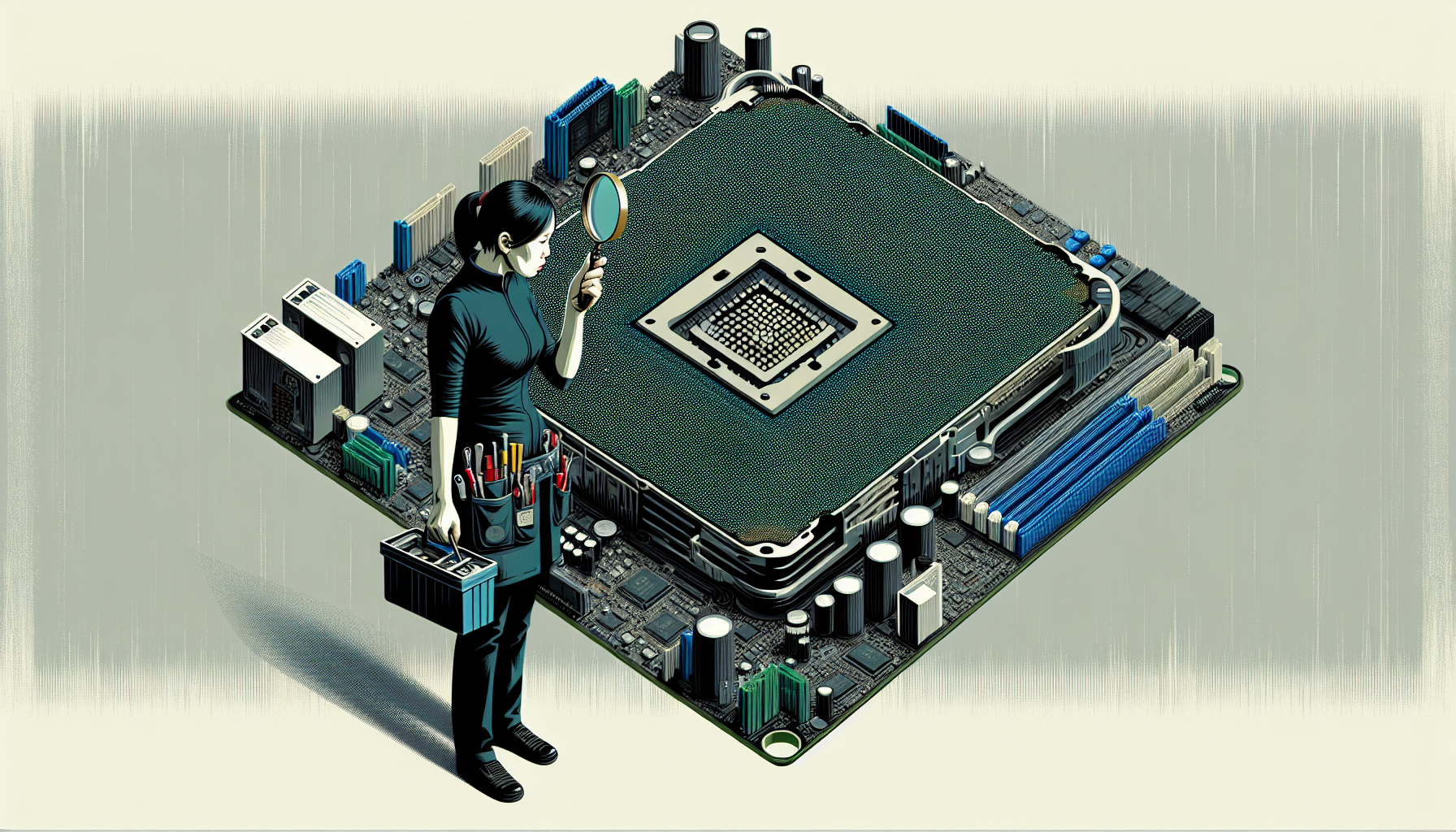
Diagnosing CPU Faults
Diagnosing faults in a CPU is essential for maintaining optimal computer performance. There are two primary methods for identifying CPU-related issues: using the Intel® Processor Diagnostic Tool and conducting a visual inspection.
Using Intel® Processor Diagnostic Tool
The Intel® Processor Diagnostic Tool (Intel® PDT) is a reliable software solution designed to test the functionality of Intel processors. This downloadable tool can be installed on a PC and conducts a series of diagnostic tests to evaluate the CPU's performance. Upon completion of these tests, the tool provides a clear PASS or FAIL status, helping IT managers and business owners determine the health of the processor effectively.
| Test Result | Description |
|---|---|
| PASS | The CPU is functioning correctly without issues. |
| FAIL | Indicates potential faults or failures in the CPU, requiring further investigation. |
Using this tool allows for a quick assessment of CPU health and can be a vital component in preventative maintenance strategies.
Visual Inspection for CPU Issues
A visual inspection is a fundamental step in diagnosing CPU faults. This method involves physically examining the CPU and its surrounding components for signs of damage or malfunction. Key aspects to check include:
- Bent Pins: When removing the CPU from the motherboard, it's critical to inspect the pins on the underside. Bent pins can disrupt the electrical connections and lead to performance problems.
- Capacitors: Inspect the capacitors on the motherboard for any signs of bulging or leaking. Faulty capacitors are a common cause of motherboard issues, which can indirectly affect CPU performance (Computer Hope).
| Inspection Item | Possible Issue |
|---|---|
| Bent Pins | May cause CPU malfunction or failure. |
| Bulging Capacitors | Can lead to motherboard failure and impact CPU performance. |
By integrating both the Intel® Processor Diagnostic Tool and visual inspection into the diagnostic process, IT managers and business owners can effectively identify and address potential CPU issues. This proactive approach not only enhances system reliability but also extends the overall lifespan of the hardware. For more information on common computer faults, visit our article on common computer faults.
High CPU Usage Troubleshooting
Impact of High CPU Usage
High CPU usage can lead to significant performance issues in a computer. When the CPU is overworked, users may experience long loading times, sluggish performance, and unexpected crashes. This can result in the computer becoming unresponsive or stuttering during operation. Abnormally high CPU usage can disrupt workflow and hinder productivity, especially in a business environment.
Common impacts of high CPU usage include:
| Impact | Description |
|---|---|
| Long Loading Times | Applications and files take longer to open. |
| Sluggish Performance | The system feels slow and unresponsive. |
| Crashes | Programs may crash unexpectedly, leading to potential data loss. |
| Stuttering | The computer may stutter during tasks, affecting user experience. |
For IT managers and business owners, it is essential to monitor CPU usage to maintain optimal performance and prevent disruptions.
Resolving High CPU Usage
To troubleshoot and resolve high CPU usage, several strategies can be employed. Here are effective methods:
Reboot the PC: Restarting the computer can clear temporary files and terminate long-running processes that may be causing high CPU usage (Intel).
Update Drivers: Keeping drivers updated, particularly graphics card drivers, can eliminate compatibility issues or bugs that lead to increased CPU usage. It is advisable to update drivers through the system settings instead of third-party software.
Scan for Malware: Malware can disguise itself as a legitimate Windows process, resulting in increased CPU usage. Running a full system scan with a reputable antivirus program can help detect and remove such threats.
Adjust Power Settings: Power settings can affect CPU speed, especially on laptops. Switching to a non-power saver plan can help return CPU usage to normal levels (Intel).
By implementing these solutions, IT professionals can effectively manage CPU performance, ensuring that systems remain responsive and efficient. For more detailed troubleshooting methods, refer to our articles on common computer faults and ways to troubleshoot computer.
Preventing CPU Failure
Understanding how to prevent CPU failure is crucial for maintaining the health of computer systems. By identifying the causes and signs of CPU failure, IT managers and business owners can implement effective strategies to mitigate risks.
Causes of CPU Failure
Several factors can contribute to CPU failure, including:
| Cause | Description |
|---|---|
| Heat | Excessive heat can lead to CPU damage. CPUs typically operate at temperatures between 86 and 122 °F, with anything over 158 °F posing risks. Poor cooling systems in low-quality laptops may exacerbate this issue. |
| Manufacturing Defects | Inherent flaws in the manufacturing process can result in CPUs that are more susceptible to failure. |
| Overclocking | Pushing a CPU beyond its designed specifications can lead to instability and potential failure. It is advised to avoid using a dual-core processor for tasks meant for more powerful processors (J-BIT TECH). |
| Voltage Spikes | Sudden increases in voltage can damage a CPU. Using a surge protector and battery backup can help prevent this. |
Signs of CPU Failure
Recognising the signs of a failing CPU can aid in early intervention. Common indicators include:
| Sign | Description |
|---|---|
| Failure to POST | The computer fails to complete the Power-On Self Test when turned on. |
| Operating System Issues | The OS fails to load while the fan runs at high speed, indicating potential CPU problems. |
| Immediate Shutdown | The system shuts down immediately after powering up, which may signal a CPU failure. |
| Screen Freezing | The operating system freezes unexpectedly, often linked to processor issues. |
| System Halt Errors | Errors indicating a processor issue during operation (J-BIT TECH). |
By monitoring these signs and being aware of potential causes, IT managers and business owners can take proactive measures to check CPU for faults and ensure that systems remain operational. Regular maintenance and prompt attention to issues can significantly reduce the risk of CPU failure. For more information on diagnosing computer faults, consider exploring common computer faults and causes of computer malfunction.
Advanced Computer Diagnostic Tools
In the realm of preventative maintenance, utilising advanced diagnostic tools can help IT managers and business owners effectively monitor and maintain their systems. This section discusses three essential tools: MemTest86+ for RAM testing, CrystalDiskInfo for hard drive testing, and HWiNFO for hardware monitoring.
MemTest86+ for RAM Testing
MemTest86+ is a robust application designed to test RAM on Windows systems. It is more advanced than Microsoft's Windows Memory Diagnostic tool. MemTest86+ supports a variety of RAM types and can be run from a USB flash drive or CD, making it highly versatile for diagnostics (MakeUseOf).
| Feature | Description |
|---|---|
| Type | RAM Testing |
| Boot Method | USB flash drive or CD |
| Interface | Graphical |
Using MemTest86+, IT professionals can identify memory errors that may lead to system instability. Regular testing helps in ensuring that RAM is functioning optimally, thus preventing potential failures, which can be a common cause of computer malfunction. For more information on identifying faulty components, visit our guide on common computer faults.
CrystalDiskInfo for Hard Drive Testing
CrystalDiskInfo is a specialised tool aimed at monitoring hard drives. It utilises the SMART (Self-Monitoring, Analysis, and Reporting Technology) test to provide crucial data about hard drive health. This includes metrics such as read error rates, reallocated sectors count, and spin-up time, among others.
| Feature | Description |
|---|---|
| Type | Hard Drive Testing |
| SMART Data | Yes |
| Additional Tools | Power and audio management |
By assessing these parameters, IT managers can preemptively address issues before they escalate into significant failures. Understanding hard drive health is critical for maintaining overall system performance and reliability. Learn more about resolving issues with our article on fix computer faults.
HWiNFO for Hardware Monitoring
HWiNFO is a comprehensive diagnostic tool that provides in-depth real-time reports and graphs regarding the hardware components of a computer. This includes monitoring the CPU, GPU, mainboards, drives, and peripherals. HWiNFO also offers system health monitoring features and allows for downloading add-ins to enhance functionality (MakeUseOf).
| Feature | Description |
|---|---|
| Type | Hardware Monitoring |
| Real-Time Reports | Yes |
| Add-ins | Available |
Using HWiNFO, IT professionals can keep track of system performance and spot any anomalies that may indicate underlying issues. This proactive approach is essential for maintaining system integrity and preventing failures. For further insights, check out our section on diagnose computer fault.
Employing these advanced diagnostic tools can significantly enhance the effectiveness of preventative maintenance strategies, ensuring smooth operation and minimising downtime for businesses.


