


Boost Your Gaming Performance: Top Gaming PC Maintenance Tips Unveiled
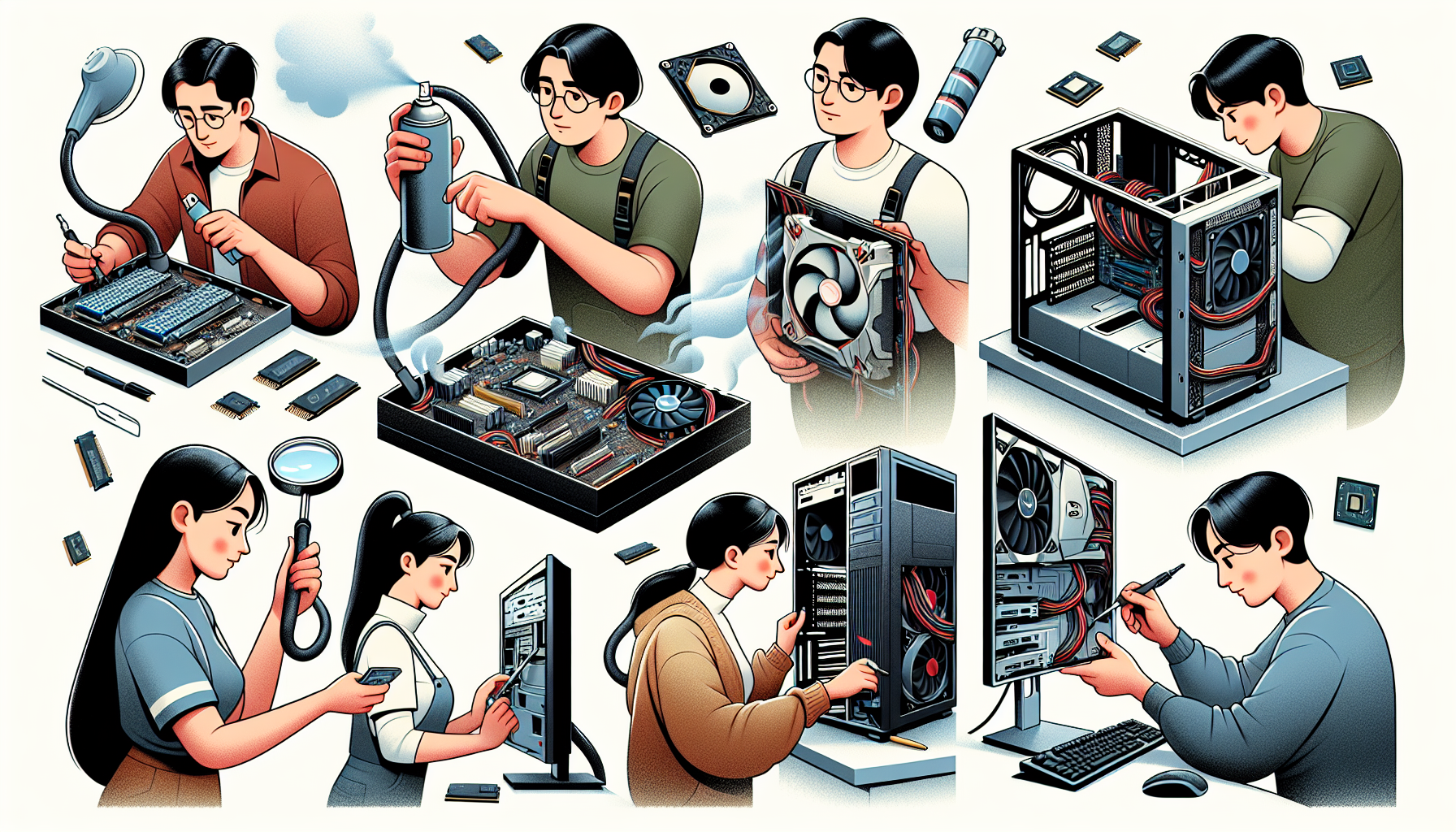
Importance of Gaming PC Maintenance
Regular maintenance of a gaming PC is essential for ensuring optimal performance and longevity. This section discusses why maintaining your gaming rig is crucial and how it impacts gaming performance.
Why Regular Maintenance is Crucial
Maintaining a gaming PC involves a variety of tasks, from cleaning dust out of the hardware to updating software. Regular maintenance is vital for several reasons:
- Longevity: Regular upkeep extends the life of the components, preventing premature wear and tear.
- Efficiency: Keeps the system running smoothly by eliminating potential bottlenecks.
- Security: Ensures the system is protected against malware and viruses.
- Cost-Effectiveness: Reduces the need for costly repairs and replacements.
Impact on Gaming Performance
Proper maintenance directly impacts the performance of a gaming PC, enhancing the overall gaming experience. Here’s how:
| Maintenance Task | Impact on Performance |
|---|---|
| Cleaning Dust | Prevents overheating, ensuring components run at optimal speeds. |
| Updating Drivers | Improves hardware compatibility and game performance. |
| Managing Background Processes | Frees up system resources, reducing lag and stutter. |
| Regular Defragmentation | Speeds up load times and overall system responsiveness. |
| Monitoring Temperature | Prevents thermal throttling which can slow down performance. |
For more in-depth tips on optimising system performance, you can visit our articles on managing background processes and defragmenting the hard drive.
By keeping a gaming PC well-maintained, users can enjoy a smoother and more reliable gaming experience. For those interested in building or upgrading their gaming setup, check out our guides on building your own gaming pc and best gaming pcs of 2024.
Basic Cleaning and Dust Removal
Maintaining a clean gaming PC is essential for optimal performance. Dust and debris can accumulate inside your system, leading to overheating and reduced efficiency. Regular cleaning keeps your gaming rig running smoothly and prolongs its lifespan.
Tools Needed for Cleaning
To effectively clean your gaming PC, you'll need a few essential tools. These items will help you safely remove dust and grime without damaging any components.
- Compressed air canister
- Microfiber cloth
- Soft brush
- Isopropyl alcohol (70% or higher)
- Anti-static wrist strap
- Small vacuum cleaner (optional)
Steps to Clean the Exterior and Interior
Cleaning both the exterior and interior of your gaming PC is crucial for maintaining its performance. Follow these steps to ensure a thorough clean.
Exterior Cleaning
- Power Down: Turn off your PC and unplug it from the power source.
- Use Compressed Air: Blow out dust from vents and ports using a compressed air canister.
- Wipe Down Surfaces: Use a microfiber cloth slightly dampened with isopropyl alcohol to wipe down the case and external components.
Interior Cleaning
- Open the Case: Carefully remove the side panel of your PC case.
- Wear an Anti-Static Wrist Strap: This prevents static electricity from damaging sensitive components.
- Remove Dust: Use compressed air to blow dust off internal components. Hold the canister upright to prevent any liquid from being expelled.
- Brush Away Debris: Use a soft brush to gently clean hard-to-reach areas.
- Vacuum (Optional): Use a small vacuum cleaner to remove loose dust, but avoid direct contact with components.
Cleaning the Keyboard and Mouse
Peripherals like the keyboard and mouse also require regular cleaning to ensure optimal performance and hygiene.
Keyboard Cleaning
- Unplug the Keyboard: Disconnect it from the PC.
- Shake Out Debris: Turn the keyboard upside down and gently shake out loose debris.
- Compressed Air: Use compressed air to blow out dust from between the keys.
- Wipe Down: Use a microfiber cloth dipped in isopropyl alcohol to clean the key surfaces.
Mouse Cleaning
- Unplug the Mouse: Disconnect it from the PC.
- Clean the Surface: Use a microfiber cloth with isopropyl alcohol to wipe down the surface and buttons.
- Clean the Sensor: Use a cotton swab dipped in isopropyl alcohol to clean the sensor on the underside of the mouse.
Regular cleaning and dust removal are vital components of gaming PC maintenance. By following these steps, you can ensure your system remains efficient and keeps performing at its best. For more tips on maintaining a high-performance gaming setup, visit our articles on gaming pc cooling solutions and building your own gaming pc.
Managing Software and Updates
Proper maintenance of a gaming PC involves not only physical cleaning but also managing software and updates. Keeping your system up-to-date ensures optimal performance and a smoother gaming experience.
Keeping Drivers and Software Updated
Drivers are essential software components that allow your hardware to communicate effectively with the operating system. Regular updates to drivers, especially graphics card drivers, can significantly improve gaming performance and stability. Outdated drivers may cause compatibility issues and degrade performance.
To keep drivers updated, users can:
- Check the device manager for outdated drivers.
- Visit the official website of the hardware manufacturer for the latest drivers.
- Use dedicated software to automatically update drivers.
Here's an example table showing the impact of updated vs. outdated drivers on gaming performance:
| Driver Status | Average FPS | Stability Issues |
|---|---|---|
| Updated | 60 | Low |
| Outdated | 45 | High |
For more information on essential components, visit our article on top graphics cards for gaming.
Importance of Regularly Updating the Operating System
Updating the operating system (OS) is crucial for maintaining security, stability, and performance. OS updates often include patches for vulnerabilities, performance improvements, and new features that can enhance the gaming experience.
To ensure the OS is up-to-date:
- Enable automatic updates in the system settings.
- Regularly check for updates manually through the settings menu.
- Install updates promptly to avoid security risks and performance issues.
Keeping the OS updated is especially important for those using high-end gaming PCs. More insights on premium systems can be found in our article on high-end gaming pcs.
Managing Game and Application Updates
Games and applications receive regular updates that include bug fixes, performance enhancements, and new content. Keeping these updated ensures the best possible experience and can prevent crashes and other issues.
To manage game and application updates:
- Enable automatic updates in game launchers and digital distribution platforms.
- Check for updates manually if automatic updates are disabled.
- Allocate sufficient storage space for downloading and installing updates.
Managing updates effectively is a key part of comprehensive gaming PC maintenance. It ensures that all software components work harmoniously, providing a seamless gaming experience. For those interested in customising their setups, our guide on building your own gaming pc offers valuable insights.
By actively managing software and updates, users can maintain their gaming PCs in top condition, ensuring longevity and consistent performance. For additional tips on maintaining your system, visit our article on gaming pc maintenance tips.
Optimising System Performance
Ensuring optimal performance of a gaming PC involves fine-tuning various settings and regularly maintaining the system. Here are some essential tips to keep your gaming rig running smoothly.
Adjusting In-Game Settings
Adjusting in-game settings can significantly impact your gaming experience and overall system performance. Here are some common settings to consider:
- Resolution: Lowering the resolution can improve frame rates.
- Texture Quality: Reducing texture quality can free up GPU resources.
- Anti-Aliasing: Disabling or lowering anti-aliasing can boost performance.
- Shadow Quality: Lowering shadow quality can reduce the load on the GPU.
| Setting | High Performance Impact | Medium Performance Impact | Low Performance Impact |
|---|---|---|---|
| Resolution | Yes | - | - |
| Texture Quality | Yes | - | - |
| Anti-Aliasing | Yes | Yes | - |
| Shadow Quality | Yes | Yes | - |
For more tips on optimising your gaming experience, check out our article on top graphics cards for gaming.
Managing Background Processes
Background processes can consume valuable system resources, affecting gameplay. To manage these processes effectively:
- Task Manager: Use Task Manager to close unnecessary applications.
- Start-Up Programs: Disable non-essential start-up programs.
- Background Apps: Turn off background apps that are not needed during gaming.
Steps to access Task Manager:
- Press
Ctrl + Shift + Esc. - Navigate to the
Processestab. - End tasks that are consuming high resources but are not essential.
For more information on enhancing system performance, read our guide on overclocking guide for gaming pcs.
Regularly Defragmenting the Hard Drive
Defragmenting the hard drive can improve read/write speeds by organising fragmented data. This process is particularly beneficial for HDDs.
Steps to defragment the hard drive:
- Open
File Explorer. - Right-click on the drive to be defragmented.
- Select
Properties. - Navigate to the
Toolstab. - Click on
OptimizeunderOptimize and defragment drive.
| Drive Type | Frequency of Defragmentation |
|---|---|
| HDD | Monthly |
| SSD | Not required |
For more comprehensive maintenance tips, explore our article on gaming pc maintenance tips.
By following these steps, gamers can ensure their systems are running at peak performance, providing a smoother and more immersive gaming experience. For additional insights and setup ideas, visit our page on gaming pc setup ideas.
Monitoring and Managing Temperature
Effective temperature management is crucial for maintaining optimal performance and longevity of your gaming PC. Overheating can lead to hardware damage and reduced gaming efficiency.
Importance of Temperature Control
Temperature control is vital for several reasons. High temperatures can cause thermal throttling, reducing the performance of the CPU and GPU. Prolonged exposure to excessive heat can also shorten the lifespan of components, leading to potential failures and costly replacements. Ensuring your gaming PC operates within safe temperature ranges is essential for consistent performance and reliability.
Tips for Improving Airflow
Improving airflow within your gaming PC case is a key aspect of temperature management. Here are some effective tips:
- Cable Management: Properly organizing and securing cables can prevent airflow obstructions.
- Case Fans: Installing additional case fans can enhance air circulation.
- Dust Filters: Regularly clean or replace dust filters to prevent dust buildup.
- Component Spacing: Ensure there is adequate space between components for better airflow.
- Positive Air Pressure: Aim for a slight positive air pressure inside the case by having more intake than exhaust fans.
Using Software to Monitor Temperatures
Using software tools to monitor your gaming PC's temperatures can help you keep track of your system's thermal status. These tools provide real-time temperature readings of critical components such as the CPU and GPU. Monitoring software can also alert you to any temperature spikes, allowing you to take immediate action.
| Component | Safe Temperature Range (°C) |
|---|---|
| CPU | 45 - 70 |
| GPU | 60 - 85 |
| Motherboard | 20 - 50 |
| Hard Drive | 30 - 40 |
Regularly check temperature readings and adjust cooling solutions as needed. For more detailed guidance on cooling, visit our article on gaming pc cooling solutions.
By implementing these temperature management strategies, you can ensure that your gaming PC remains in peak condition, delivering the best performance for all your gaming needs. For additional insights on optimising your gaming setup, explore our article on gaming pc setup ideas.
Ensuring Proper Power Supply
A reliable power supply is essential for maintaining the performance and longevity of your gaming PC. Here are some crucial aspects to consider.
Checking Power Supply Efficiency
The efficiency of a power supply unit (PSU) directly impacts the overall performance and energy consumption of a gaming PC. An efficient PSU converts more of the power it draws from the outlet into usable energy for the computer, reducing waste heat and energy costs. Efficiency ratings are typically indicated by the 80 Plus certification, which reflects the percentage of power converted effectively.
| 80 Plus Certification | Efficiency at 20% Load | Efficiency at 50% Load | Efficiency at 100% Load |
|---|---|---|---|
| Standard | 80% | 80% | 80% |
| Bronze | 82% | 85% | 82% |
| Silver | 85% | 88% | 85% |
| Gold | 87% | 90% | 87% |
| Platinum | 90% | 92% | 89% |
| Titanium | 90% | 94% | 90% |
Regularly check the efficiency of your PSU to ensure it meets your gaming PC's power requirements. For those interested in high-end gaming PCs, a higher-efficiency PSU is recommended to support demanding components and overclocking.
Importance of a Stable Power Source
A stable power source is critical for the smooth operation of a gaming PC. Power fluctuations, surges, and outages can cause hardware damage, data loss, and system instability. Ensuring that your gaming setup is connected to a stable and reliable power source can prevent these issues.
Consider using a surge protector to shield your PC from sudden spikes in voltage. For more advanced gaming setups, especially those involving VR-ready gaming PCs or top graphics cards for gaming, a stable power source is indispensable.
Using an Uninterruptible Power Supply (UPS)
An Uninterruptible Power Supply (UPS) is a device that provides backup power to your gaming PC in the event of a power outage. A UPS can be invaluable for preventing data loss and protecting your hardware during unexpected power failures.
The UPS also conditions the power, ensuring a consistent voltage level and protecting against brownouts and surges. When selecting a UPS, consider the power requirements of your gaming PC and peripherals such as monitors and external drives. For those who frequently engage in competitive gaming or use gaming desktops vs. gaming laptops, a UPS can provide peace of mind and uninterrupted gameplay.
| UPS Features | Benefits |
|---|---|
| Battery Backup | Provides power during outages |
| Voltage Regulation | Maintains stable voltage levels |
| Surge Protection | Protects against power surges |
Ensuring a proper power supply is a key component of gaming PC maintenance tips. By checking power supply efficiency, ensuring a stable power source, and using a UPS, gamers can protect their systems and enhance gaming performance.
Backing Up and Protecting Data
Regularly backing up and protecting data is critical for maintaining the performance and security of a gaming PC. Let's explore the importance of backups, different methods for backing up data, and strategies for protecting your system against malware and viruses.
Importance of Regular Backups
Regular backups ensure that your valuable game saves, settings, and other important data are safe in case of hardware failure, software corruption, or accidental deletion. Losing game progress can be frustrating, but with regular backups, you can easily restore your data and continue where you left off.
| Backup Frequency | Benefit |
|---|---|
| Daily | Minimal data loss, ideal for active gamers |
| Weekly | Balanced approach, suitable for moderate use |
| Monthly | Less frequent, but still protects against major data loss |
Different Backup Methods
There are several methods available for backing up your data, each with its own advantages. Here are a few common options:
- External Hard Drives: Portable and easy to use. Simply connect the drive to your PC and copy the necessary files.
- Cloud Storage: Services like Google Drive, Dropbox, and OneDrive offer online storage, allowing you to access your backups from anywhere.
- Network Attached Storage (NAS): Provides a centralised backup solution for multiple devices within a home network.
| Backup Method | Pros | Cons |
|---|---|---|
| External Hard Drives | Easy to use, portable | Susceptible to physical damage |
| Cloud Storage | Accessible anywhere, automatic backups | Requires internet, potential storage costs |
| NAS | Centralised, multi-device support | Initial setup complexity, cost |
Protecting Against Malware and Viruses
Protecting your gaming PC from malware and viruses is essential to ensure smooth performance and secure data. Here are some tips to keep your system safe:
- Install Antivirus Software: Use reputable antivirus software to detect and eliminate threats.
- Regular Scans: Schedule regular scans to identify and remove any malicious software.
- Update Security Patches: Keep your operating system and software updated to protect against vulnerabilities.
- Avoid Suspicious Links and Downloads: Be cautious when clicking on links or downloading files from unknown sources.
For more information on maintaining and protecting your gaming PC, explore our articles on gaming desktops vs. gaming laptops and gaming pc cooling solutions.


