


Boost Your Business: How to Clean Up Your Computer for Maximum Speed
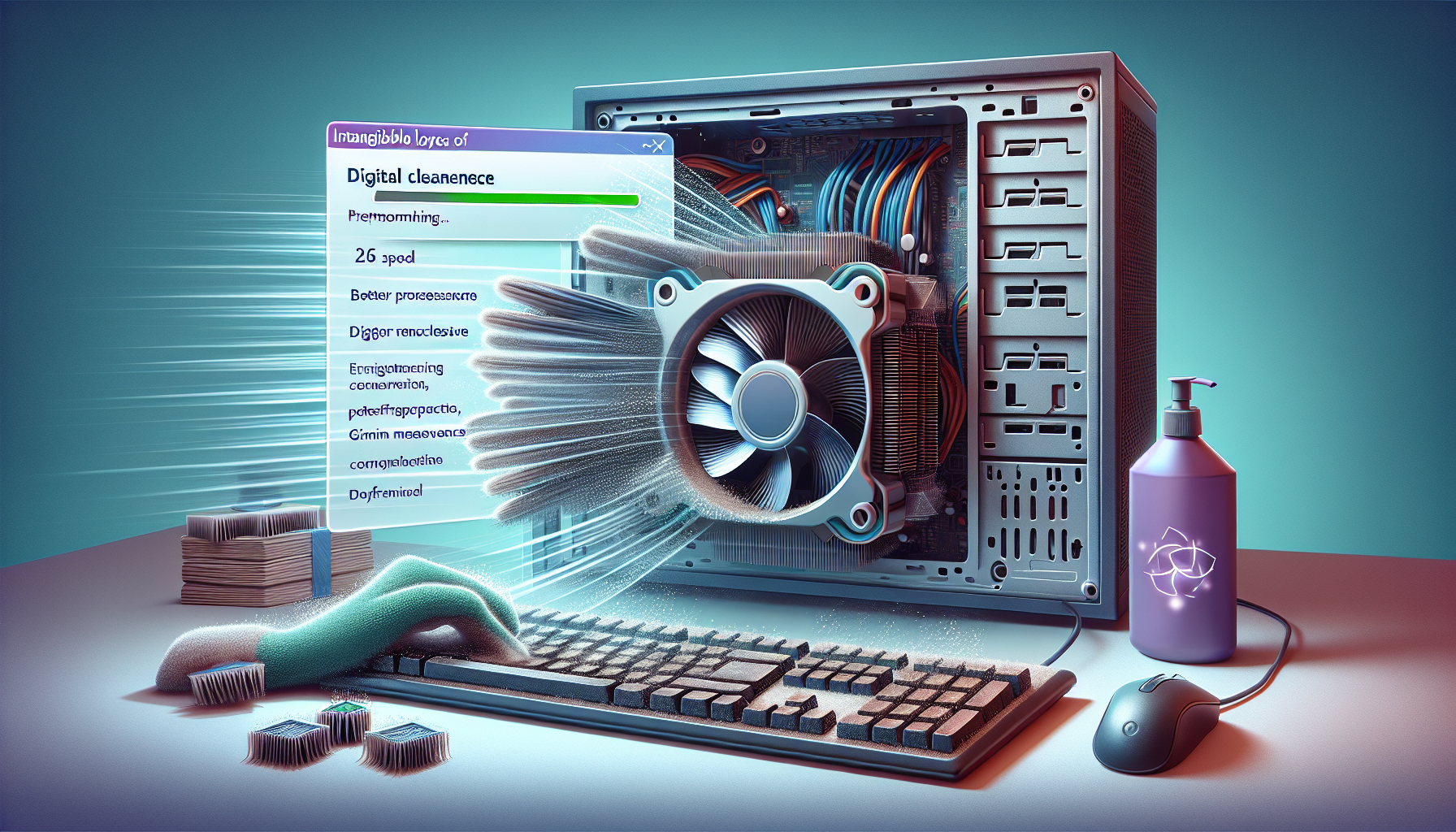
Maintaining Business Computers
Importance of Computer Maintenance in Business
Regular maintenance of business computers is essential for ensuring optimal performance and longevity. Neglecting maintenance can lead to various issues, including slow performance, software malfunctions, and even data loss. For IT managers and business owners, understanding the significance of a well-maintained system is crucial for maintaining productivity and efficiency.
Maintaining computers helps in identifying potential problems before they escalate, thereby saving time and money in repairs. A clean and well-functioning computer system allows employees to work efficiently, which directly impacts the overall productivity of the business. For more insights on why computers may slow down, refer to our article on identify computer slowdown causes.
Benefits of a Clean Computer System
A clean computer system offers numerous advantages that contribute to better performance. Here are some key benefits:
| Benefit | Description |
|---|---|
| Improved Speed | Regular cleaning helps eliminate unnecessary files and programs, leading to faster performance. See more on the pc cleaning performance impact. |
| Enhanced Security | Keeping the system clean reduces vulnerabilities to malware and security threats. Implementing regular updates and cleaning can bolster security measures. |
| Increased Lifespan | A clean computer tends to last longer as it prevents overheating and hardware damage caused by dust and clutter. For tips on maintaining hardware, check out our guide on clean computer hardware guide. |
| Better User Experience | A clutter-free system results in a more enjoyable user experience, allowing for easier navigation and faster access to files. |
To achieve a clean computer for faster performance, it is essential to incorporate routine maintenance practices. Regularly deleting junk files, managing software installations, and performing system updates can significantly enhance the overall functionality of business computers. For effective cleaning methods, consider exploring free computer cleaning methods.
Strategies for Cleaning Your Computer
Cleaning a computer is essential for maintaining optimal performance. Implementing effective strategies can lead to a clean computer for faster performance. Here are key methods to consider.
Organizing Files and Folders
Organising files and folders is a fundamental step in maintaining a clean computer. A well-structured filing system not only makes it easier to locate documents but also enhances system efficiency.
| Organisational Strategy | Description |
|---|---|
| Create Main Folders | Establish main categories, such as Work, Personal, and Projects. |
| Use Subfolders | Organise projects or topics within main folders for better accessibility. |
| Regularly Review | Set a schedule to review and declutter files, removing outdated documents. |
Implementing a clear structure helps in reducing clutter and improving productivity. For further insights, refer to our article on identify computer slowdown causes.
Deleting Unnecessary Programs and Files
Deleting unnecessary software and files can significantly free up storage space and improve speed. Many users accumulate programs that are no longer in use.
| Action | Impact |
|---|---|
| Uninstall Unused Programs | Frees up system resources and storage. |
| Remove Duplicate Files | Reclaims storage space and minimizes confusion. |
| Delete Old Downloads | Regularly clean the downloads folder to maintain order. |
Regularly evaluating installed programs ensures that the computer runs smoothly. For more on the impact of cleaning on performance, explore our article on pc cleaning performance impact.
Cleaning Up Temporary Files and Cache
Temporary files and cache can accumulate over time, slowing down system performance. Regularly clearing these files is crucial for maintaining speed.
| Type of Temporary File | Description |
|---|---|
| Browser Cache | Files stored by web browsers to speed up loading; should be cleared periodically. |
| System Temp Files | Created by applications during installation or updates; typically safe to delete. |
| Prefetch Files | Windows creates these files to speed up launching programs; can be cleaned regularly. |
Utilising tools like Disk Cleanup can automate this process. For detailed steps on running disk cleanup, refer to our article on run disk cleanup. Addressing temporary files and cache not only enhances performance but also contributes to overall system health. For insights on the relationship between temp files and speed, see temp files and computer speed.
Optimizing System Performance
To ensure a clean computer for faster performance, it is vital to regularly optimise system performance. This involves updating software and drivers, managing startup programs, and running disk cleanup and defragmentation.
Updating Software and Drivers
Keeping software and drivers up to date is essential for maintaining system performance. Updates often include important security patches, bug fixes, and performance enhancements that can significantly improve the overall functionality of the computer.
| Component Type | Frequency of Update |
|---|---|
| Operating System | Monthly |
| Software Applications | As needed or bi-monthly |
| Device Drivers | Every few months or as issues arise |
Regularly checking for updates can prevent potential slowdowns and vulnerabilities. For guidance on fixing slow computers, refer to our article on fix slow freezing computer.
Managing Startup Programs
Many applications run automatically when the computer starts, which can slow down the boot process and overall system performance. Managing these startup programs is crucial for a quick and efficient system.
| Startup Impact | Description |
|---|---|
| High | Programs that significantly delay startup time |
| Medium | Programs that have a moderate impact on startup time |
| Low | Programs that have minimal impact on startup time |
Disabling unnecessary startup programs can enhance boot times and free up system resources. For more insights on optimising computer speed, check out optimize computer speed.
Running Disk Cleanup and Defragmentation
Disk cleanup and defragmentation are essential processes for maintaining optimal performance. Disk cleanup removes temporary files, system cache, and other unnecessary data that can clutter the hard drive. Defragmentation reorganises fragmented data on the hard drive, allowing for faster access and improved efficiency.
| Task | Frequency |
|---|---|
| Disk Cleanup | Monthly |
| Defragmentation | Every 3 to 6 months (HDD) |
Running these processes regularly can have a significant impact on system speed. For detailed information on the effectiveness of disk cleanup, see our article on disk cleanup effectiveness.
By focusing on these optimisation strategies, IT managers and business owners can ensure their systems run smoothly and efficiently, resulting in improved productivity and performance.
Best Practices for Ongoing Maintenance
Maintaining a clean computer for faster performance requires continuous attention to various aspects of system upkeep. Implementing best practices for ongoing maintenance will help IT managers and business owners ensure their systems run smoothly and efficiently.
Regular Backups and Data Protection
Regular backups are vital for data security. A comprehensive backup strategy protects against data loss due to hardware failures, malware attacks, or accidental deletions. IT managers should establish a routine for backing up critical data, ideally using both local and cloud solutions.
| Backup Frequency | Recommended Method |
|---|---|
| Daily | Incremental backups for active projects |
| Weekly | Full backups for all data |
| Monthly | System image backups |
Utilising cloud storage solutions can provide an additional layer of security. For more on effective data protection strategies, refer to our article on identify computer slowdown causes.
Implementing Security Measures
Cybersecurity measures are essential for protecting business data. Implementing firewalls, antivirus software, and regular system updates can help mitigate risks.
| Security Measure | Purpose |
|---|---|
| Firewalls | Protect against unauthorized access |
| Antivirus Software | Detect and remove malware |
| Regular Updates | Patch vulnerabilities and improve performance |
Training employees on safe browsing habits and phishing awareness is also crucial in maintaining security. For more information on how to enhance your system’s security, see our article on pc cleaning performance impact.
Monitoring System Performance and Health
Continuously monitoring system performance is key to identifying potential issues before they escalate. Regular checks on system speed, storage capacity, and hardware health can help ensure optimal functionality.
| Performance Metric | Monitoring Tool |
|---|---|
| CPU Usage | Task Manager or Performance Monitor |
| Disk Space | Disk Cleanup Tools |
| Memory Usage | Resource Monitor |
Utilising software that tracks system health can provide insights into when maintenance is needed. For further details on improving computer speed and performance, consult our articles on optimize computer speed and run disk cleanup.
By following these ongoing maintenance practices, business owners and IT managers can keep their systems running efficiently, minimising downtime and maximising productivity.


